Join a workspace
Este conteúdo não está disponível em sua língua ainda.
You were invited to an Entergram workspace. This walks through joining from the link, start to finish. You’ll end up inside the workspace with a seat assigned to you.
-
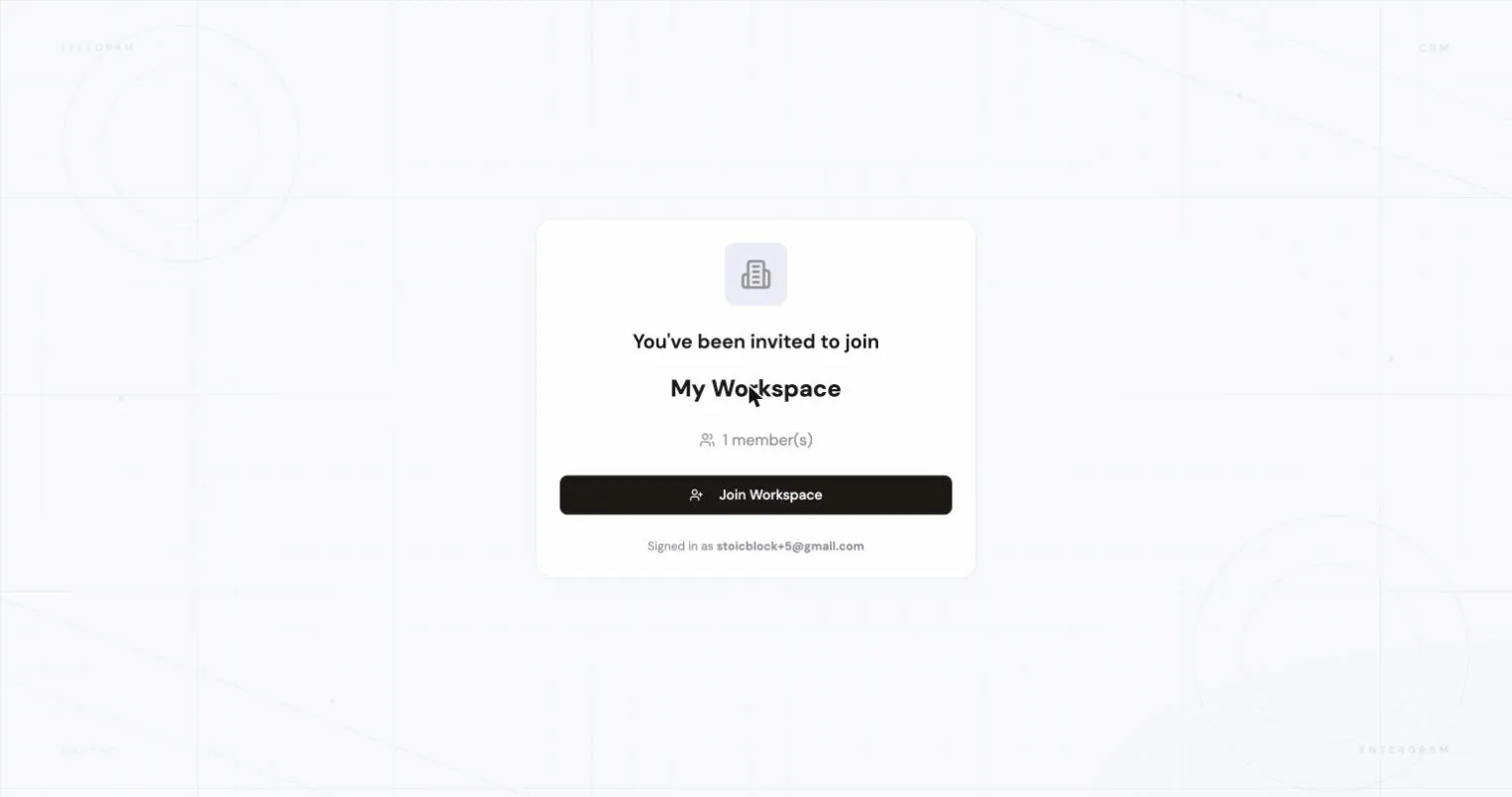
Open the invite link your admin sent you. You land on a page that names the workspace and shows how many members it has. Click Join Workspace.
-
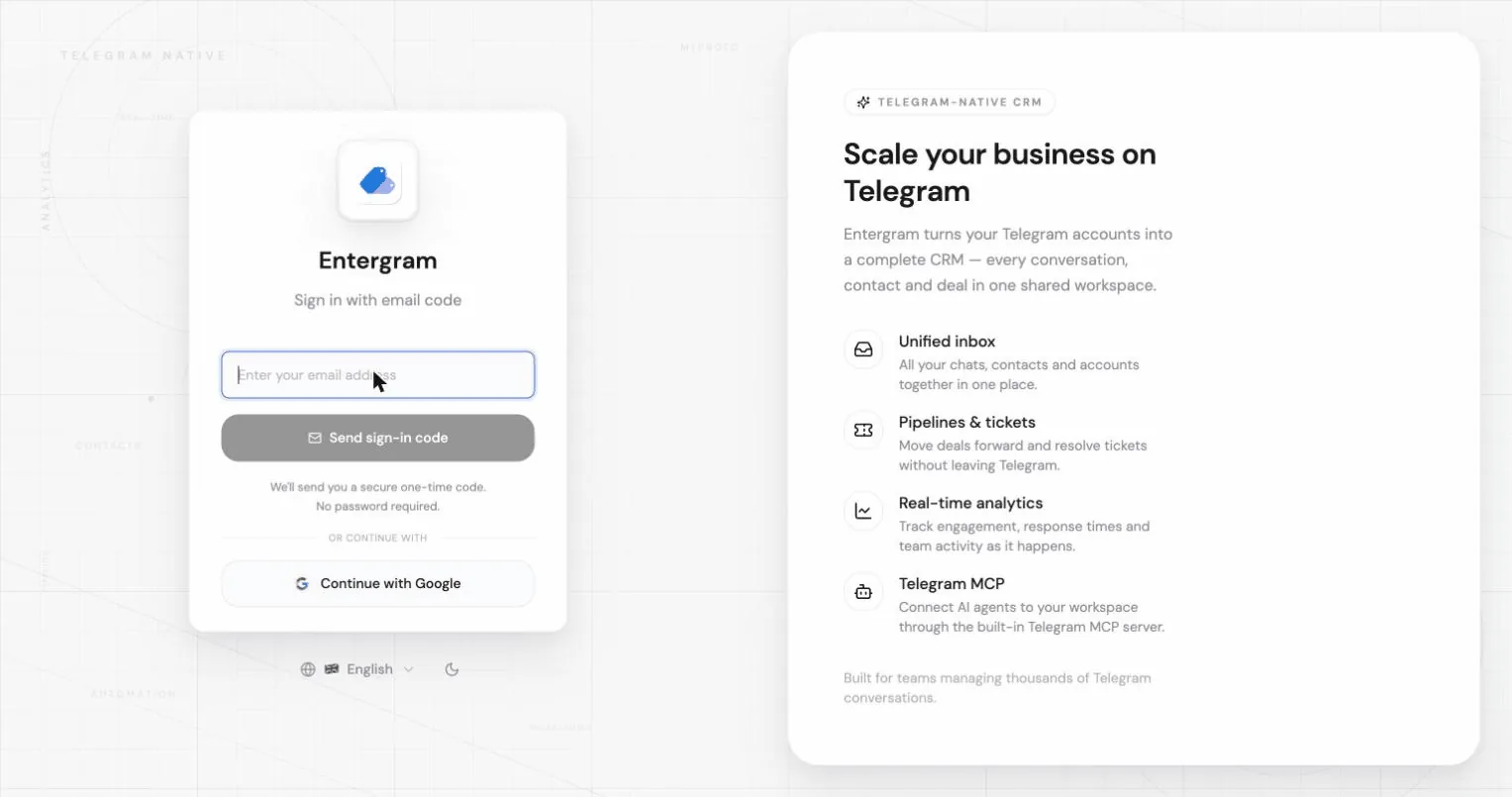
Sign in first if you’re not already. If you’re signed out, Entergram saves the invite, sends you to the login screen, then picks the invite back up automatically.
-
You’re in. Entergram validates the invite and adds you, and the workspace appears in the sidebar switcher.
What happens behind the scenes
Section titled “What happens behind the scenes”- A workspace owner/admin shares a link.
- If you aren’t signed in, Entergram stores the invite token in a cookie and redirects you to login.
- After sign-in, Entergram automatically calls the join endpoint.
- Validation runs — token valid, email matches if the invite was scoped, seat available.
- On success you’re added to the workspace.
For the admin who sends the invite
Section titled “For the admin who sends the invite”If you’re the one inviting people rather than joining, the full flow is in Invite members & manage seats. In short:
-
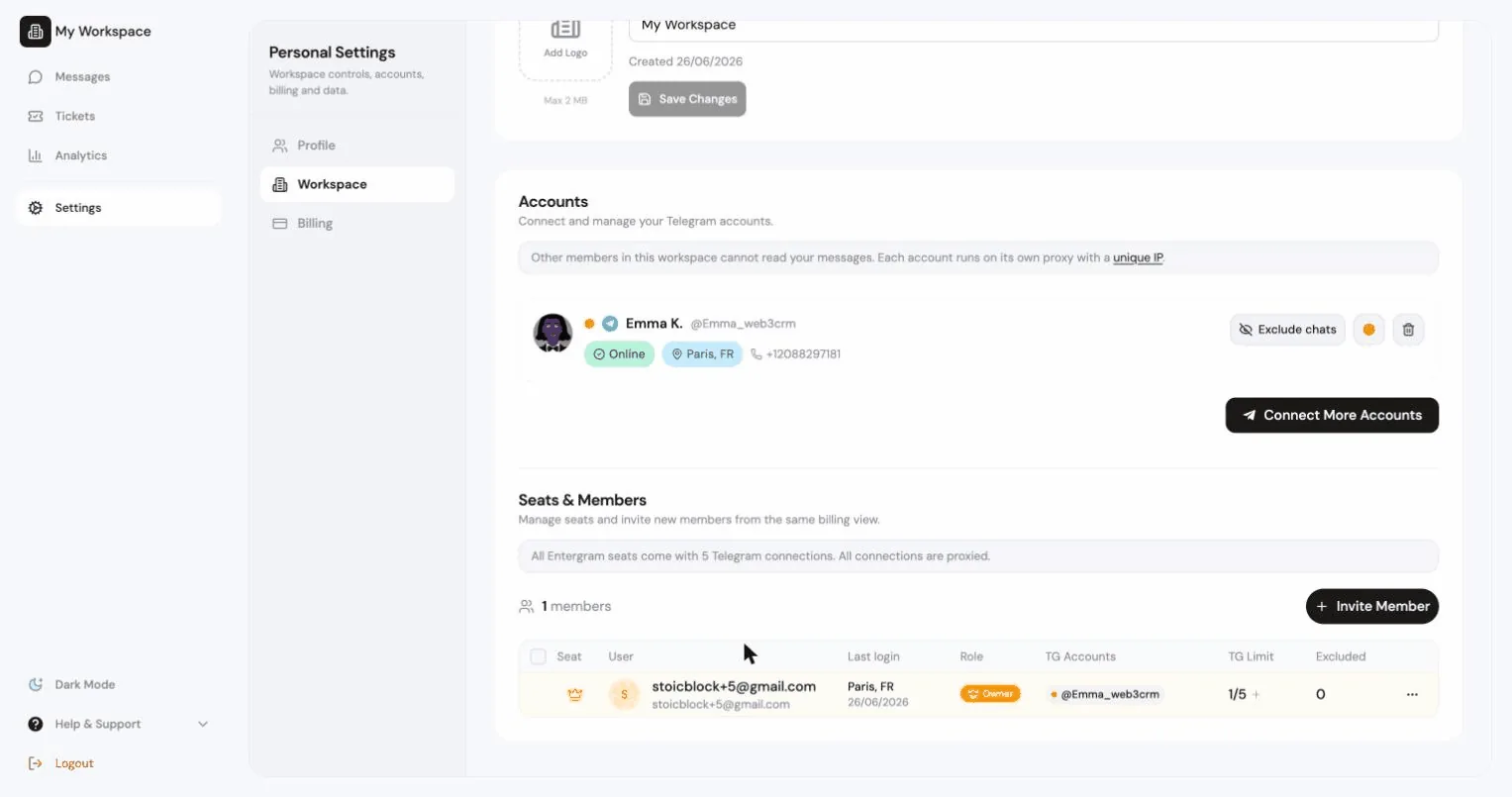
Open Settings → Workspace. Each seat in the Seats & Members table shows as Filled, Pending, Available, or Expired.
-
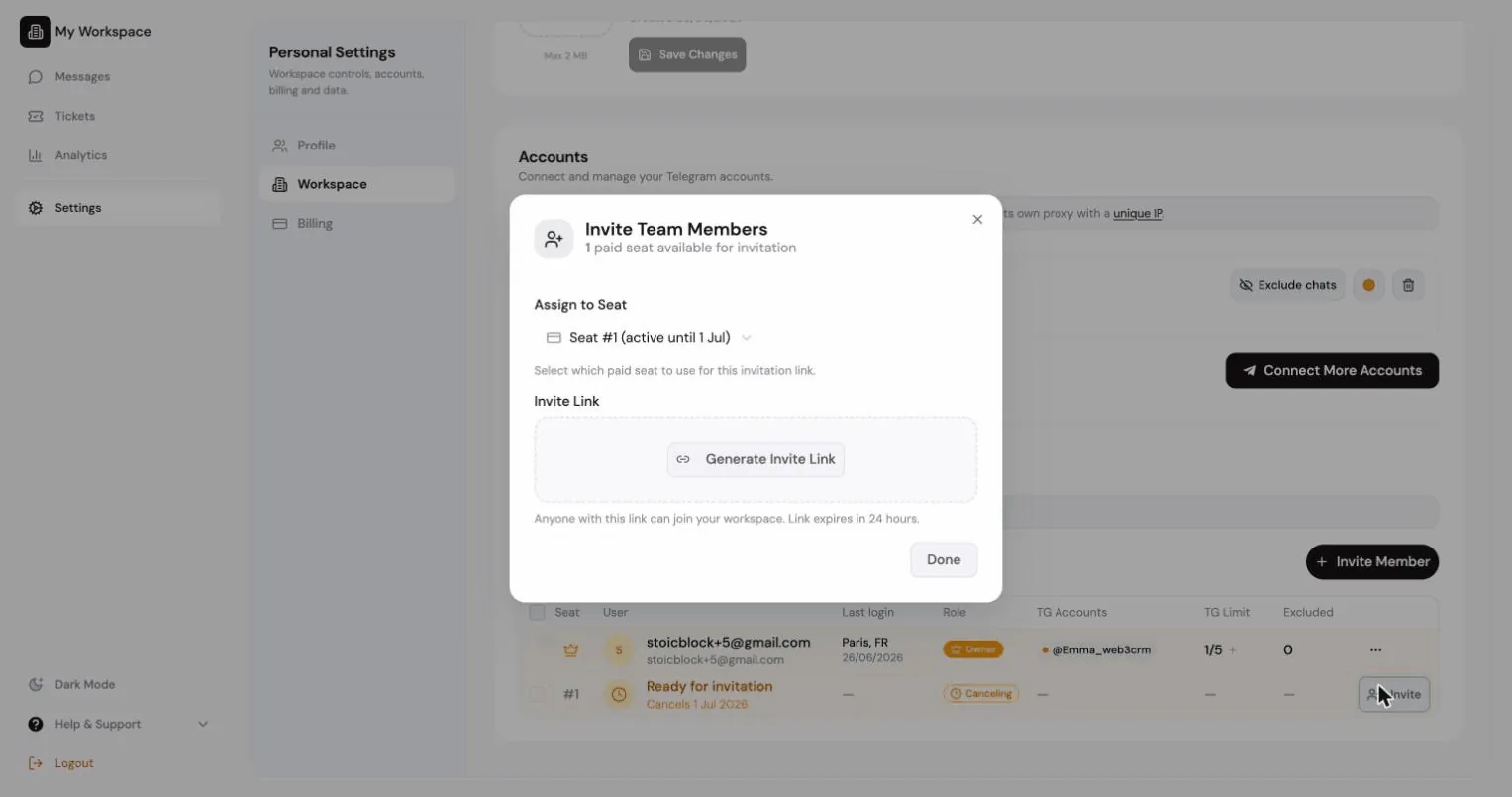
Click Invite on an available seat, Generate Invite Link, and share it. The link lets anyone join that seat and expires in 24 hours.
Troubleshooting
Section titled “Troubleshooting”- “No seats available” — ask the owner to buy or free up a seat, then use the link again.
- “Invite was for a different email” — the invite was scoped to a specific address; sign in with that exact email, or ask for a new link.
- “Link expired / already used” — invite links are one-time and can be revoked; request a fresh one from your admin.
- “You’re already in a workspace” — a user belongs to one workspace at a time; leave the current one first (see Invite members & manage seats → leave requests).