Write, format, and send Telegram messages
Deze inhoud is nog niet vertaald.
Everything you send from Entergram goes out from your own Telegram account. Recipients see an ordinary message.
The composer
Section titled “The composer”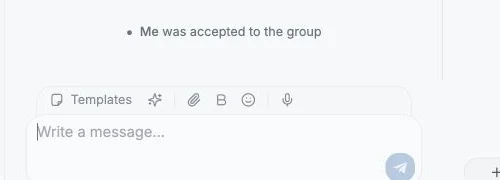
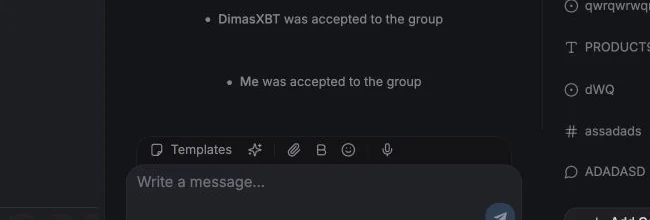
Type in the input at the bottom of the Chat tab (“Write a message…”).
- Formatting toolbar - bold, italic, underline, strikethrough, code and links. The shorthand is
**bold**·_italic_·<u>underline</u>·~~strike~~·`code`. - Emoji picker with search, including custom emoji.
- Attachments - images, video, audio, documents and voice. Add a caption with “Add a caption (optional)…”.
- Templates - insert a saved reply, or type its
/command. See Templates. - AI actions - Draft reply, Short reply, Casual reply, Rewrite. See the AI tab in The chat panel.
- Selection format bar - select text to pop up a floating format bar.
- Mentions - type
@in a group chat to auto-complete member names. - Adding files - click the paperclip or drag files into the chat, up to 10 attachments per message. Each file shows as a chip you can remove before sending.
- Drafts - an unsent message is kept per chat, so switching to another chat doesn’t lose it.
If a message fails you’ll see Failed to send with Retry sending, Dismiss and Remove message.
Keyboard shortcuts
Section titled “Keyboard shortcuts”The composer follows Telegram’s keyboard conventions. Hover any button in the formatting toolbar to see its shortcut.
| Action | macOS | Windows / Linux |
|---|---|---|
| Bold | ⌘B | Ctrl+B |
| Italic | ⌘I | Ctrl+I |
| Underline | ⌘⇧U | Ctrl+Shift+U |
| Strikethrough | ⌘⇧X | Ctrl+Shift+X |
| Monospace | ⌘⇧M | Ctrl+Shift+M |
| Add link | ⌘U or ⌘K | Ctrl+U or Ctrl+K |
| Send | Enter | Enter |
| New line | ⇧Enter | Shift+Enter |
| Edit your last message | ↑ (with an empty composer) | ↑ (with an empty composer) |
| Cancel editing | Esc | Esc |
Message actions
Section titled “Message actions”Hover or right-click a message:
| Action | Notes |
|---|---|
| Reply | Standard Telegram reply |
| Quote / Quote selected text | Quote just the part you highlighted |
| Create ticket | Opens the ticket panel with this message as the Source Message |
| Forward | See below |
| Pin / Unpin | Requires rights in the chat |
| Add reaction | Emoji reactions, including custom ones |
| Copy text | |
| Edit | Telegram’s own edit window applies |
| Delete | Confirmation dialog; may be restricted, see below |
| Show original / Show translation | When incoming translation is on |
Editing and deleting can be locked
Section titled “Editing and deleting can be locked”The workspace owner can turn off Members can edit and delete messages. When that’s off, seat members cannot edit or delete Telegram messages; owners and admins keep access. See Permissions & privacy settings.
Forwarding
Section titled “Forwarding”Select one or more messages and choose Forward.
In the forward dialog you can:
- search all chats for a destination (type at least 2 characters, or a number),
- select or deselect individual media items (Keep one, Select all),
- add a message alongside the forward,
- toggle Hide sender - forward without showing the original sender,
- toggle Hide captions, remove captions from forwarded media.
A preview shows exactly what will land.
Starting a new conversation
Section titled “Starting a new conversation”New in the toolbar opens “New Telegram conversation”. Pick the Account to use, then one of three modes:
| Mode | What you do |
|---|---|
| Chat | Search people (by username, name, or phone number) and Open a 1:1 chat |
| Group | Give it a Title and Description, pick members, Create |
| Channel | Same as Group, but creates a broadcast channel |
If a phone number has no Telegram user you’ll see “No Telegram user was found for this phone number.” When creating a group, some users may not be invitable due to their privacy settings, Entergram tells you how many could not be invited.
Images, video, audio, voice messages, stickers (including animated), GIFs, polls, contacts, locations, invoices and generic files all render inline. In the media viewer you can zoom, rotate, copy the image, download, forward, and step between images.
Voice and read state
Section titled “Voice and read state”- Voice messages play inline.
- The Delivery column shows Delivered / Seen for your last outgoing message where Telegram provides reliable read state.
- Mark selected chats as read is available from the selection toolbar.
Message attribution (shared accounts)
Section titled “Message attribution (shared accounts)”If several teammates share one Telegram account, turn on Show “Sent by” badges on messages in workspace settings. Outgoing messages then carry a badge with the name of the workspace member who sent them, and the Last Message Agent column shows the same attribution in the table.
This setting is marked Experimental.
Cookievoorkeuren
We respecteren je recht op privacy. Kies welke cookies je toestaat, je keuze geldt op de hele site. Cookiebeleid
Nodig om de site te laten werken, inclusief het onthouden van je privacykeuzes. Altijd aan.
Helpen ons het sitegebruik te begrijpen en aanmeldingen toe te schrijven aan referralpartners. Optioneel.