Write, format, and send Telegram messages
Everything you send from Entergram goes out from your own Telegram account. Recipients see an ordinary message.
The composer
Section titled “The composer”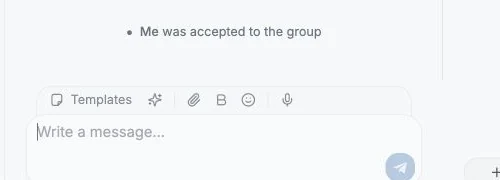
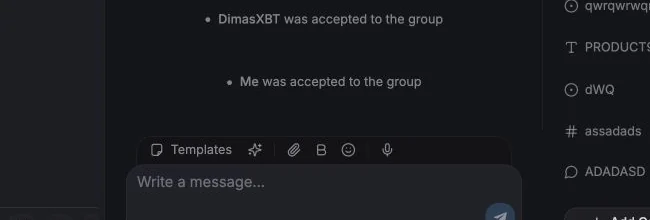
Type in the input at the bottom of the Chat tab (“Write a message…”).
- Formatting toolbar - bold, italic, underline, strikethrough, code and links. The shorthand is
**bold**·_italic_·<u>underline</u>·~~strike~~·`code`. - Emoji picker with search, including custom emoji.
- Attachments - images, video, audio, documents and voice. Add a caption with “Add a caption (optional)…”.
- Templates - insert a saved reply, or type its
/command. See Templates. - AI actions - Draft reply, Short reply, Casual reply, Rewrite. See the AI tab in The chat panel.
- Selection format bar - select text to pop up a floating format bar.
- Mentions - type
@in a group chat to auto-complete member names. - Adding files - click the paperclip or drag files into the chat, up to 10 attachments per message. Each file shows as a chip you can remove before sending.
- Drafts - an unsent message is kept per chat, so switching to another chat doesn’t lose it.
If a message fails you’ll see Failed to send with Retry sending, Dismiss and Remove message.
Typing and recording indicators
Section titled “Typing and recording indicators”When you type in the active chat, other participants can see Telegram’s native typing indicator. Recording a voice message shows a recording indicator while recording is active. Typing stops after inactivity, when you clear the input, send, switch chats or leave the active tab.
Clicking Send still sends immediately. The chat composer does not add the optional preparation period used by broadcasts.
Some destinations, including channel inbox conversations, do not support activity indicators. This does not change your permission to send messages there.
Schedule a message
Section titled “Schedule a message”Write your message or attach files, then click Schedule message beside Send. Pick In 1 hour, Tomorrow or the coming Monday at 9:00, or choose any date and time. Times use your browser’s timezone, shown beside the field. Choose a time at least one minute ahead. If an upload finishes too close to that time, choose a later time. Your draft stays available if scheduling fails.
Telegram stores the message and sends it at the chosen time, even when Entergram is closed. It appears in the conversation as a delivered message only when Telegram sends it.
Open Scheduled messages using the clock beside Send. Pending messages for this chat are grouped by day (Today, Tomorrow, then the date), with the Telegram account they are on shown under the title. Each message has three buttons, subject to your message sending, editing and deletion permissions:
- Send now sends it immediately.
- Edit or reschedule opens the date, time and text in place. Messages or captions with formatting can only be rescheduled here; edit their text in Telegram to preserve formatting, links and mentions.
- Delete scheduled message asks you to confirm, then removes it from Telegram’s queue.
In groups and channels, Schedule a poll creates a poll with a question and 2 to 10 answers, anonymous voting, and optional multiple answers. Channels require anonymous voting.
The scheduled queue is shared with Telegram’s own apps. Changes there also appear in Entergram. The list reads Telegram again when you open it or return to the browser tab; if a read fails, use Try again. An open queue also checks for completed schedules when a delivered message arrives in that conversation, so missed queue updates can recover automatically. Recovery checks are spaced at least five seconds apart while an overdue message remains queued. If scheduling reports an uncertain result, check Scheduled messages or Telegram before retrying or choosing another time, to avoid creating a duplicate. Disconnecting Entergram alone does not cancel messages already scheduled in Telegram. Delete them from this queue or Telegram before disconnecting if needed.
Scheduling supports text, formatting, replies, link previews, polls, and up to 10 attachments within the standard file upload limits. Photos and videos can share an album; schedule documents and audio in separate batches. Large direct uploads are not supported for scheduling yet. Scheduled broadcasts and recurring schedules are not included. Existing send-when-online entries are listed under When the recipient comes online and can be sent now or deleted, but cannot be converted to a fixed-date schedule here.
Keyboard shortcuts
Section titled “Keyboard shortcuts”The composer follows Telegram’s keyboard conventions. Hover any button in the formatting toolbar to see its shortcut.
| Action | macOS | Windows / Linux |
|---|---|---|
| Bold | ⌘B | Ctrl+B |
| Italic | ⌘I | Ctrl+I |
| Underline | ⌘⇧U | Ctrl+Shift+U |
| Strikethrough | ⌘⇧X | Ctrl+Shift+X |
| Monospace | ⌘⇧M | Ctrl+Shift+M |
| Add link | ⌘U or ⌘K | Ctrl+U or Ctrl+K |
| Send | Enter | Enter |
| New line | ⇧Enter | Shift+Enter |
| Edit your last message | ↑ (with an empty composer) | ↑ (with an empty composer) |
| Cancel editing | Esc | Esc |
Message actions
Section titled “Message actions”Hover or right-click a message:
| Action | Notes |
|---|---|
| Reply | Standard Telegram reply |
| Quote / Quote selected text | Quote just the part you highlighted |
| Create ticket | Opens the ticket panel with this message as the Source Message |
| Forward | See below |
| Pin / Unpin | Requires rights in the chat |
| Add reaction | Emoji reactions, including custom ones |
| Copy text | |
| Edit | Telegram’s own edit window applies |
| Delete | Confirmation dialog; may be restricted, see below |
| Show original / Show translation | When incoming translation is on |
On a phone
Section titled “On a phone”- Tap a message to show its quick actions (Reply, React, More).
- Long-press a message to open the full action menu.
- Swipe a message left to reply to it.
- Swipe right anywhere in an open chat to go back to the chat list. If the chat details are open, the first swipe closes them. The same swipe goes back from an open ticket, a contact or company card, and a settings section.
Editing and deleting can be locked
Section titled “Editing and deleting can be locked”The workspace owner can turn off Members can edit and delete messages. When that’s off, seat members cannot edit or delete Telegram messages; owners and admins keep access. See Permissions & privacy settings.
Forwarding
Section titled “Forwarding”Select one or more messages and choose Forward.
In the forward dialog you can:
- search all chats for a destination (type at least 2 characters, or a number),
- select or deselect individual media items (Keep one, Select all),
- add a message alongside the forward,
- toggle Hide sender - forward without showing the original sender,
- toggle Hide captions, remove captions from forwarded media.
A preview shows exactly what will land.
Click a chat to forward to it at once. To forward to several chats, tick their checkboxes (or Ctrl/Cmd+click them), then choose Forward to N chats. You can pick up to 10 chats per forward. Entergram sends to them one after another. If some chats fail, the dialog stays open with only those chats ticked, each with its error, so you can retry.
Starting a new conversation
Section titled “Starting a new conversation”New in the toolbar opens “New Telegram conversation”. Pick the Account to use, then one of three modes:
| Mode | What you do |
|---|---|
| Chat | Search people (by username, name, or phone number) and Open a 1:1 chat |
| Group | Give it a Title and Description, pick members, Create |
| Channel | Same as Group, but creates a broadcast channel |
If a phone number has no Telegram user you’ll see “No Telegram user was found for this phone number.” When creating a group, some users may not be invitable due to their privacy settings, Entergram tells you how many could not be invited.
Images, video, audio, voice messages, stickers (including animated), GIFs, polls, contacts, locations, invoices and generic files all render inline. In the media viewer you can zoom, rotate, copy the image, download, forward, and step between images.
Voice and read state
Section titled “Voice and read state”- Voice messages play inline.
- The Delivery column shows Delivered / Seen for your last outgoing message where Telegram provides reliable read state.
- Mark selected chats as read is available from the selection toolbar.
Message attribution (shared accounts)
Section titled “Message attribution (shared accounts)”If several teammates share one Telegram account, turn on Show “Sent by” badges on messages in workspace settings. Outgoing messages then carry a badge with the name of the workspace member who sent them, and the Last Message Agent column shows the same attribution in the table.
This setting is marked Experimental.
Paid channel messages
Section titled “Paid channel messages”Some channels charge Telegram Stars for direct messages. Entergram shows the current price in the chat and on the send button. Paid sending is not supported yet: when payment is required, sending is disabled and your draft is kept. Sending also waits while a price refresh is pending or has failed, including when you return to the browser tab. This applies to scheduled polls and Send now too. Filled poll drafts are kept when the price changes. Once a free price is confirmed, sending is available again. Editing, rescheduling and cancelling queued messages remain available while sending is restricted.
For a channel inbox, sending also waits while its price is being checked. If the check fails, use Retry in the chat notice before sending. Your draft stays editable and existing messages can still be edited. Background price-check failures appear in this notice without a separate support popup.
Cookie preferences
We respect your right to privacy. Choose which cookies to allow, your choice applies across our site. Cookie Policy
Required for the site to work, including remembering your privacy choices. Always on.
Help us understand site use and attribute sign-ups to referral partners. Optional.