Connect Entergram via MCP
Entergram hosts a remote MCP (Model Context Protocol) endpoint that lets you connect your Telegram workspace to AI tools and automation platforms.
MCP Server URL:
https://mcp.entergram.com/mcpYou’ll find this same URL in Entergram under Settings → Workspace → Connectors → MCP.
What is MCP?
Section titled “What is MCP?”MCP is an open standard that lets AI apps securely call external tools. Entergram runs a hosted (remote) MCP server, so any MCP-compatible app - Claude, ChatGPT, Perplexity, and many more - can read and act on your real Telegram CRM, with your permission, over OAuth.
Because the server is hosted by us, there is nothing to install or run on your computer. You connect from the app’s normal web version (a desktop app works too, but isn’t required), and there’s no local config file or bridge tool to set up.
What you can do once connected
Section titled “What you can do once connected”Once an app is connected, you can ask it in plain language to:
- List your Entergram workspaces and chats
- Search contacts and pull conversation history
- Create, assign, and update tickets
- Read and write custom columns, tags, and reminders
- Draft and send messages from your connected accounts
Before you start
Section titled “Before you start”- A Pro plan, MCP access is a Pro-plan feature.
- Access level: any member can create a personal agent (limited to safe scopes - read workspace/accounts/contacts/chats/messages/tickets, plus read-and-write on your own chat custom fields). Workspace connectors, shared with the team and able to hold the full scope set, are owner/admin only.
- An account on the app you want to connect (some apps require a specific plan, see each guide below).
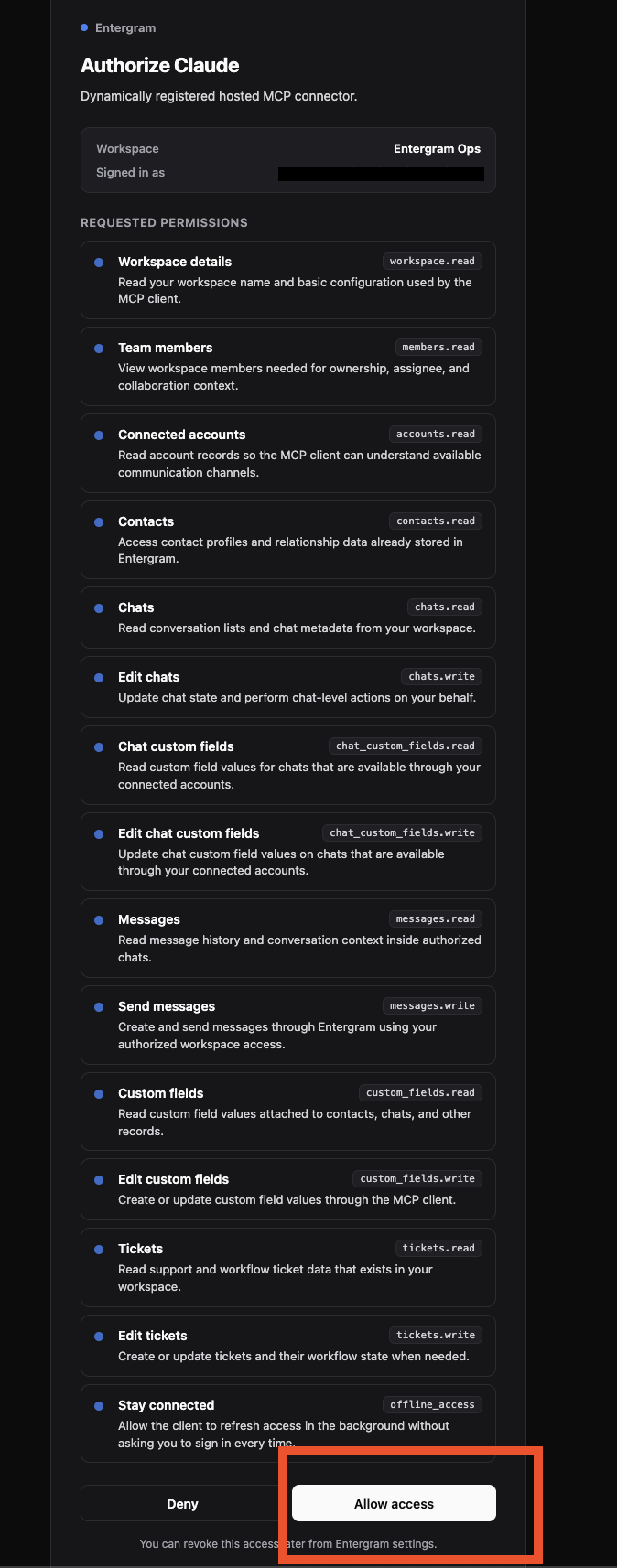
Authorization is a standard OAuth login: the app sends you to Entergram’s consent screen, you approve the scopes you want (read chats, contacts, messages, and tickets; send messages; read/write custom fields; and so on), and you can revoke access anytime.
How connecting works
Section titled “How connecting works”Every connection has two sides:
1. The Entergram side, copy your MCP URL. In Entergram, go to Settings → Workspace → Connectors → MCP and copy your MCP server URL. It’s the same https://mcp.entergram.com/mcp for every app.
2. The app side, add a custom connector and sign in. In your app, add a custom MCP connector and paste the URL. Then click Connect, you’ll be asked to log in with your Entergram account (just like a “Sign in with Google” prompt) and click Allow access. The exact menu names differ per app, so follow the dedicated guide.
Pick your app
Section titled “Pick your app”- Connect to Claude → - Free, Pro, Max, Team, or Enterprise. Works in the web app.
- Connect to ChatGPT →, requires a paid plan and Developer Mode. Works in the web app.
- Connect to Perplexity → - requires Pro, Max, or Enterprise. Works in the web app.
Connect to n8n
Section titled “Connect to n8n”Step 1. In Entergram, go to Settings → Workspace → Connectors → MCP and copy your MCP server URL.
Step 2. In n8n, add an MCP node and paste https://mcp.entergram.com/mcp as the server URL.
Step 3. Click connect and complete the OAuth login when prompted, sign in with your Entergram account and allow access.
Connect to Make.com
Section titled “Connect to Make.com”Step 1. In Entergram, go to Settings → Workspace → Connectors → MCP and copy your MCP server URL.
Step 2. In Make.com, add an MCP module and paste https://mcp.entergram.com/mcp as the server URL.
Step 3. Click connect and complete the OAuth login when prompted, sign in with your Entergram account and allow access.
Connect to any other MCP app
Section titled “Connect to any other MCP app”Step 1. In Entergram, go to Settings → Workspace → Connectors → MCP and copy your MCP server URL.
Step 2. In your app, add a custom MCP connector with the URL: https://mcp.entergram.com/mcp
Step 3. Click Connect, log in with your Entergram account, and click Allow access.
Revoking access
Section titled “Revoking access”- From the connected app, find the Entergram connector and click Disconnect.
- From Entergram - Settings → Workspace → Connectors → MCP, find the connected app, and click Revoke. Takes effect immediately.
Troubleshooting
Section titled “Troubleshooting”- Can’t connect / “invalid URL”, re-copy the MCP server URL from Settings → Workspace → Connectors → MCP and make sure there’s no trailing space.
- The Entergram login or authorization page doesn’t load - make sure pop-ups aren’t blocked and that you’re signed in to Entergram, then click Connect again.
- 403 errors on tool calls - your Entergram account needs owner or admin access to the workspace, and your plan must include MCP access.
- Connection drops after a while, re-authorize by clicking Connect again in the app and approving access.
Cookie preferences
We respect your right to privacy. Choose which cookies to allow, your choice applies across our site. Cookie Policy
Required for the site to work, including remembering your privacy choices. Always on.
Help us understand site use and attribute sign-ups to referral partners. Optional.