Telegram folders
Entergram reads your actual Telegram folders and lets you filter the chat table by them. Changes you make sync directly with Telegram in real time.
Filtering by folder
Section titled “Filtering by folder”The folders carousel above the table shows each folder with its chat count (“{n} chats”). Click one to filter; All Chats clears it; Clear removes the folder scope entirely; Refresh re-reads folders from Telegram.
Folders are per account - if you have several accounts connected, each brings its own set, labelled with the account it belongs to.
In the live chat list, every account’s list starts with Archived chats and Blocked contacts, also for an account that has never made a Telegram folder (Telegram keeps the archive and the blocklist apart from folders, so they would not show up otherwise). Tick them per account, for example the archive of one account and the blocked contacts of another. They and Telegram folders replace each other: ticking a folder clears them, and ticking one of them clears your folders. Unticking the last one goes back to All chats.
Selected folders are saved as part of a view. Switching between Database and Live keeps the selected saved view’s folder and account choices. A view saved with no folders opens on All chats. Archived chats and Blocked contacts are saved with a view like any folder, so a view can open straight on them. While folders, Archived chats or Blocked contacts are selected, a Folders chip in the row under the toolbar opens the folder picker, and its X goes back to All chats.
Archived chats
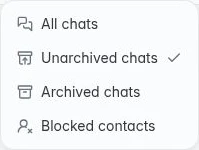
Section titled “Archived chats”The Chat archive dropdown, right after the search box, offers three choices:
- All chats is the default in live mode. It shows the selected accounts’ main Telegram list, so archived chats and contacts you have blocked are left out.
- Archived chats browses the selected accounts’ Telegram archives, all accounts in one list. While it is on, the button shows Archived chats next to the archive icon. Right after you open it, the list can take a moment while Entergram reads each account’s archive from Telegram.
- Blocked contacts filters the chat list down to the private chats you have blocked (see below).
Search, paging and the table’s other filters still apply. Workspace Database view keeps its existing default without a native folder filter.
Hover over a chat and click Archive chat, or right-click its row and choose Archive chat. On a phone, reveal the row’s swipe actions. For an archived chat, the same action becomes Unarchive chat.
Once Telegram confirms, archiving removes the row from All chats and unarchiving removes it from Archived chats. There is no separate archive badge.
These actions change the archive in the selected Telegram account, including in its native Telegram apps. Other connected Telegram accounts keep their own archive state. Updates made in Telegram also appear in Entergram. Archiving keeps the conversation and its messages; it does not delete them or change your custom folders.
Adding a chat to a folder
Section titled “Adding a chat to a folder”From the chat’s Details tab, the Telegram Folder row lets you add or remove that chat from any folder on its account. You can also create a folder inline with Create a Telegram folder.
For several chats at once, select rows and use Add to folder / Remove from folder in the selection toolbar.
Blocked contacts
Section titled “Blocked contacts”In the Chat archive dropdown, choose Blocked contacts. The chat list then shows every contact and bot the selected Telegram accounts have blocked, archived or not, and the button shows Blocked contacts. Contacts you have a conversation with come first, then the rest of the blocklist, newest block first, so contacts you never talked to are listed too. They are ordinary rows: open one, or unblock it by right-clicking the row and choosing Unblock contact, or with Unblock contact in the chat’s Details panel. Once unblocked, the row leaves this view. Choose All chats, a saved view or any folder to leave it. Blocked contacts is a folder selection like Archived chats, so the view shows as changed and you can save it with the view.
While Entergram is still reading your blocklists, the button shows a small spinner. If Telegram can’t be reached after a few tries, a Try again button appears next to it, because the list may be missing some blocked contacts until it loads.
To block someone, right-click their private chat and choose Block contact. On a phone, swipe the private chat row to reveal the same action. A short dialog asks Block (name)?, shows which of your Telegram accounts it applies to, and blocks them once you choose Block contact. Cancel makes no change.
When a contact is already blocked, the same dialog asks Unblock (name)? instead. The chat’s Details panel shows Unblock contact below the contact header, and the row menu offers Unblock contact instead of Block contact once Entergram has checked their status.
Blocking preserves the existing conversation and applies only to the selected Telegram account. The conversation leaves All chats for that account and comes back once you unblock the contact. It is separate from excluded chats and story privacy. Managing the blocklist requires account management access; the list is hidden when workspace privacy hides Telegram contact details. Updates from other Telegram clients refresh the open list automatically.
Creating and editing folders
Section titled “Creating and editing folders”Manage Telegram Folders gives you three tabs - Existing Folders, Edit Folder and Create Folder.
When creating or editing:
-
Account, which Telegram account the folder belongs to.
-
Folder Name.
-
Include in folder, auto-include rules. These tell Telegram which chats should automatically land in the folder:
Rule Includes Groups Group chats and supergroups Channels Broadcast channels Bots Conversations with bots Contacts Private chats with saved contacts Non-Contacts Private chats with people not in your contacts -
Exclude from folder, keep noisy chats out even when they match an include rule: Muted chats, Read chats, Archived chats.
Create Folder / Update Folder writes the change to Telegram.
Rules and limits Telegram imposes
Section titled “Rules and limits Telegram imposes”- A folder can’t be emptied. “Cannot remove all chats from a folder. At least one chat must remain. To delete the folder, please use the Telegram app.”
- A folder needs at least one chat or rule to exist.
- If an account has no folders yet you’ll see “No folders found for this account. Create folders in Telegram app first.”
- When you bulk-move chats from several accounts at once, each account’s chats can only go into that account’s folders. Entergram shows a per-account summary of what will happen, including “
{account}: Cannot add{chats}- no folders”.
If a folder update fails, the message is “Failed to update folders. Try managing folders in Telegram app.”, Telegram is the source of truth.
Folders vs custom columns
Section titled “Folders vs custom columns”They solve different problems:
| Telegram folders | Custom columns | |
|---|---|---|
| Lives in | Telegram (visible in the Telegram app too) | Entergram workspace |
| Shared with team | Only via the account that owns it | Yes, follows the chat |
| Good for | Personal triage that should also work on your phone | CRM structure, reporting, board lanes |
Most teams use folders for personal inbox hygiene and custom columns for everything the team needs to see.
Cookie preferences
We respect your right to privacy. Choose which cookies to allow, your choice applies across our site. Cookie Policy
Required for the site to work, including remembering your privacy choices. Always on.
Help us understand site use and attribute sign-ups to referral partners. Optional.