Create and manage tickets from Telegram chats
Tickets turn a conversation into a piece of work your team can assign, prioritize and resolve, without losing the chat it came from.
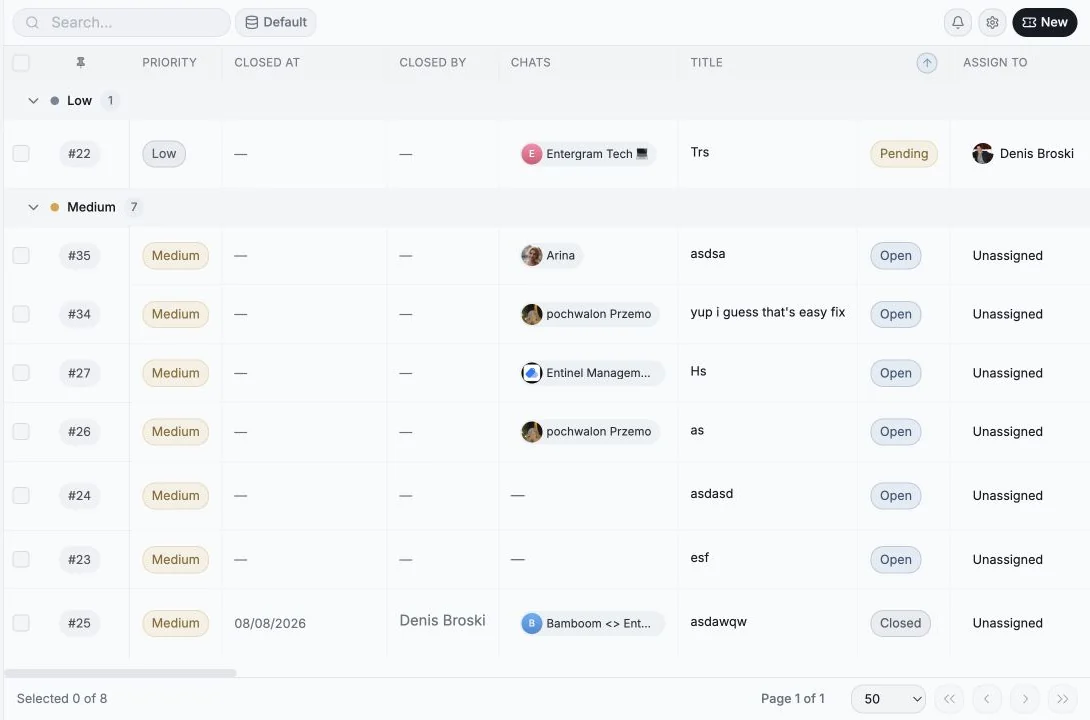
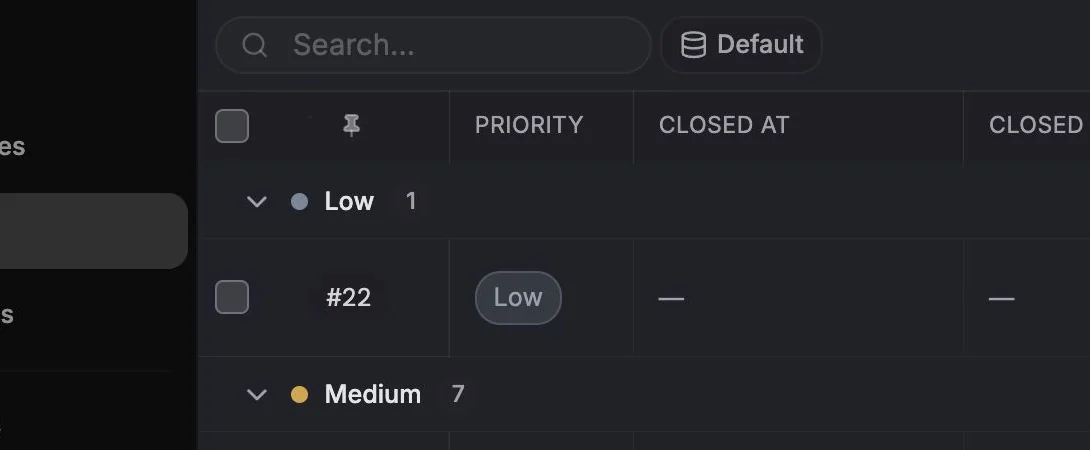
Tickets can be switched off for a whole workspace. If you don’t see Tickets in the sidebar, the owner has disabled Enable tickets for the workspace in privacy settings.
Creating a ticket
Section titled “Creating a ticket”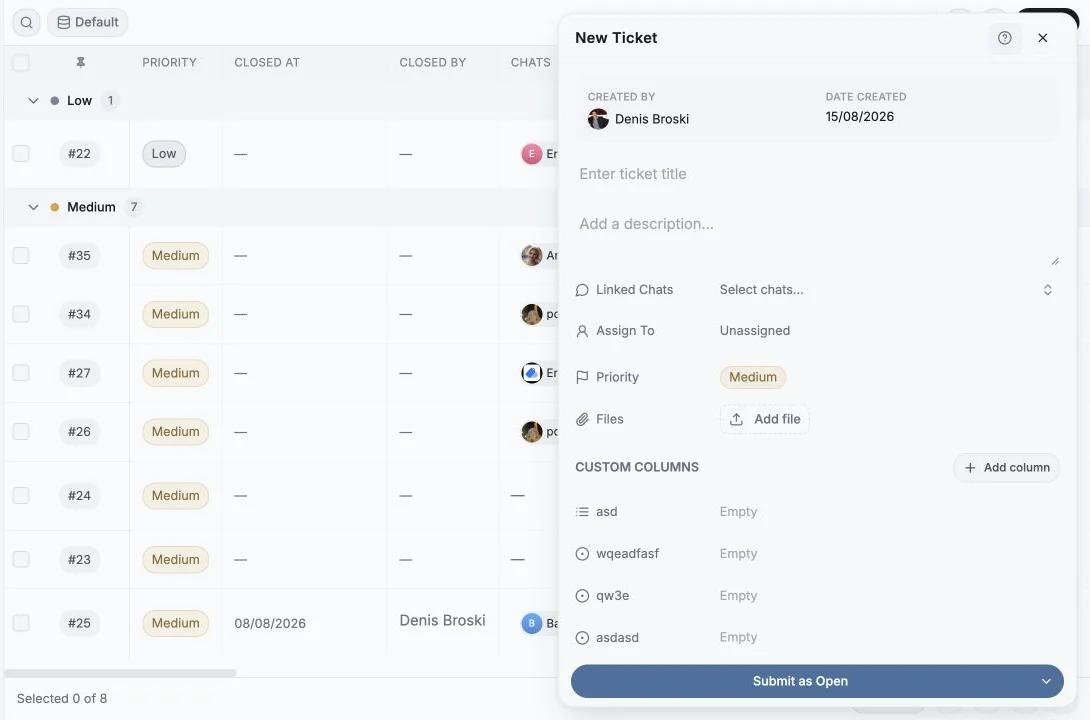
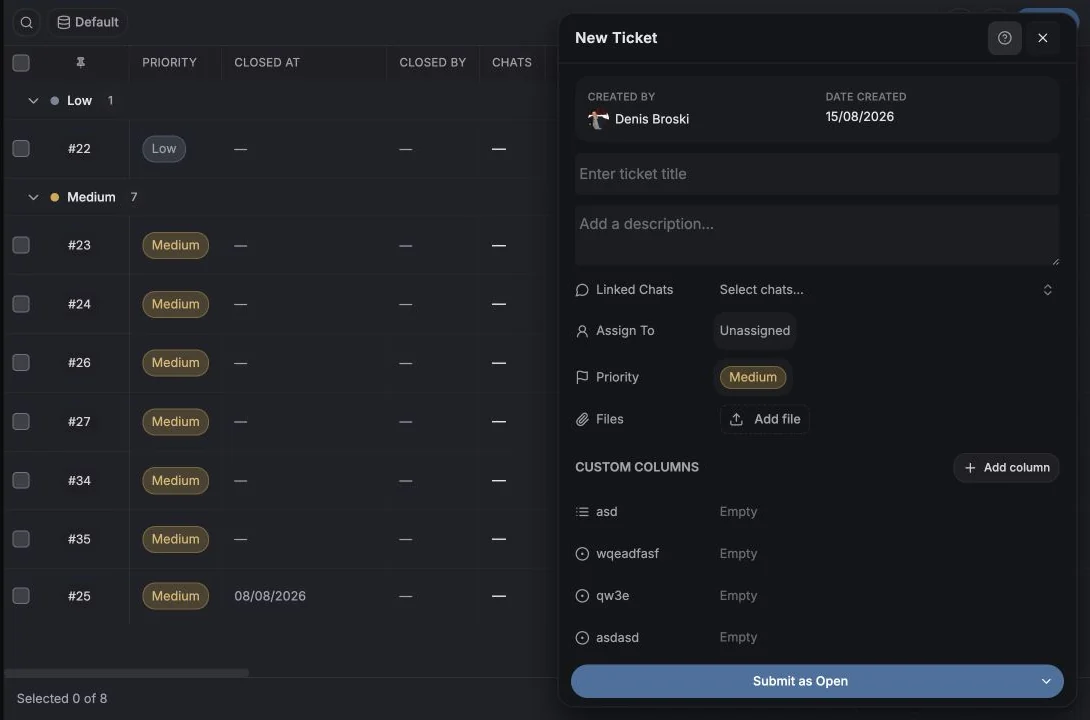
Four entry points:
| From | How |
|---|---|
| The Tickets page | New |
| A chat | Create Ticket in the chat panel’s Tickets tab |
| A single message | Create ticket in the message’s action menu |
| An AI agent | Over MCP |
Creating from a message stores it as the ticket’s Source Message (marked Incoming or Outgoing), so whoever picks the ticket up sees exactly what triggered it.
Fields on the create panel
Section titled “Fields on the create panel”| Field | Notes |
|---|---|
| Title | Required, minimum 2 characters |
| Description | Free text |
| Linked Chats | One or more chats, the conversation context |
| Source Message | Auto-filled when created from a message |
| Priority | Low, Medium, High |
| Assign To | A workspace member, or Unassigned |
| Date | Due date |
| Files | Attachments, subject to a per-file size limit and a max count per ticket |
| Custom Columns | Your own ticket fields |
| Comments | You can queue comments while creating, they save with the ticket |
Save with Submit as {status}, the split button lets you choose which status the ticket starts in.
Statuses and priorities
Section titled “Statuses and priorities”Default statuses: New, Open, Pending, In Progress, Blocked, Solved, Completed, Closed. Priorities: Low, Medium, High.
Both are option lists you can edit - rename them, recolour them, add your own. Changes are recorded in the activity log (Ticket status option updated, Ticket priority option created, and so on).
Closed tickets are read-only
Section titled “Closed tickets are read-only”A closed ticket shows a Closed badge and “This ticket is closed and read-only.” Use Reopen to edit it again.
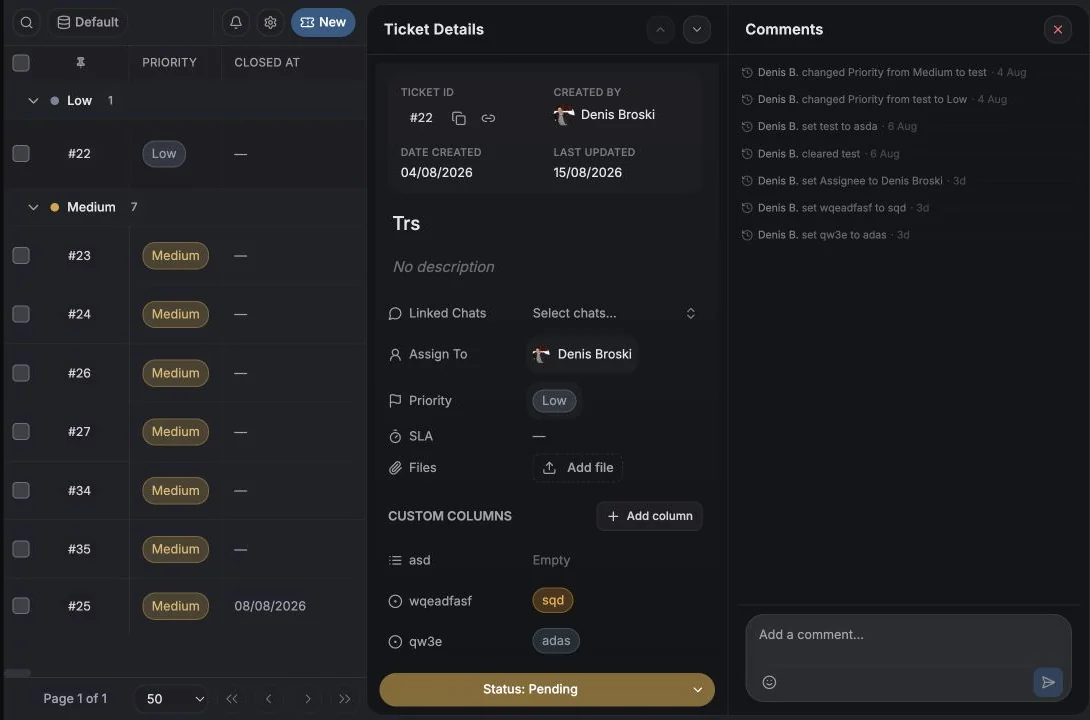
The ticket details panel
Section titled “The ticket details panel”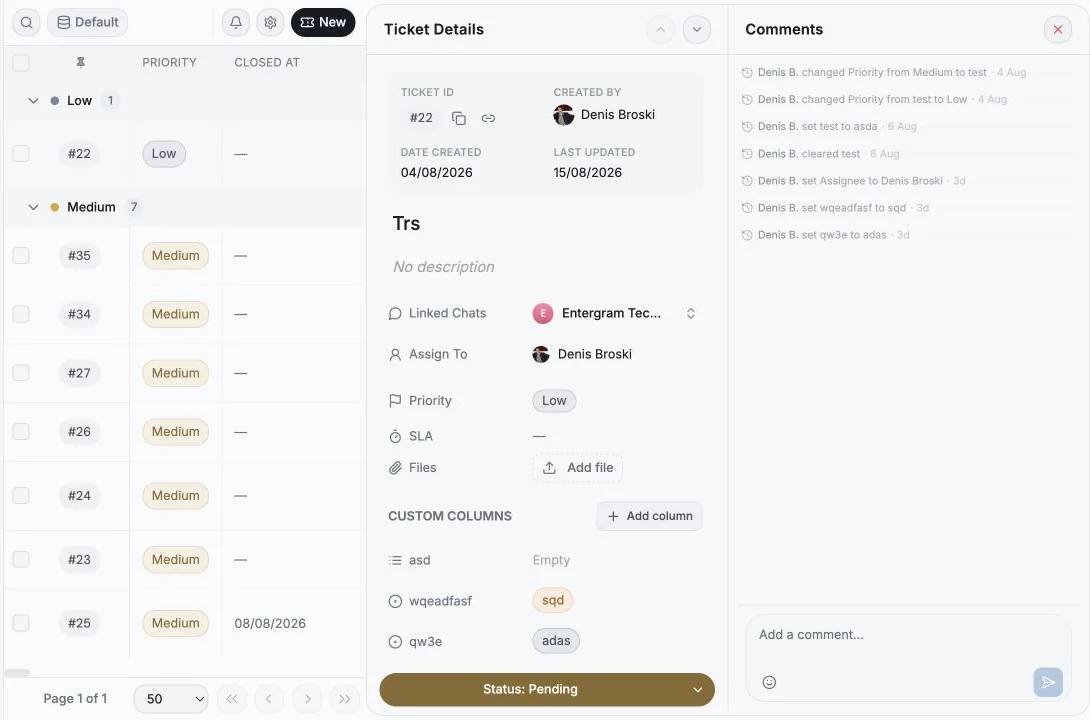
| Section | Contents |
|---|---|
| Ticket ID | Stable reference |
| Title / Description | Editable |
| Status / Priority / SLA | Inline editors, with an SLA badge |
| Assign To | Member picker |
| Created By / Created At, Closed By / Closed At | Audit fields |
| Last Updated | |
| Linked Chats | Add or remove chats; each links back to the conversation |
| Files | Add file and download |
| Custom Columns | Your ticket fields |
| Comments | Threaded team discussion |
Comments and activity
Section titled “Comments and activity”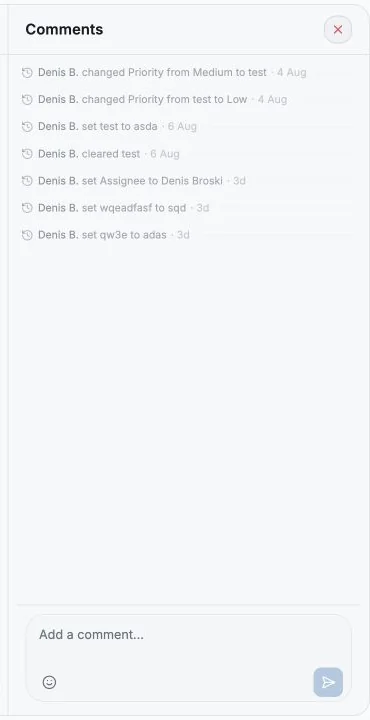
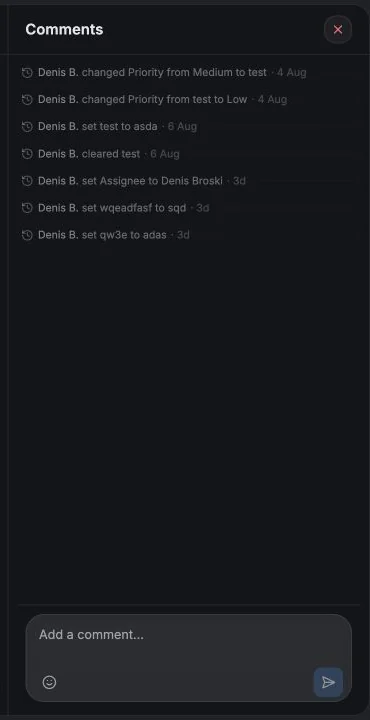
Comments support emoji and are attributable to a member. Alongside them, Entergram records every change as activity you can read back in plain English:
- set Status to In Progress
- changed Priority from Low to High
- cleared Due date
- added VIP to Segment
The same events feed Log history and Ticket analytics.
Keep Telegram context and Zendesk ownership together
Section titled “Keep Telegram context and Zendesk ownership together”If Zendesk is where your support team owns SLAs, connect both systems through n8n, Make or an MCP-capable workflow. Let Entergram keep the live Telegram conversation, then create or update the Zendesk ticket and write its ID back to an Entergram custom field. A short private comment can record the handoff without duplicating the entire customer transcript.
For a gentler start, connect Claude or ChatGPT over MCP and ask it to prepare the ticket title, summary and priority for your approval. Once the pattern is trustworthy, schedule a daily stale-ticket review or trigger it from your automation platform.
Who can do what
Section titled “Who can do what”Three separate workspace toggles govern members (owners and admins always have full access):
- Members can create tickets
- Members can edit tickets - status, priority, fields and linked chats
- Members can delete tickets, permanent deletion
A member without permission sees “You do not have permission to create tickets.”
Cookie preferences
We respect your right to privacy. Choose which cookies to allow, your choice applies across our site. Cookie Policy
Required for the site to work, including remembering your privacy choices. Always on.
Help us understand site use and attribute sign-ups to referral partners. Optional.