Send a safe, personalized broadcast
A broadcast sends the same message to many chats, personalized per recipient, from your own Telegram accounts.
Sending one
Section titled “Sending one”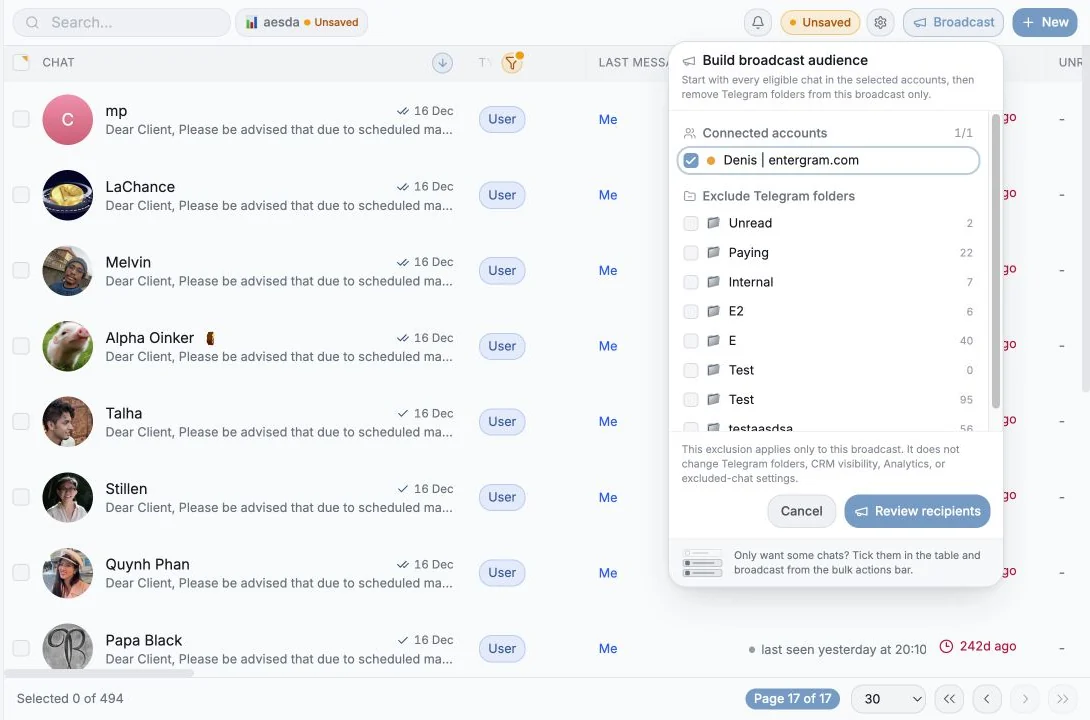
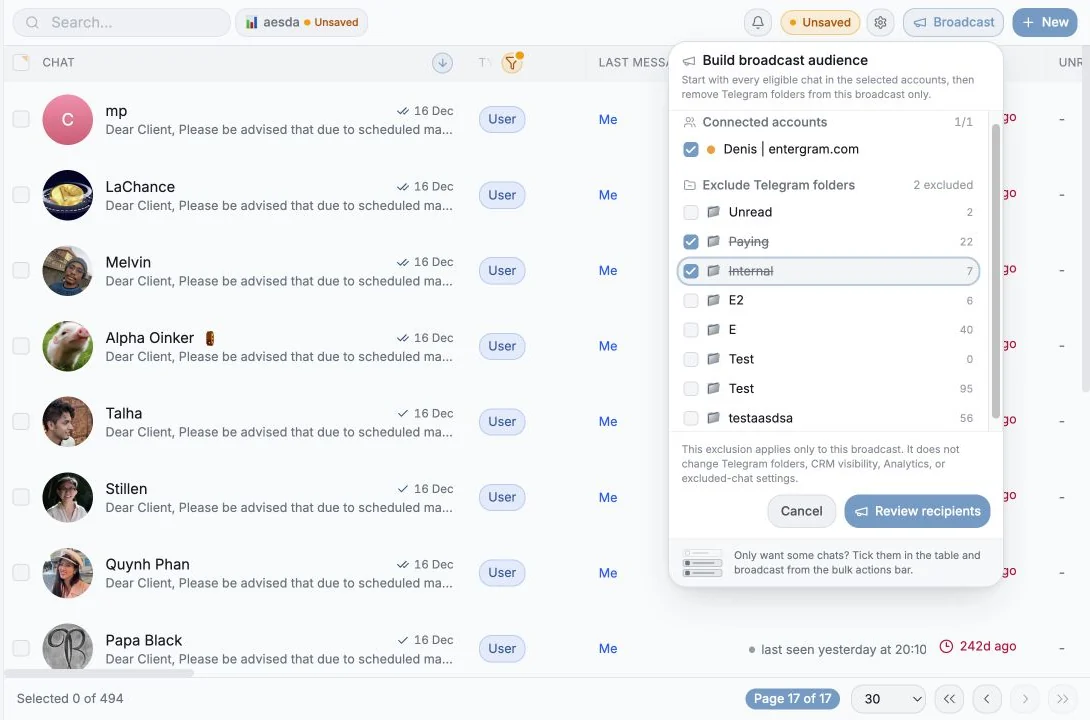
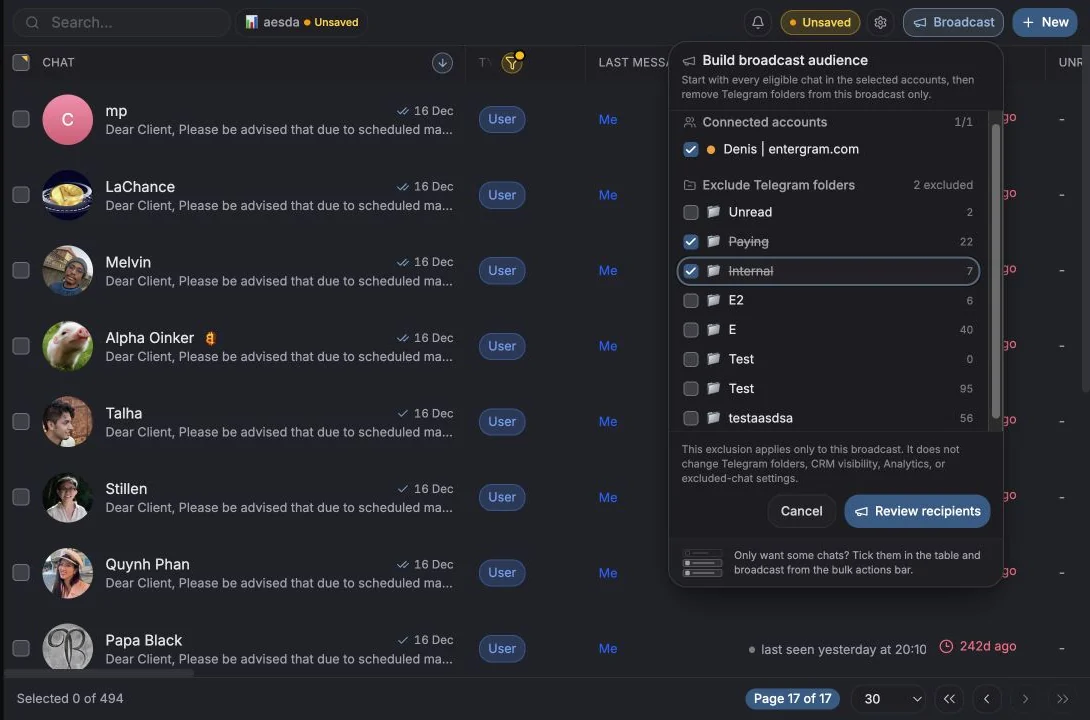
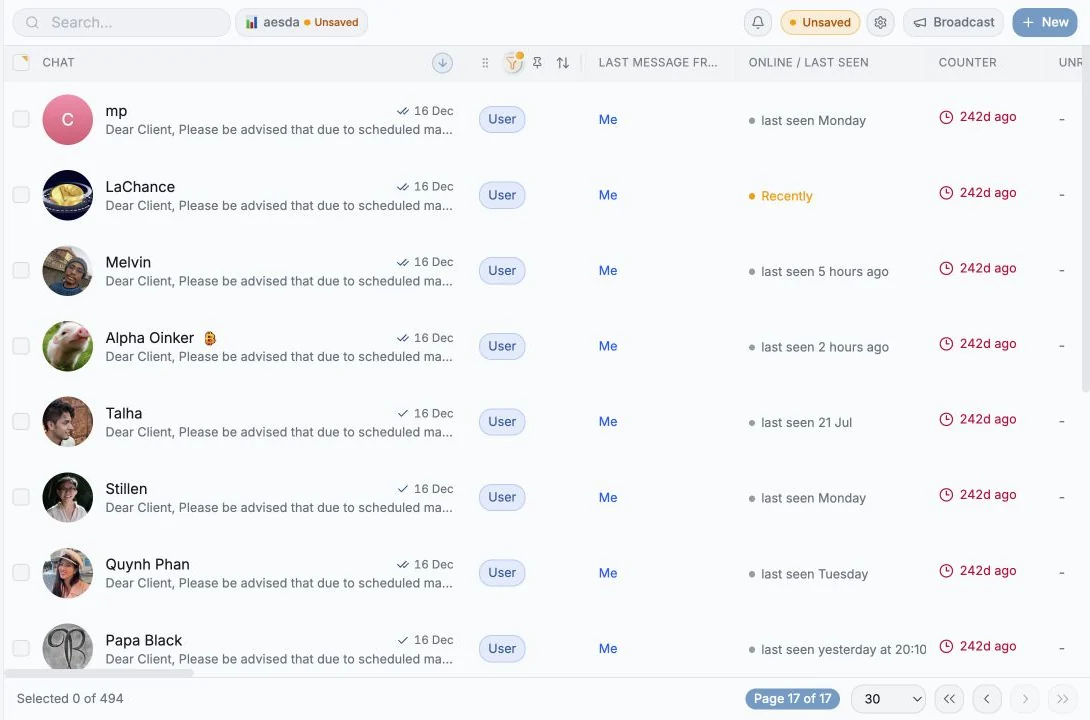
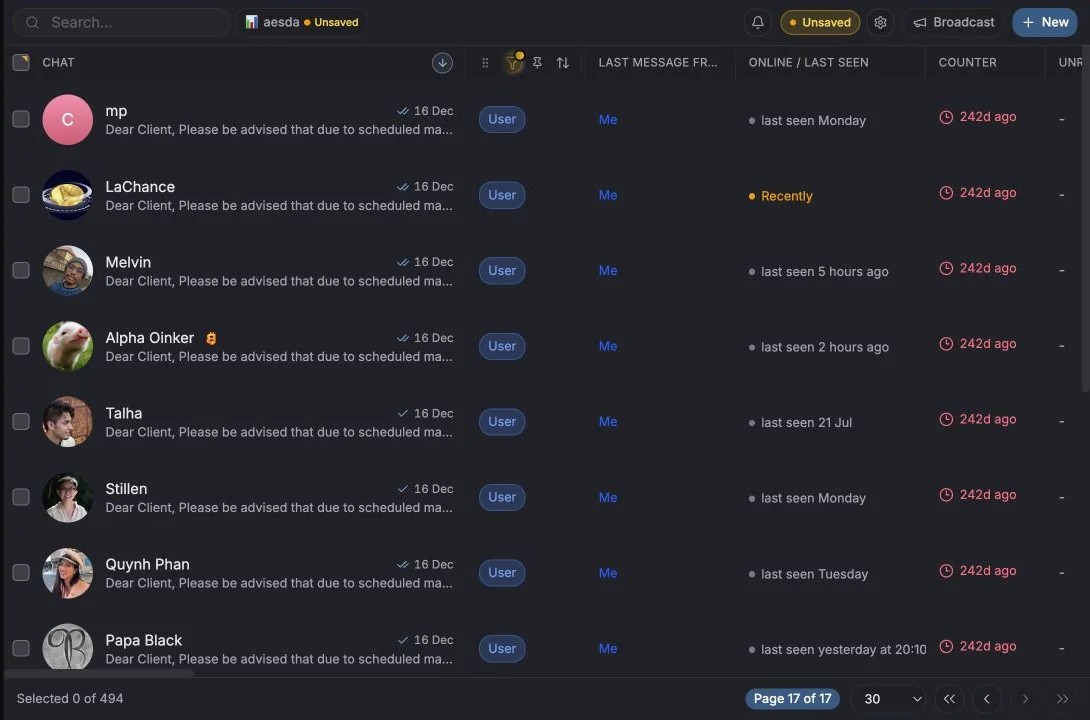
- On Messages, tick the chats you want to reach.
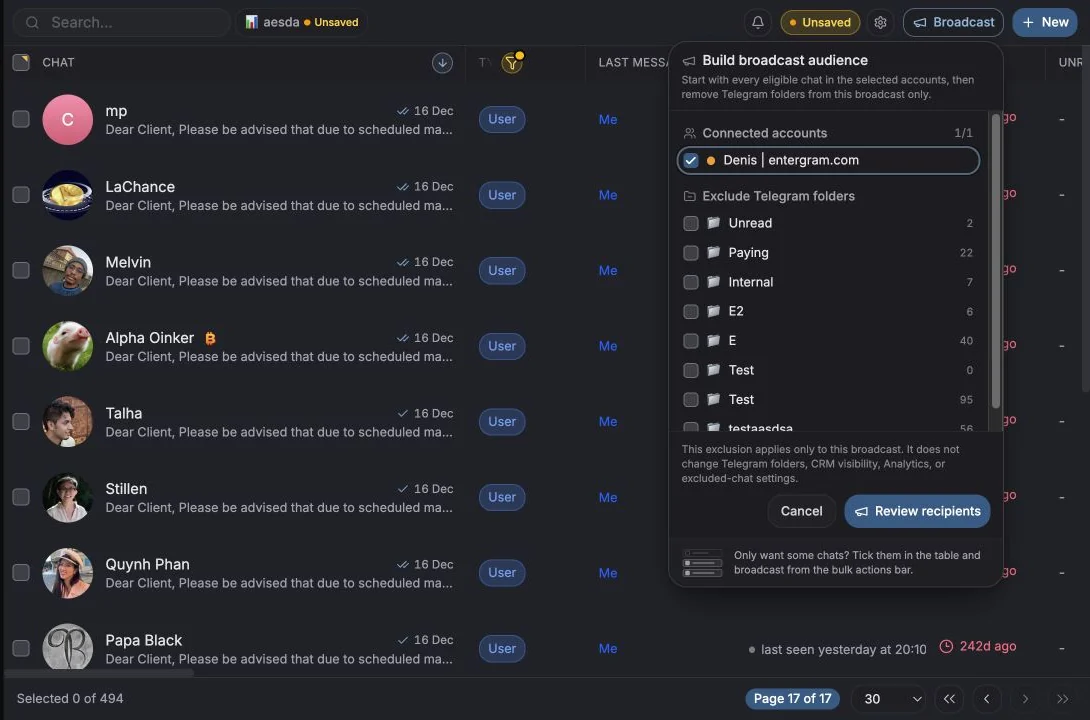
- Click Broadcast in the selection toolbar that appears.
- Write your message, or pick a template.
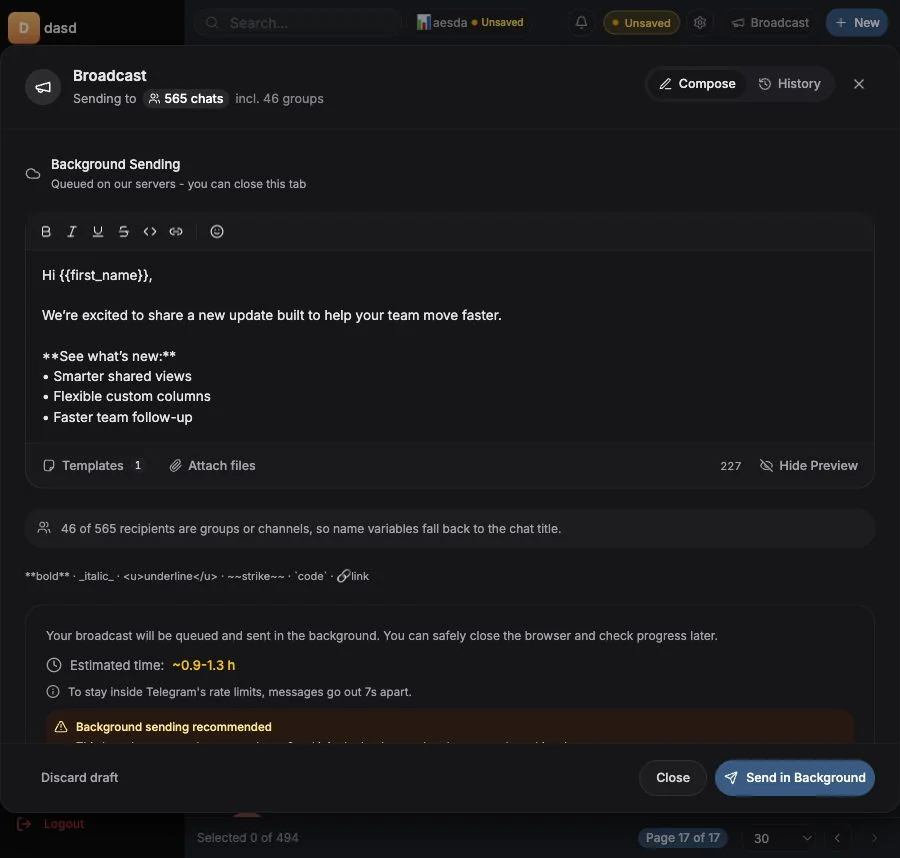
- Check the Preview, pick a recipient and see the finished message with variables resolved.
- Click Send Broadcast.
The dialog has two tabs: Compose and History.
How sending works
Section titled “How sending works”Broadcasts are queued on Entergram’s servers and sent in the background, “Your broadcast will be queued and sent in the background. You can safely close the browser and check progress later.” You don’t need to keep the tab open, and delivery continues if you sign out.
If you see “{n} of {total} selected accounts need Analytics connected”, that account was connected before the current backend flow. Reconnect it from Settings → Accounts
and the broadcast can go out.
Rate limits and timing
Section titled “Rate limits and timing”To stay inside Telegram’s limits, messages go out a fixed number of seconds apart. The dialog shows an Estimated time (e.g. ~12-15 min) that updates with your recipient count, and a tip to send in batches of 20 for best delivery.
Don’t try to defeat the delay. It’s the reason your account stays healthy.
Personalizing with variables
Section titled “Personalizing with variables”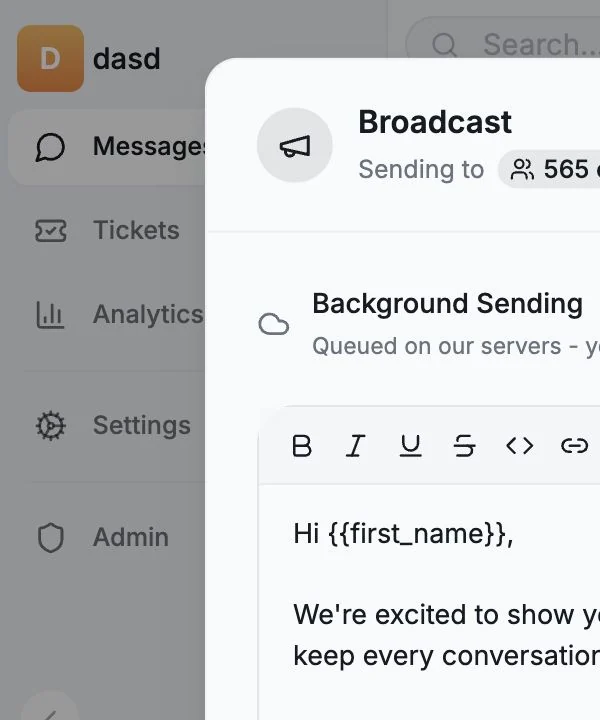
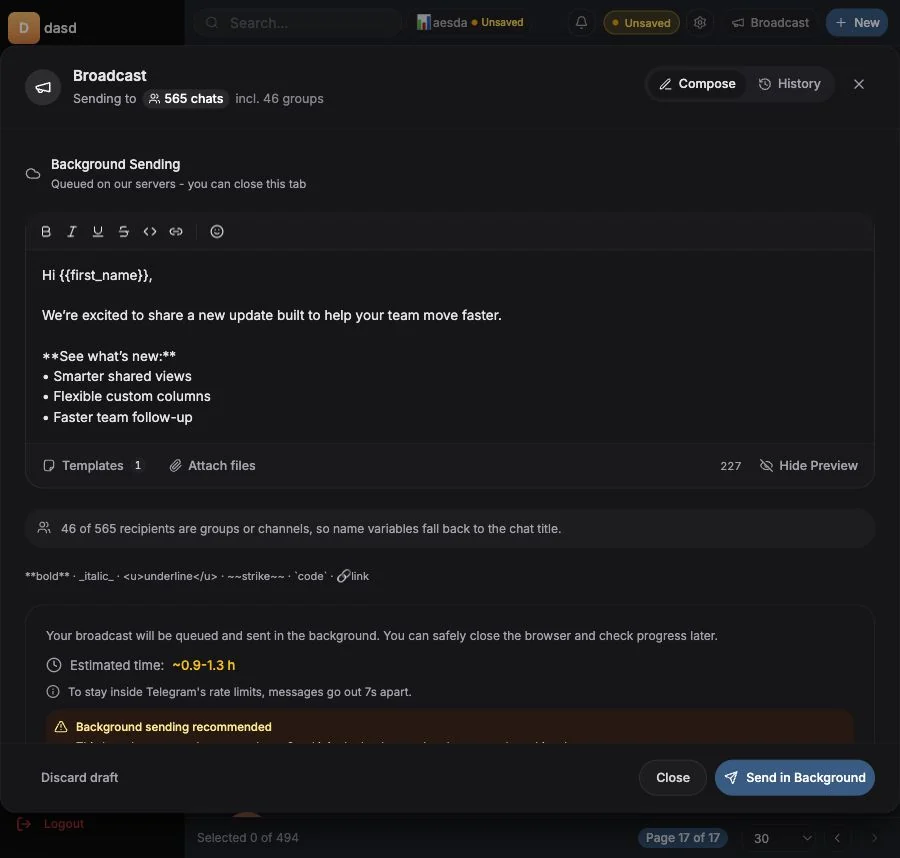
Click a variable to drop it into the message. Each one is swapped for that recipient’s own details a moment before the message goes out.
| Variable | Resolves to | Fallback |
|---|---|---|
{{chat_name}} | The contact’s first and last name | In groups and channels, the chat title |
{{first_name}} | Just the first name | In groups, the first word of the title |
{{username}} | The contact’s @handle, @ included | Blank for groups, channels and anyone without a handle |
Rules that matter:
- Always lowercase, always double braces.
{{Name}}or{name}are sent as literal text. - A missing value leaves an empty gap, never write a sentence that breaks without it.
- The preview shows the finished message for a real recipient. Switch recipients to spot-check.
Entergram warns you proactively, e.g. “{{username}} resolves to nothing for 12 of your 40 recipients. Use {{first_name}} instead, or drop it from the sentence.” and
“{n} of {total} recipients are groups or channels, so name variables fall back to the chat title.”
Attachments and translation
Section titled “Attachments and translation”- Attach photos, video, audio, documents or voice. Limits are shown inline (photos up to X; video/audio/documents up to Y; voice up to Z).
- Translate outgoing message translates the body into a target language before sending.
Watching a broadcast run
Section titled “Watching a broadcast run”While it sends you get live progress - Sending {current}/{total}, remaining count and an ETA - plus Pause, Resume and Cancel.
Cancelling asks “Cancel broadcast? Recipients already processed keep their result. Remaining recipients will not be sent.”
History and engagement
Section titled “History and engagement”The History tab lists every job with:
- status - Queued, Sending, Paused, Completed, Failed, Cancelled,
- progress -
{processed}/{total}processed, delivered, failed, remaining, skipped, - an ETA while running,
- Clear completed to tidy the list.
Open a job for the Engagement pipeline, targeted recipients through replies:
| Metric | Meaning |
|---|---|
| Targeted | Recipients the job was created for |
| Reach | Percentage delivered |
| Opened | Percentage seen (where Telegram provides reliable read state) |
| Replied | Percentage that replied |
Per-recipient rows show Delivered, Seen, Replied, Pending, Skipped or Failed, and you can filter to No reply to build a follow-up list. Open jumps straight to that chat.
Seen is available where Telegram provides reliable read state. Some chat types never report it, a blank isn’t a failure.
Broadcasting from an AI agent
Section titled “Broadcasting from an AI agent”If you’ve connected an MCP client, you can just ask:
“Send our promo to every chat whose Customer tier field is VIP.”
The agent applies the filter and runs the broadcast for you. See MCP connectors.
Safety checklist before a big send
Section titled “Safety checklist before a big send”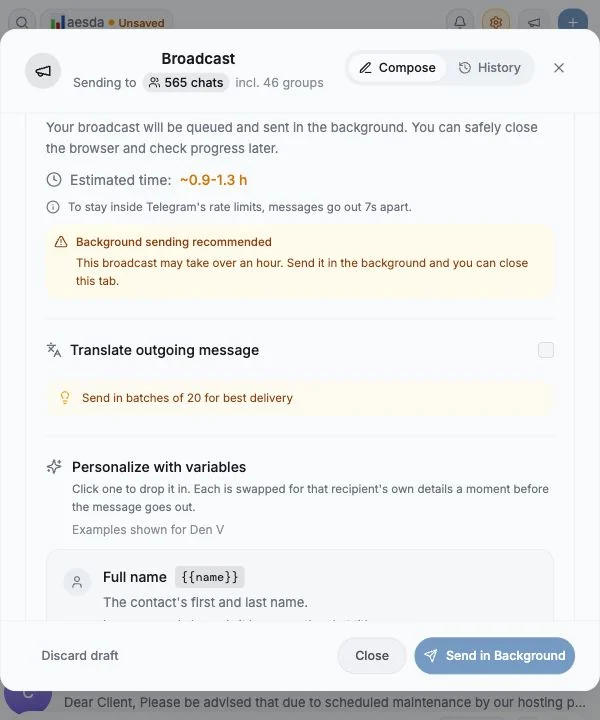
- Preview checked against at least two real recipients
- No sentence depends on
{{username}} - Recipient list reviewed under Recipients (
{n}) - Started with a small batch before the full list
Cookie preferences
We respect your right to privacy. Choose which cookies to allow, your choice applies across our site. Cookie Policy
Required for the site to work, including remembering your privacy choices. Always on.
Help us understand site use and attribute sign-ups to referral partners. Optional.