Connect Entergram to Perplexity
Connect Entergram to Perplexity as a custom MCP connector so you can pull in and act on your Telegram CRM from a thread or Space.
MCP Server URL:
https://mcp.entergram.com/mcpBefore you start
Section titled “Before you start”- An Entergram workspace with owner or admin access.
- A Perplexity Pro, Max, or Enterprise plan. Custom connectors are not available on the free plan. On Enterprise, an admin must turn on Allow members to add custom connectors first.
- No download required. You add the connector in the Perplexity web app at perplexity.ai under Settings → Connectors. Remote MCP server URLs must use HTTPS, Entergram qualifies.
On Enterprise, an admin sets the connector up once and shares it org-wide; members then authorize it from their own settings, see the Enterprise section below.
Connect (Pro, Max)
Section titled “Connect (Pro, Max)”Step 1. In Entergram, go to Settings → Workspace → Connectors → MCP and copy your MCP server URL (https://mcp.entergram.com/mcp).
Step 2. In Perplexity, go to Settings → Connectors and click + Custom connector. Choose Remote.
Step 3. Fill in the form:
- Name:
Entergram - MCP server URL:
https://mcp.entergram.com/mcp - Authentication: OAuth (no client ID or secret needed, Perplexity discovers Entergram’s login automatically)
Check “I understand custom connectors can introduce risks”, then click Add.
Step 4. Click the Entergram connector card. You’ll be prompted to log in with your Entergram account (just like a “Sign in with Google” prompt) - sign in, review the permissions, and click Allow access.
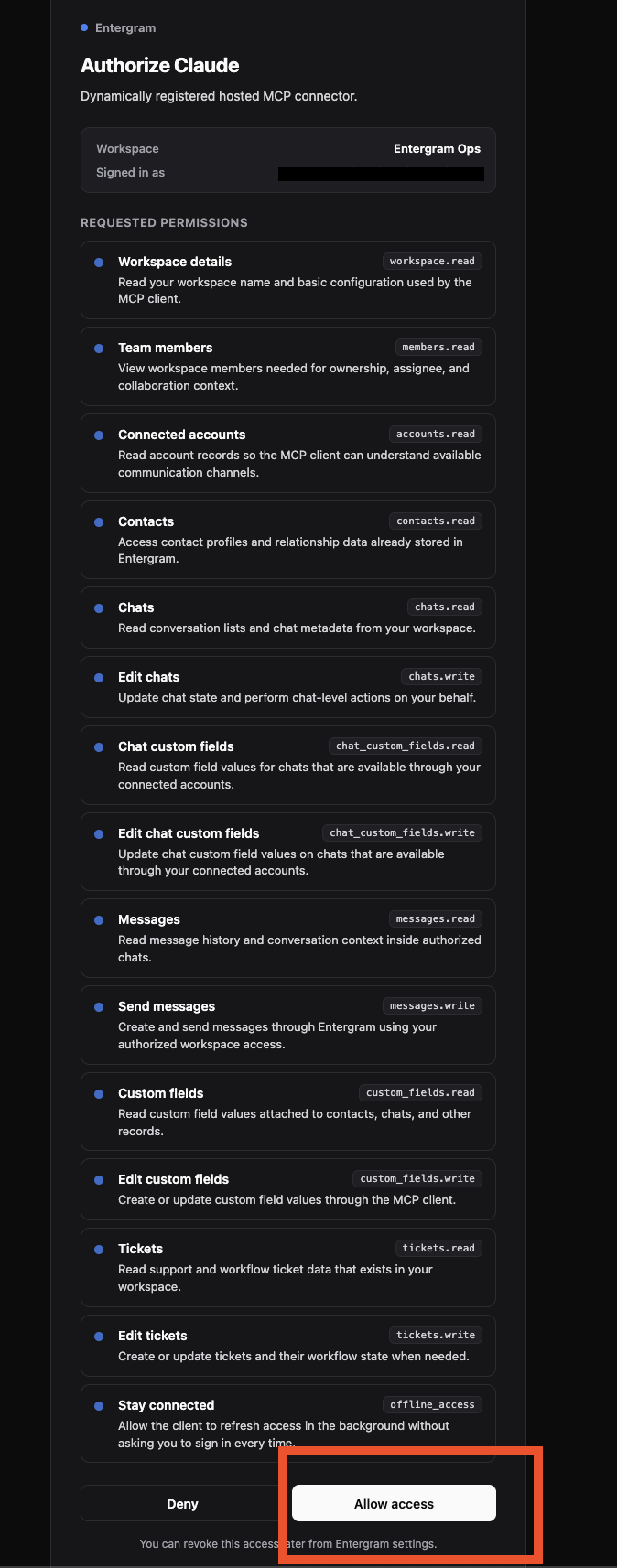
Step 5. To use it, click the + in the search box and make sure Entergram is selected under Connectors / Sources. Then try: “List my Entergram workspaces.”
Tip: Add a short custom instruction in any Space telling Perplexity when to use Entergram (e.g. “Use the Entergram connector for anything about my Telegram chats or tickets”). This makes it reach for the right tools automatically.
Enterprise
Section titled “Enterprise”Admin setup (once). Go to Enterprise settings → Connectors, turn on Allow members to add custom connectors, then click + Custom connector. Fill in the same Name and URL, check the risk box, click Add, and toggle the connector on for the organization.
Each member. Open Settings → Connectors, find Entergram under Custom, click it, log in with your Entergram account, and click Allow access.
Troubleshooting
Section titled “Troubleshooting”- No ”+ Custom connector” button - you’re on a free plan, or (on Enterprise) your admin hasn’t enabled custom connectors yet.
- Can’t connect / “invalid URL”, re-copy the MCP server URL from Settings → Workspace → Connectors → MCP and make sure there’s no trailing space.
- Connector connects but Perplexity never uses it - add a custom instruction in your Space (see the tip above), and confirm Entergram is checked under Connectors / Sources.
- 403 errors on tool calls - your Entergram account needs owner or admin access to the workspace, and your plan must include MCP access.
Need the bigger picture? See the MCP Connector overview.
Cookie preferences
We respect your right to privacy. Choose which cookies to allow, your choice applies across our site. Cookie Policy
Required for the site to work, including remembering your privacy choices. Always on.
Help us understand site use and attribute sign-ups to referral partners. Optional.