Create and maintain custom CRM fields
Custom columns are how you turn a chat list into a CRM. Deal stage, owner, priority, renewal date, “has signed NDA”, anything you’d otherwise keep in a spreadsheet.
Custom field values belong to the chat, so everyone who can reach that chat sees the same values. See What teammates can see.
Creating a column
Section titled “Creating a column”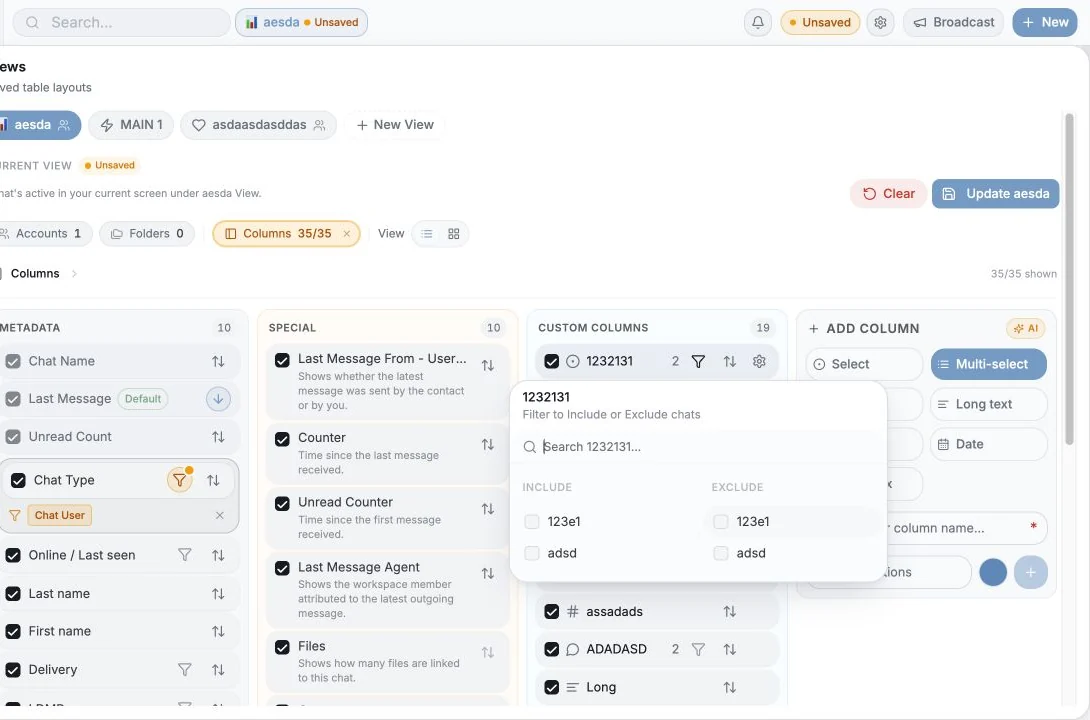
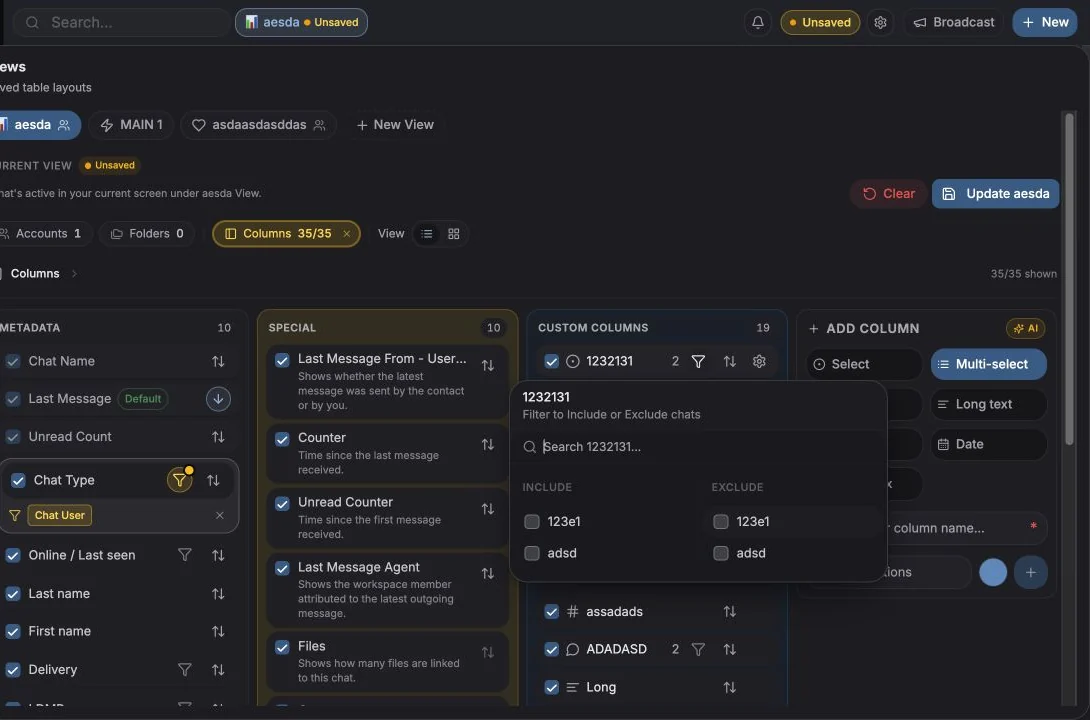
Open Columns in the table toolbar (“Filter, Sort, Hide or Create New Columns”), then Add column / Create column.
You provide:
- Name, e.g. Customer Status. Names must be unique.
- Type, see below.
- Options, for Select and Multi-select.
- Icon - optional; pick from an icon set or an emoji, with search. Default resets it.
Column types
Section titled “Column types”| Type | Use it for |
|---|---|
| Text | Short free text |
| Long text | Notes and paragraphs |
| Number | Deal value, counts, scores |
| Date | Renewal dates, next steps, deadlines |
| Select | One value from a fixed list, the only type that can drive board lanes and group-by |
| Multi-select | Several values from a list (tags) |
| Checkbox | Yes / no |
Choose Select rather than Text whenever you’ll want to group, filter or chart by the field later. Free text can’t become a board lane.
Managing options
Section titled “Managing options”For Select and Multi-select columns you manage the option list from the column’s settings (“Rename the column or manage its options”) or inline from a cell.
- Options must contain at least one letter or number.
- Options are capped at 20 characters.
- Duplicate options are rejected, “Option already exists”.
- Options carry a colour, used by the board lanes and by charts.
Adding an option from a cell is allowed while you’re filling data, so you don’t have to break flow to open settings.
On a phone the option list opens as a sheet from the bottom of the screen. Tap an option to pick it, or tap the pencil next to it to rename or recolour it. Delete is in that form.
Filling values
Section titled “Filling values”Edit in the table by clicking a cell, or from the Details tab of the chat panel.
Small things worth knowing:
- Saves are optimistic and retried. If a save fails after several attempts you get
“Failed to save
{field}after{n}attempts” and a Retry save action on the cell. - Values update live for everyone in the workspace, if a teammate changes a field while you’re looking at it, your cell updates.
- Cells offer Copy, and long values collapse behind View more / View less.
- You can’t edit a cell on an unopened search result, open the chat first.
Reordering, renaming and deleting
Section titled “Reordering, renaming and deleting”- Reorder by dragging in the Columns manager, or with Move up / Move down.
- Rename from the column’s menu.
- Delete from the column’s menu. This is permanent: “Delete column
{name}? … This action cannot be undone.” All values stored in that column are lost.
Permissions: only workspace owners and admins can delete or reorder columns by default. A member who lacks the right sees “Ask admin to allow edit/delete”. Owners can grant a specific member the ability to edit columns with Allow edit columns in Settings → Accounts → Seats & Team Members.
Bulk-filling fields
Section titled “Bulk-filling fields”Select rows, then use Add fields / Remove fields in the selection toolbar to apply a value to everything selected at once. Checkbox columns get explicit Set to Yes /
Set to No actions. You’ll be asked to confirm:
“This will add {label} to all {n} selected.”
See Bulk actions.
Measuring your fields
Section titled “Measuring your fields”Analytics → Custom fields shows how well your schema is actually being used: coverage per field, value distribution, chats tagged vs untagged, who is doing the tagging, and recent changes. Fields under 25% coverage show up as Needs Attention.
- Three columns beat thirteen. Start small; add a field only when someone asks for it twice.
- One “Stage” select is usually more useful than five checkboxes.
- Give columns icons, scanning a wide table is much faster with them.
- Ticket custom columns are a separate set, configured on the Tickets page. See Ticket fields.
Cookie preferences
We respect your right to privacy. Choose which cookies to allow, your choice applies across our site. Cookie Policy
Required for the site to work, including remembering your privacy choices. Always on.
Help us understand site use and attribute sign-ups to referral partners. Optional.