Connect Entergram to ChatGPT
Connect Entergram to ChatGPT as a custom MCP connector using Developer Mode, so you can read and act on your Telegram CRM from a chat.
MCP Server URL:
https://mcp.entergram.com/mcpBefore you start
Section titled “Before you start”- An Entergram workspace with owner or admin access.
- ChatGPT Business, Enterprise or Education for full MCP read/write actions. ChatGPT Pro can use custom apps with read/fetch access; availability and workspace controls can change while full MCP support is in beta.
- No download required. Developer Mode and custom MCP connectors run in the ChatGPT web app at chatgpt.com (the desktop app works too). ChatGPT only supports remote, HTTPS MCP servers - Entergram qualifies, so there’s no local bridge to install.
Developer Mode gives ChatGPT full read/write access to the connected tools. Write actions ask for confirmation by default, always review the tool input before approving anything that changes data.
Step 1, Enable Developer Mode
Section titled “Step 1, Enable Developer Mode”In ChatGPT, go to Settings → Apps & Connectors → Advanced settings and toggle Developer mode on. Accept the warning about third-party tools.
If you don’t see Advanced settings, confirm you’re on a paid plan; on Team/Enterprise, your admin must enable Developer Mode for the workspace.
Step 2, Copy your MCP URL from Entergram
Section titled “Step 2, Copy your MCP URL from Entergram”In Entergram, go to Settings → Workspace → Connectors → MCP and copy your MCP server URL (https://mcp.entergram.com/mcp).
Step 3, Add the connector in ChatGPT
Section titled “Step 3, Add the connector in ChatGPT”Go to Settings → Apps & Connectors and click Create (Add custom connector). Fill in:
- Name:
Entergram - MCP server URL:
https://mcp.entergram.com/mcp - Authentication: OAuth (no client ID or secret needed, ChatGPT discovers Entergram’s login automatically)
Click Create.
Step 4, Authorize
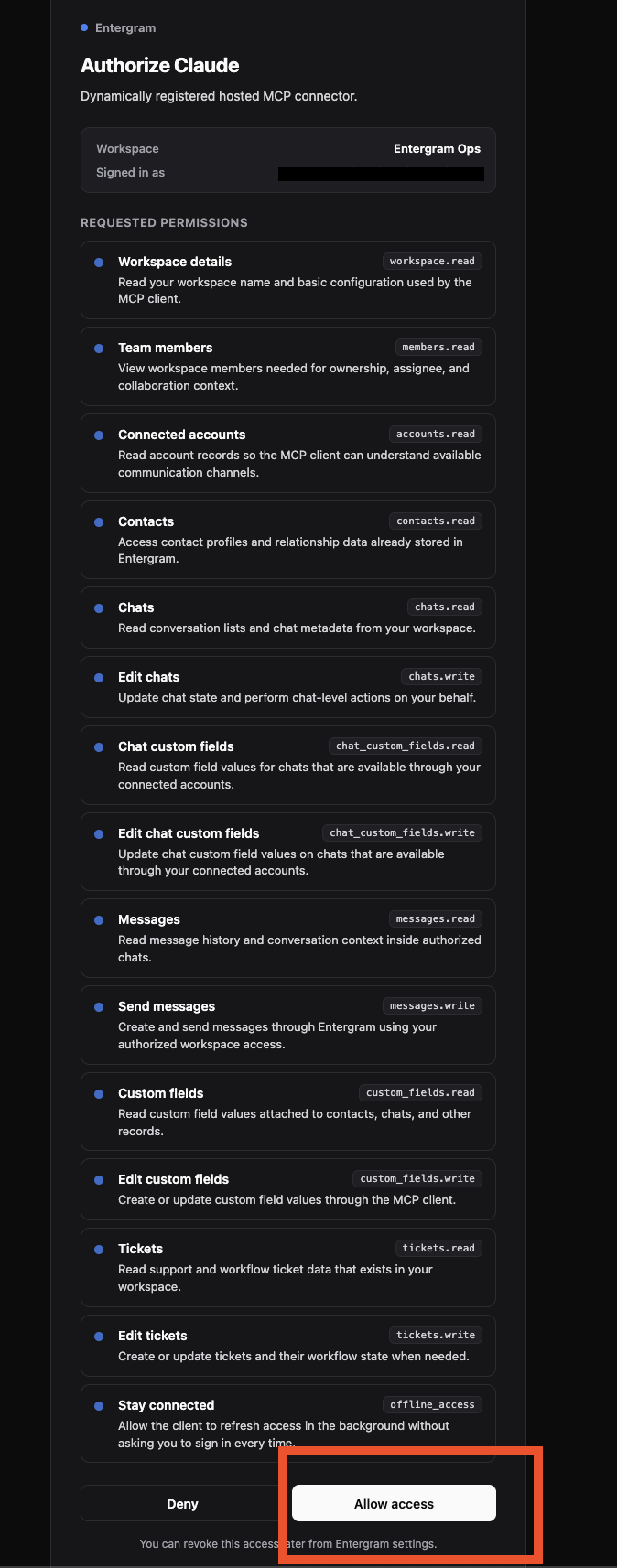
Section titled “Step 4, Authorize”ChatGPT opens an OAuth popup. Log in with your Entergram account (just like a “Sign in with Google” prompt), review the permissions, and click Allow access. (Make sure pop-ups aren’t blocked.)
Step 5, Use it
Section titled “Step 5, Use it”In a chat, open the + / Developer Mode menu in the composer and enable Entergram. Then try: “List my Entergram workspaces.”
Turn a useful prompt into a weekly habit
Section titled “Turn a useful prompt into a weekly habit”Once the connector works in a normal chat, open Scheduled in ChatGPT and create a recurring task. A good first one is small, reversible and immediately useful:
Every Monday morning, review last week’s Entergram activity. Give me five customer conversations that need attention, explain why, and draft the next action. Do not send messages or change CRM data unless I approve it.
ChatGPT scheduled tasks can run one-off or repeatedly and can use apps available to your account or workspace. Whether a run can perform an Entergram write action depends on your ChatGPT plan, the app permissions and your administrator’s controls, so test the prompt in a regular chat before scheduling it. See OpenAI’s Scheduled Tasks guide for current availability and limits.
For a deterministic Entergram → Zendesk workflow, or anything that must run after a specific event rather than at a regular time, use n8n, Make or a server-side MCP client.
Troubleshooting
Section titled “Troubleshooting”- No “Add custom connector” / “Create” button - Developer Mode isn’t on, your plan doesn’t support the required access, or your workspace admin hasn’t enabled it. Re-check Step 1.
- The OAuth/login popup never opens, your browser is blocking pop-ups. Allow pop-ups for chatgpt.com and retry.
- Can’t connect / “invalid URL”, re-copy the MCP server URL from Settings → Workspace → Connectors → MCP and make sure there’s no trailing space.
- 403 errors on tool calls - your Entergram account needs owner or admin access to the workspace, and your plan must include MCP access.
Need the bigger picture? See MCP connectors.
Cookie preferences
We respect your right to privacy. Choose which cookies to allow, your choice applies across our site. Cookie Policy
Required for the site to work, including remembering your privacy choices. Always on.
Help us understand site use and attribute sign-ups to referral partners. Optional.