Sign in to Entergram
Entergram has no passwords. You sign in with a one-time code sent to your email, or with Google.
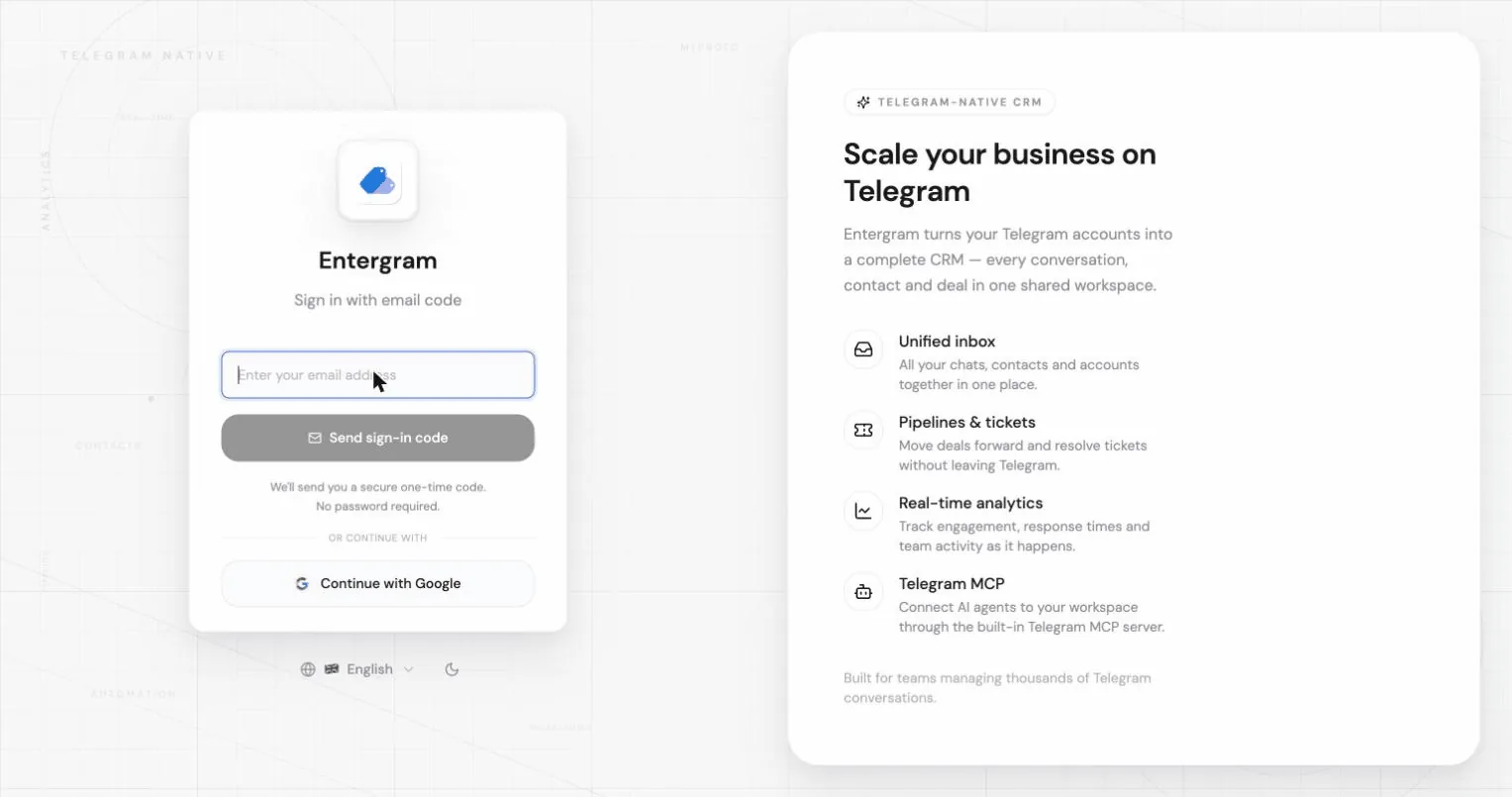
Sign in with an email code
Section titled “Sign in with an email code”- Enter your email address and click Send sign-in code.
- Check your inbox for a 6-digit code. It expires shortly for security.
- Enter the code and click Verify and sign in.
If the code doesn’t arrive:
- Check your spam folder, the app reminds you of this on the code screen.
- Click Resend code. There is a short countdown between resends.
- Use Use another email to start over with a different address.
If you follow an old sign-in link you may see “Sign-in link expired. Please request a new one.”, just request a fresh code.
The email can also contain a sign-in link. That link only works in the same app or browser where you asked for the code. For example, it won’t sign you in to the mobile app if your phone opens it in a web browser, or if you open it on another device. In that case Entergram shows “This sign-in link only works in the app or browser where you requested it.” Type the 6-digit code from the same email instead. The code works on any device.
Sign in with Google
Section titled “Sign in with Google”Click Continue with Google on the sign-in screen and complete the Google prompt.

One active browser at a time
Section titled “One active browser at a time”If you sign in somewhere else, the older browser is signed out and shows:
You were signed out, Your account was opened in another browser. Sign in again to continue here.
This is expected. Sign in again in the browser you want to keep using.
Changing your email address
Section titled “Changing your email address”Go to Settings → Accounts → Your profile and click your email.
- Enter the new address and click Send confirmation.
- Entergram sends a confirmation link to the new address. Depending on your auth settings you may also have to confirm from your current address.
- Until every required confirmation is done, your current email stays active and the new one shows as Pending email change.
You can abandon a pending change with Cancel change, your current email is kept.
Changing your display name
Section titled “Changing your display name”Same panel: click your name, edit it, Save. This name appears across your workspace and settings, and is what teammates see next to your comments and ticket activity.
Related
Section titled “Related”Cookie preferences
We respect your right to privacy. Choose which cookies to allow, your choice applies across our site. Cookie Policy
Required for the site to work, including remembering your privacy choices. Always on.
Help us understand site use and attribute sign-ups to referral partners. Optional.