Accounts
Settings → Accounts, connect and manage your Telegram accounts.
The panel states the two facts that matter up front:
Each Telegram account runs on its own dedicated proxy with unique IP address. Entergram uses standard industry grade encryption to protect your accounts.
See Proxies & IP isolation and How we protect your data.
Accounts, seats and MCP scope
Section titled “Accounts, seats and MCP scope”An item under Accounts is a real Telegram account connection: an authenticated Telegram session that Entergram can sync, display in the CRM and use to send messages. It is different from a seat, which is the Entergram workspace membership assigned to a person.
For a personal MCP connector, the practical Telegram scope is the connected accounts shown in that member’s Accounts section. The account handles shown elsewhere in
Seats & Members are an owner/admin overview; listing a teammate’s account there does not automatically give your personal MCP connector access to it. The connector still needs the relevant OAuth scopes, such as accounts.read, chats.read or messages.write.
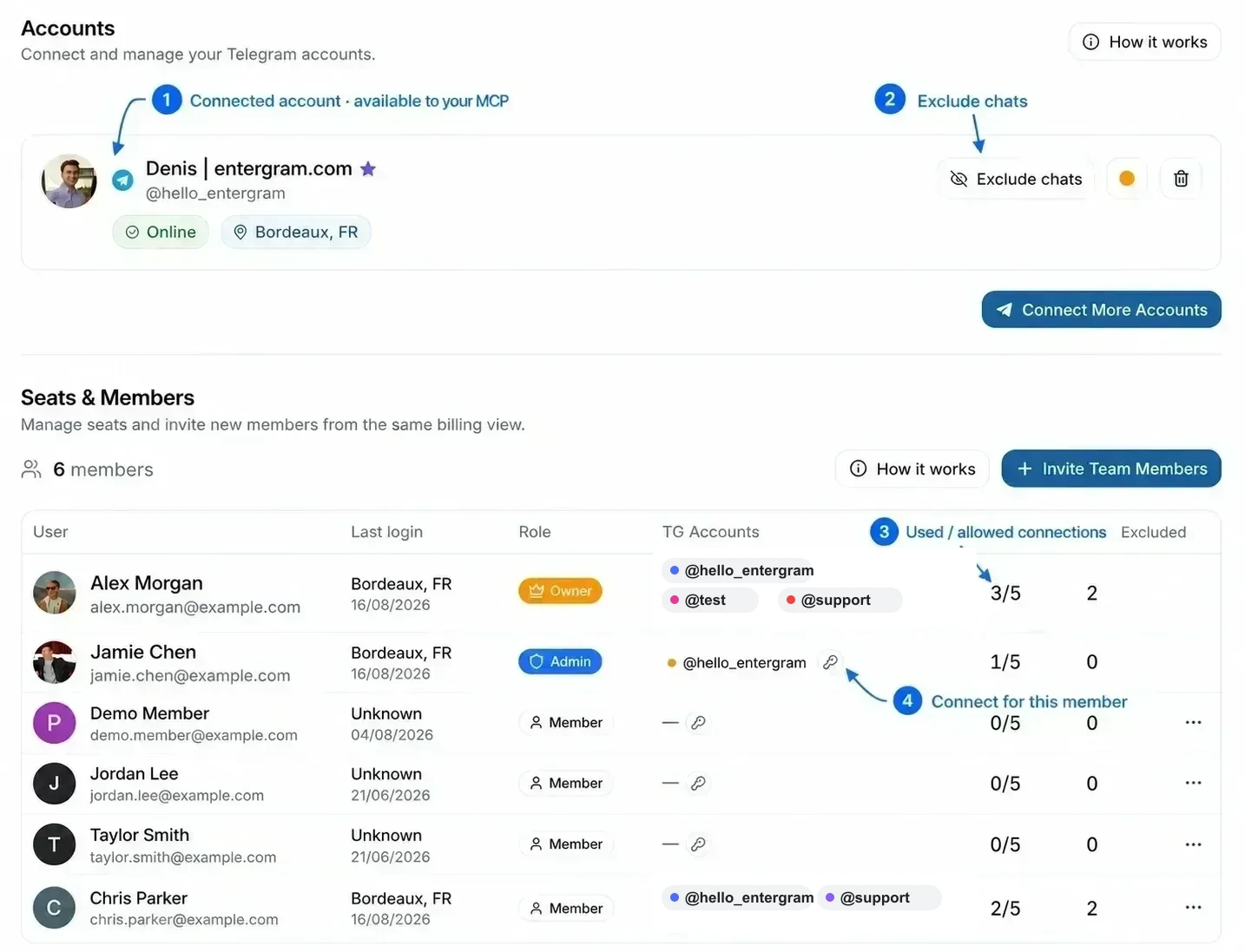
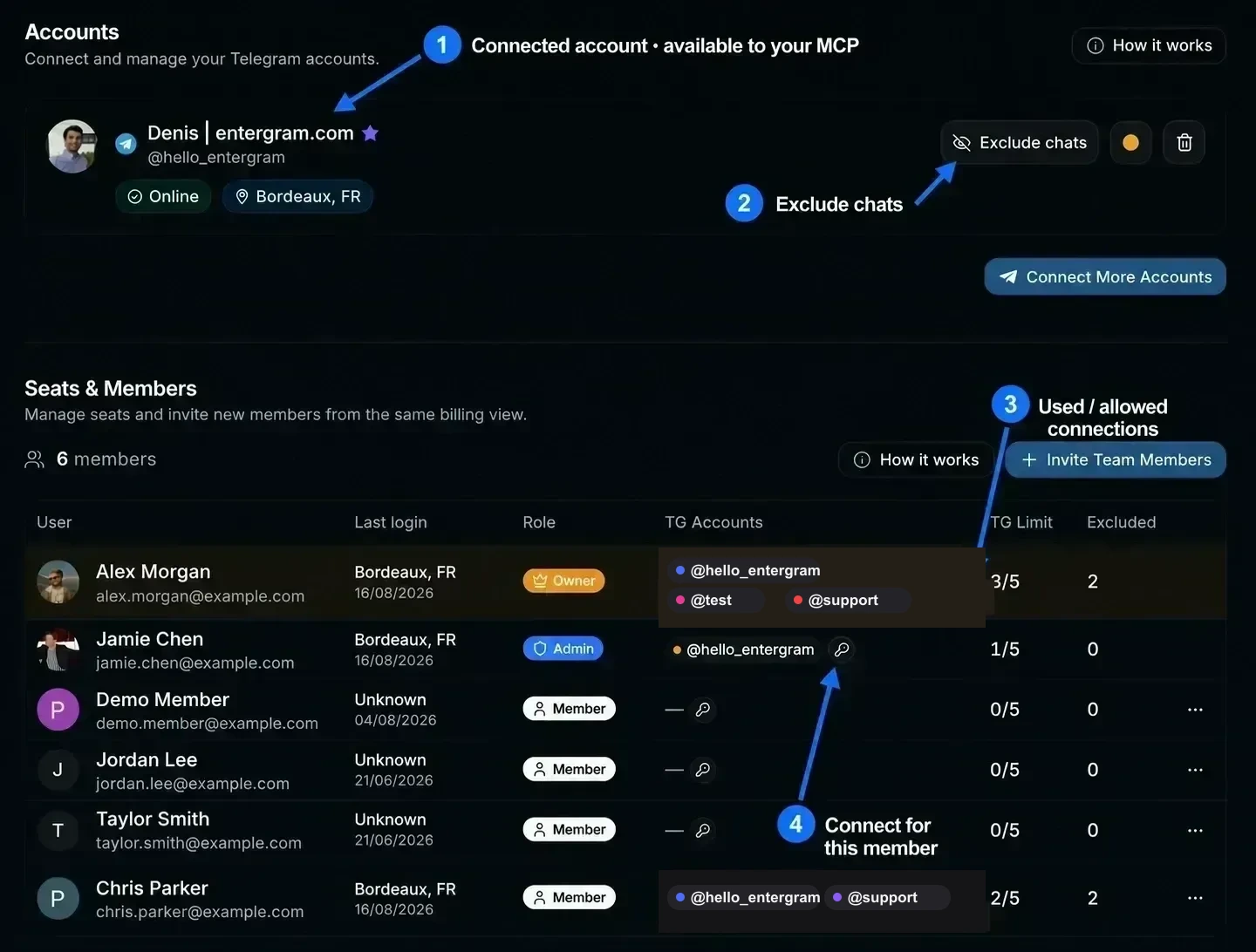
Official account safety:
@hello_entergramis the only official Entergram Telegram username shown here.@testand@supportare neutral placeholders used in this example, not support contacts. Verify real contact links from Entergram’s website or in-app support entry points.
See MCP connectors for personal versus workspace connectors and scope permissions.
Account slots
Section titled “Account slots”“Telegram account slots, {used} of {count} slots.”
Slots are capacity for accounts you may connect, not active connections.
In Seats & Members, TG Limit is displayed as used / allowed. For example, 3/5 means that seat currently uses three Telegram connections and can connect two more. It is not a message allowance, teammate count or MCP rate limit.
Your limit may come from:
- your plan - trials include 2 slots, paid plans 5 per seat,
- Extra TG add-ons on your seat,
- an admin-set override (“This limit was set by an admin”).
Reconnecting an existing account never consumes an extra slot.
Need more? Increase Limit / Contact us for a custom plan.

An account card
Section titled “An account card”| Element | Meaning |
|---|---|
| Status badge | See the table below |
| Online / Offline | Live presence |
| Telegram plan | Telegram Premium or Telegram Standard |
{n} excluded | Excluded chats on this account |
| Colour | A per-account colour used in badges across the table |
Status badges
Section titled “Status badges”| Badge | Meaning | Action |
|---|---|---|
| Live Sync Ready (green) | Connected and syncing | None needed |
| Shared Access (blue) | This Telegram login is shared with another seat that holds the live connection | None needed |
| Needs Migration (amber) | Connected under the old flow; needs one fresh sign-in | Connect Live Sync |
| Reconnect Required (orange) | The live connection was lost | Reconnect Live Sync |
| Session expired (red) | The Telegram session ended, terminated from Telegram’s Devices menu or invalidated by a password change | Reconnect Live Sync |
Actions
Section titled “Actions”| Action | What it does |
|---|---|
| Reconnect / Connect Live Sync | Re-authenticate the account (same Telegram account required) |
| Exclude chats | Opens the excluded chats manager for this account |
| Disconnect | Stops syncing this account |
Analytics
Section titled “Analytics”Analytics comes with the account connection, there is no separate analytics setup. If your plan includes analytics (Pro, a Pro seat, or a trial), a connected account feeds the Analytics views and can send broadcasts from Entergram’s servers.
On plans without analytics you’ll see Upgrade to Pro prompts on the analytics surfaces.
Sharing an account with a colleague
Section titled “Sharing an account with a colleague”Share a Telegram account with a colleague by connecting the same Telegram login in two different seats. Each seat gets its own Entergram connection to the same Telegram account, and the connection consumes one Telegram slot in each seat. Both teammates can then operate the shared inbox without sharing an Entergram login. Full details in Connect a Telegram account.
How accounts work (the panel’s own summary)
Section titled “How accounts work (the panel’s own summary)”How it works on this page explains the model in three lines:
- Every account is isolated, “It runs on its own proxy with a unique IP and an encrypted session. No other member can read its messages.”
- Share an account across seats, “Connect the same Telegram login in a teammate’s seat and you then work one inbox together.”
- CRM data belongs to the chat - “Custom columns, tickets and notes live on the chat, not the account. Anyone who can reach the chat sees them.”
Summed up: messages stay with the account, CRM data stays with the chat.
Common messages
Section titled “Common messages”| Message | What to do |
|---|---|
Session expired for {account}. Please disconnect and reconnect. | Reconnect the account |
| Account disconnected. You may need to reconnect. | Reconnect |
You can connect up to {n} Telegram accounts | You’re out of slots, raise the limit or free one |
| Only the workspace owner can manage excluded chats. | The owner has locked exclusions |
Cookie preferences
We respect your right to privacy. Choose which cookies to allow, your choice applies across our site. Cookie Policy
Required for the site to work, including remembering your privacy choices. Always on.
Help us understand site use and attribute sign-ups to referral partners. Optional.