Connect a Telegram account
Settings → Accounts → Connect Account
Before you start
Section titled “Before you start”- You need a free account slot. Your slot count is shown as “
{used}of{count}slots”. Slots are capacity, how many accounts you may connect, not live connections. Trials include 2 slots; paid plans 5 per seat, extendable with add-ons. - The connection is handled on Entergram’s servers. There is nothing to install and no passphrase to manage, you just sign in with Telegram’s own login.
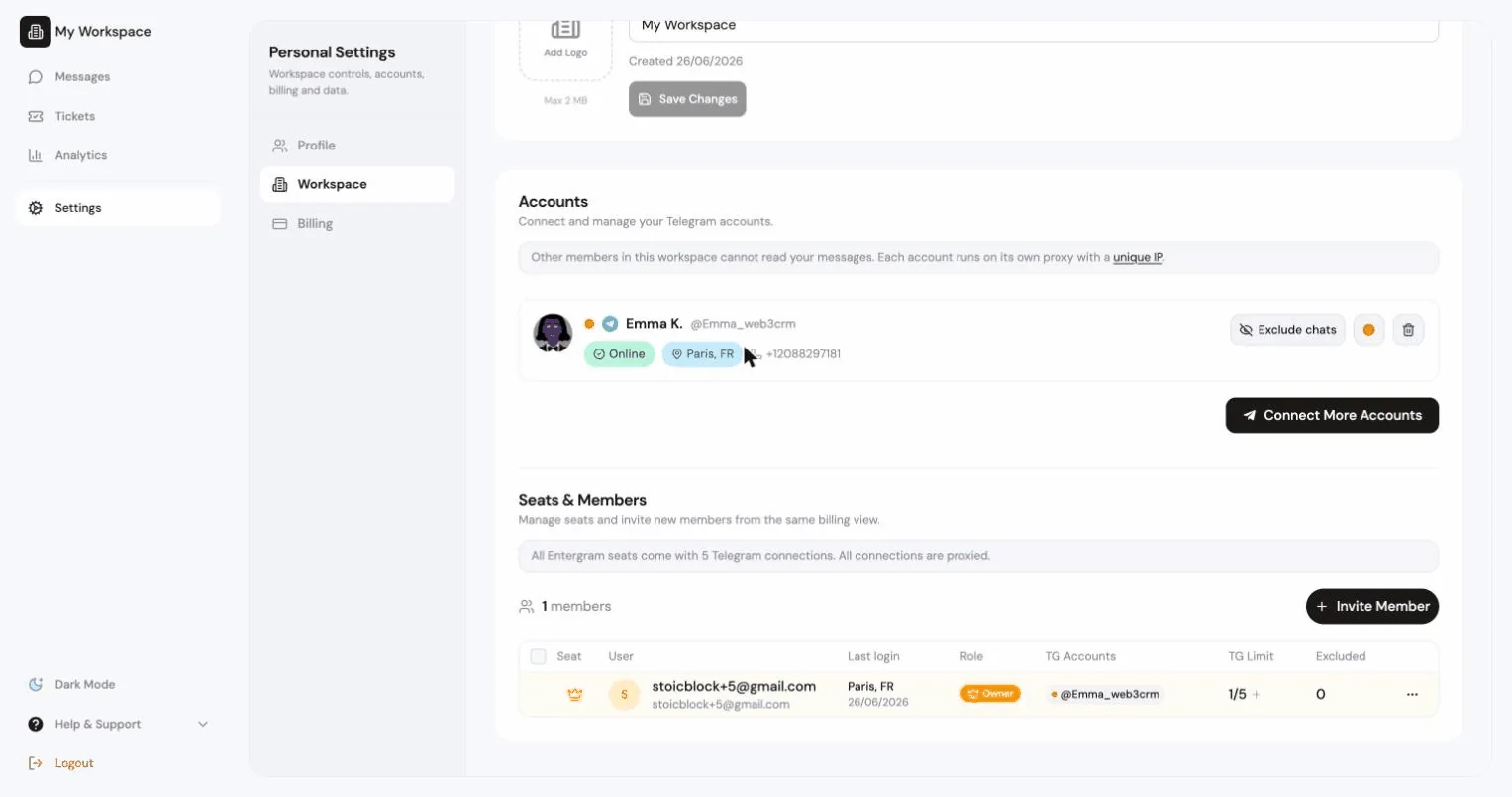
During onboarding, Entergram first shows what it accesses - basic account information, chat list and metadata (not message content), and group membership and activity timestamps, and asks you to accept the Terms of Service and Privacy Policy. See What Entergram accesses for the full breakdown.
Step 1, Choose a sign-in method
Section titled “Step 1, Choose a sign-in method”The dialog asks “Choose how you want to authorize this Telegram account.”
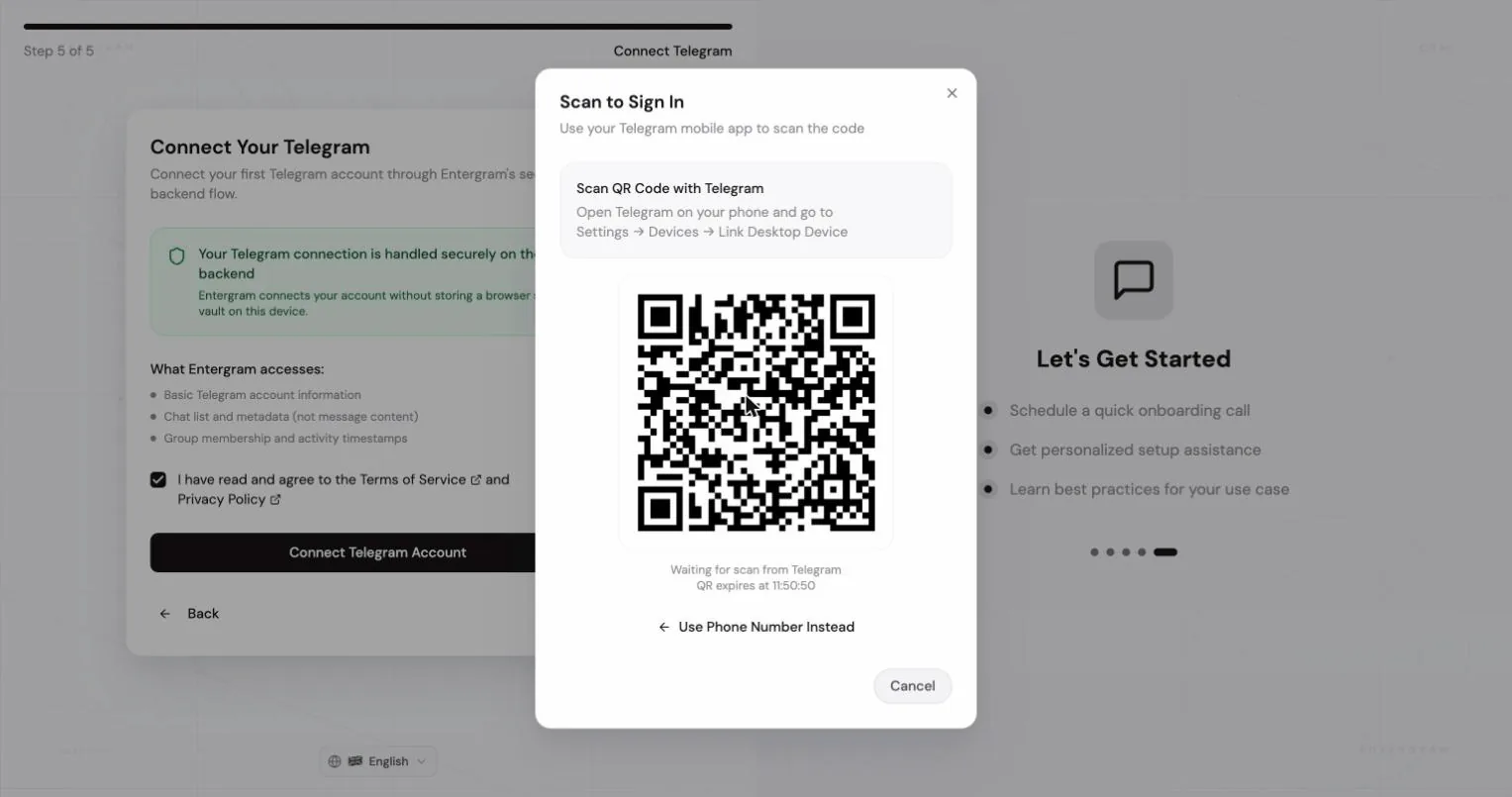
QR code (recommended)
Section titled “QR code (recommended)”- Open Telegram on your phone.
- Go to Settings → Devices → Link Desktop Device.
- Scan the code shown in Entergram.
The dialog shows “Waiting for scan from Telegram” and the QR’s expiry time. If it expires, a new one is generated.
Phone number
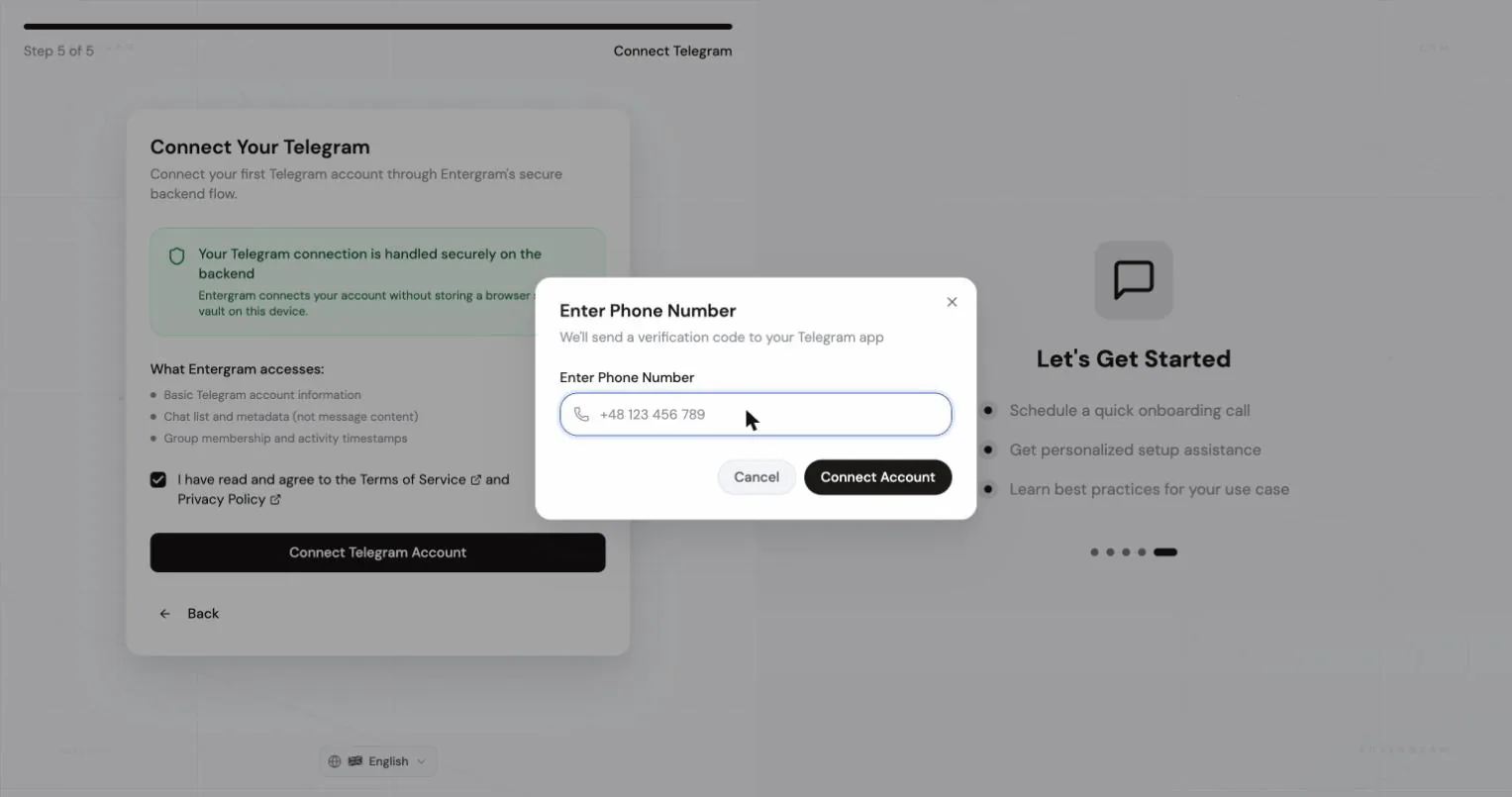
Section titled “Phone number”- Enter your number with the country code, e.g.
+1 234 567 890. - Click Connect.
- Telegram usually sends the login code to the Telegram app on your other logged-in devices, not by SMS. Open Telegram on a device that’s already signed in.
- Enter the code and click Verify.
Resend code becomes available after a 60-second countdown, the wait protects you from tripping Telegram’s login rate limit.
Step 2, Two-factor authentication
Section titled “Step 2, Two-factor authentication”If the account has a 2FA password (cloud password), Entergram asks for it. Enter the password and Verify.
Entergram uses this only to complete the Telegram login.
Step 3, Wait for the first sync
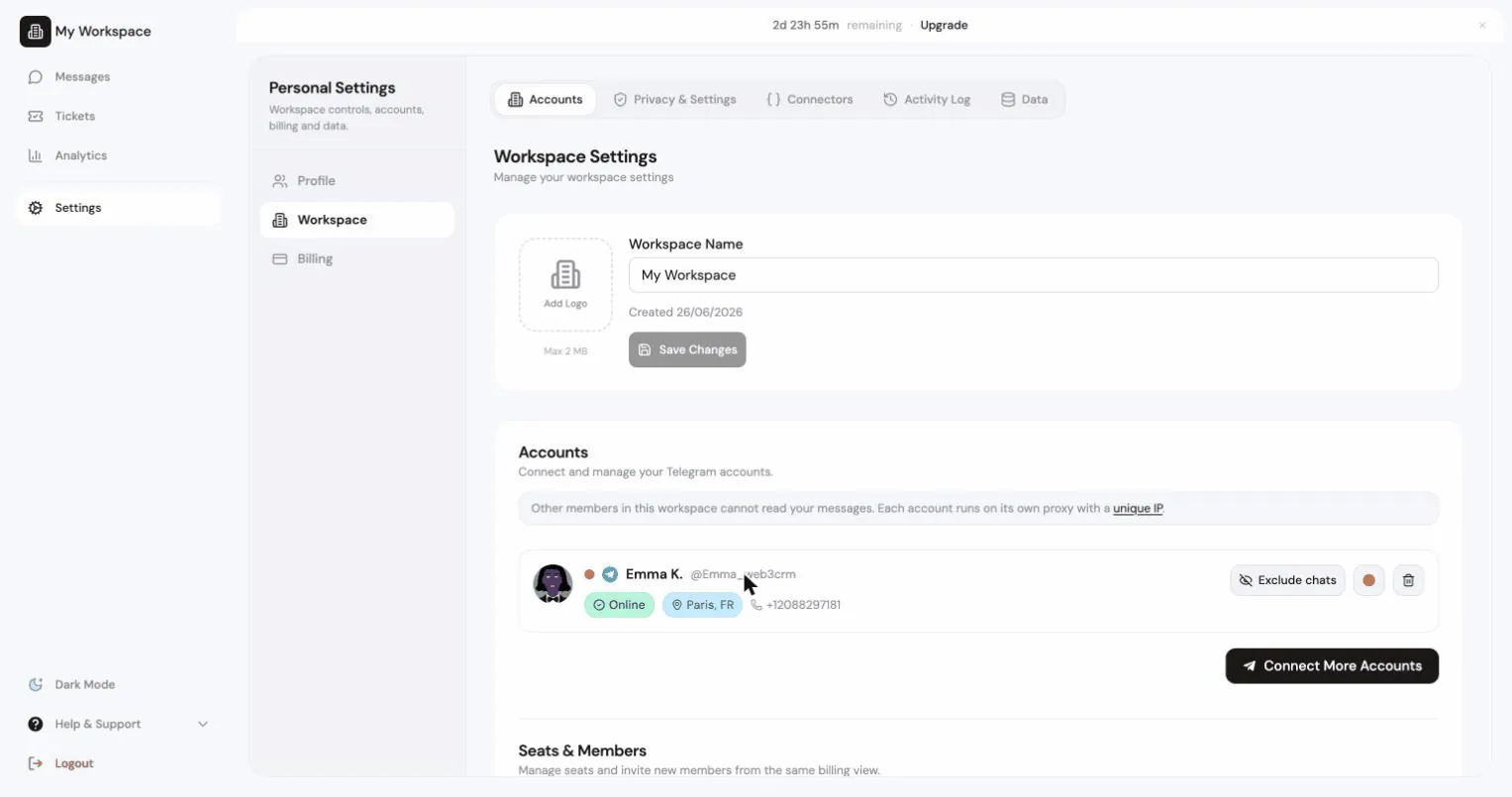
Section titled “Step 3, Wait for the first sync”Your chats begin loading. The first chat sync can take up to about five minutes depending on the size of the account. It runs on Entergram’s servers, so you don’t need to keep the tab open.
Reconnecting an account
Section titled “Reconnecting an account”Each account card in Settings → Accounts carries a status badge. A healthy account shows Live Sync Ready. When something needs your attention you’ll see:
| Badge | Meaning | Action |
|---|---|---|
| Session expired | The Telegram session ended - usually terminated from Telegram’s Devices menu, or invalidated after a password change | Reconnect Live Sync |
| Reconnect Required | The account lost its live connection | Reconnect Live Sync |
| Needs Migration | The account was connected under the old flow and needs one fresh sign-in | Connect Live Sync |
The button opens the same sign-in dialog. You must reconnect with the same Telegram account, signing in with a different one is rejected: “Cannot reconnect: You must use the same Telegram account.” Reconnecting doesn’t use up an extra slot.
Disconnecting
Section titled “Disconnecting”Settings → Accounts → Disconnect. The account stops syncing. Your CRM data for its chats stays in the workspace unless you delete it separately.
To also end the Telegram session itself, terminate it from Telegram → Settings → Devices in the Telegram app.
Sharing one Telegram account across seats
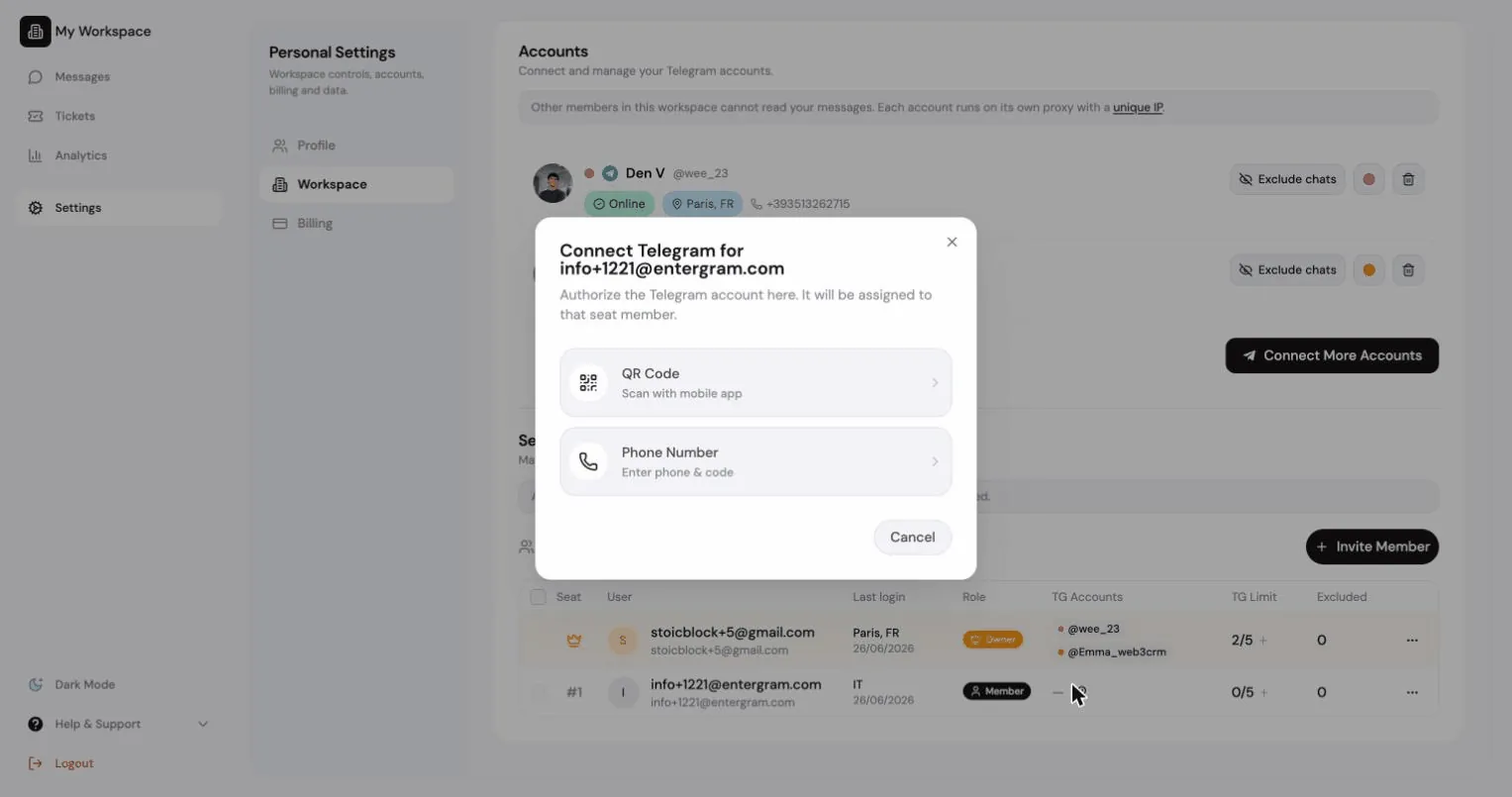
Section titled “Sharing one Telegram account across seats”To let a teammate work the same inbox, sign that same Telegram login into their seat. Nothing is copied or forwarded - it’s simply the same account, connected twice.
Two ways:
- They connect it from their own seat, or
- You connect it for them, click the key icon next to their name in
Settings → Workspace → Members. The dialog reads “Connect Telegram for
{name}”.
Delegated connection requires:
- the workspace setting Hide Telegram login chat from members to be on, and
- a free account slot on that member’s seat.
Only the owner can connect an account for an admin; owners and admins can do it for regular members.
Common connection errors
Section titled “Common connection errors”| Message | What to do |
|---|---|
| Too many attempts. Try again in … | Telegram rate-limited the login. Wait out the timer. |
| This account is already connected to another user | Disconnect it from the other Entergram user, or contact support. |
| QR authentication session expired | Start the QR flow again, the sign-in has a 5-minute window. |
You can connect up to {n} Telegram accounts | You’re out of slots. Raise the limit or free one up. |
More in Connection & sessions.
Cookie preferences
We respect your right to privacy. Choose which cookies to allow, your choice applies across our site. Cookie Policy
Required for the site to work, including remembering your privacy choices. Always on.
Help us understand site use and attribute sign-ups to referral partners. Optional.