Organize conversations in the CRM
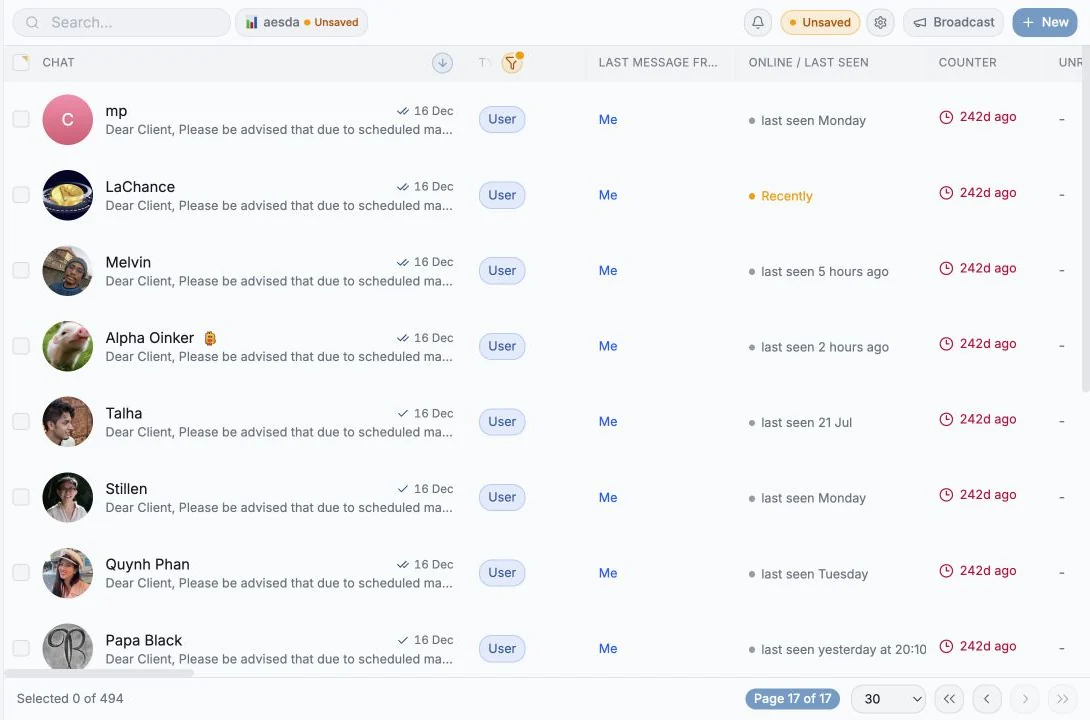
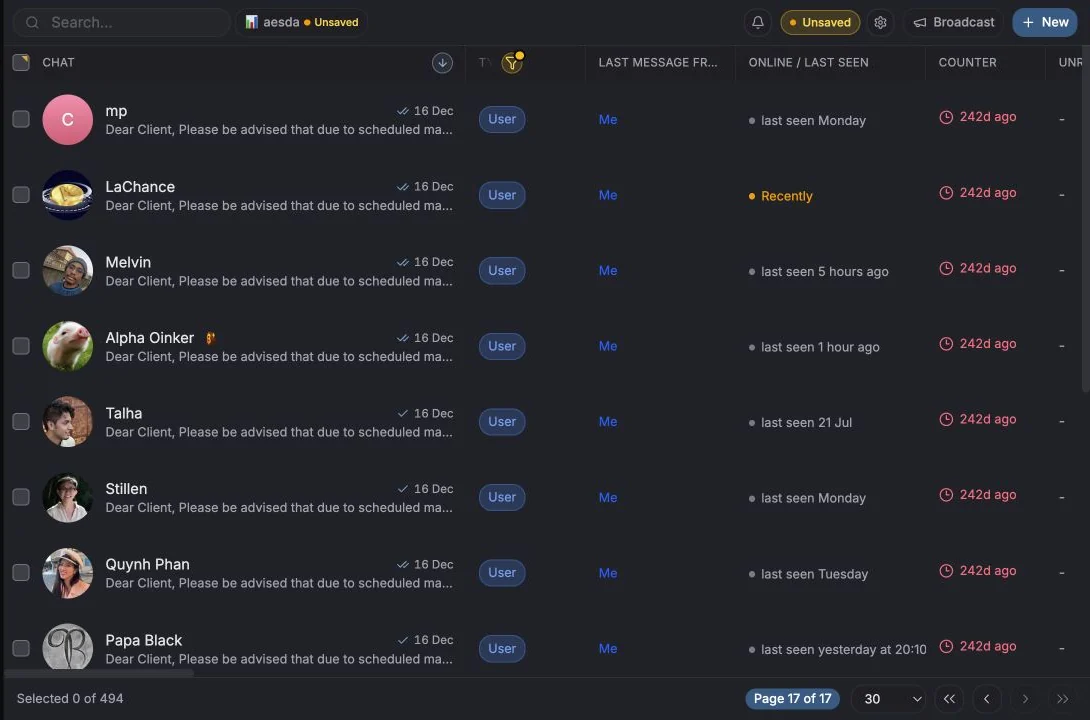
Messages is the home of the CRM. Every chat your connected accounts can see becomes a row you can filter, tag, assign and act on.
Where chats come from
Section titled “Where chats come from”Chats are synced from each connected Telegram account. On first connection you’ll see “First chat sync in progress. This can take up to 5 minutes, depending on account size.” After that the table stays live - new messages, unread counts and typing indicators update in place.
Chats not shown:
- anything on the excluded list,
- Telegram’s service chat (777000) if the workspace hides it from members,
- chats belonging to accounts you personally have not connected (see What teammates can see).
The layout
Section titled “The layout”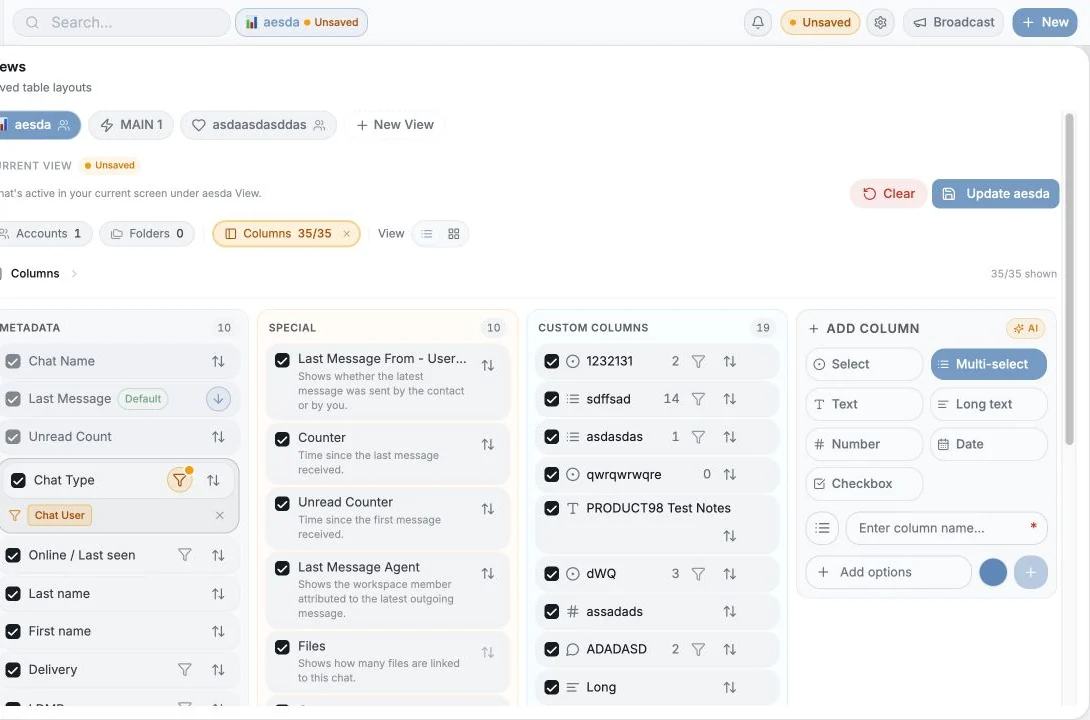
| Area | What it does |
|---|---|
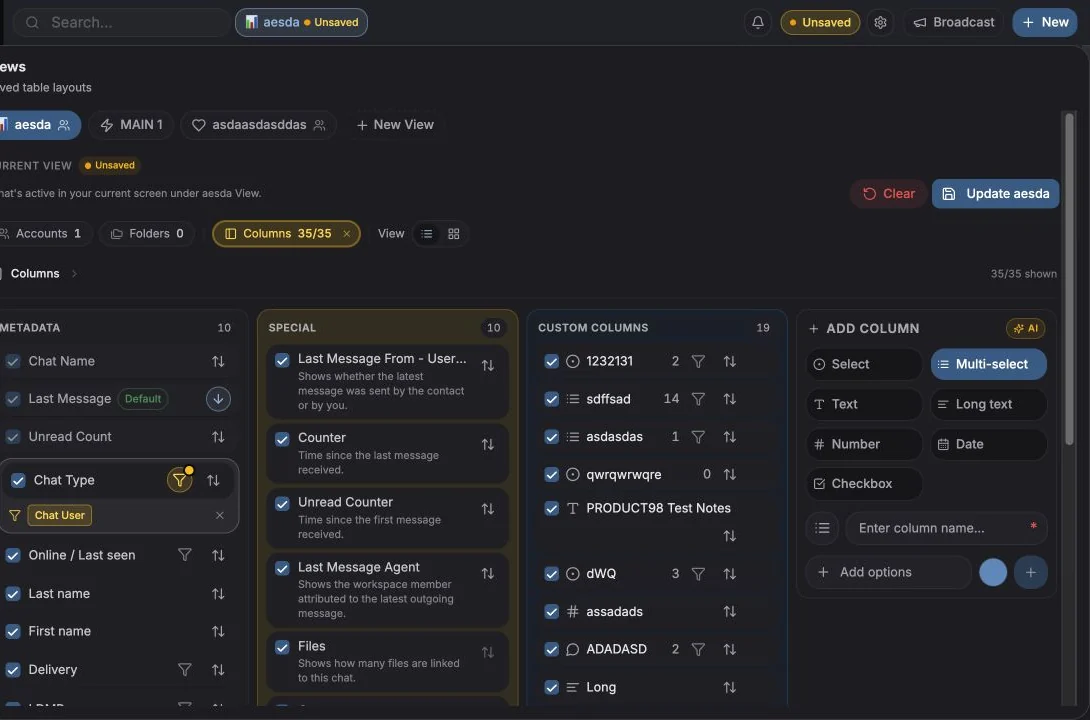
| Toolbar | Search, Filters, Sort, Columns, Views, folders, account filter, table/board switch |
| View chips row | Live pills for every active filter, folder, account and sort, click to clear one |
| Table | One row per chat |
| Selection toolbar | Appears when you tick rows, bulk actions |
| Chat panel | Opens on the right when you click a row |
The default columns
Section titled “The default columns”| Column | Shows |
|---|---|
| Chat | Avatar, name, last message preview, unread badge, account badge |
| Type | User, Bot, Group, Supergroup or Channel |
| Members | Member count for groups and channels, click to open the member list |
| First name / Last name | Editable contact name (writes back to Telegram contacts) |
| Phone Number | Only when the contact shared it in Telegram |
| Telegram ID | The numeric chat ID |
| Online / Last seen | Online, Recently active, Seen this week, Seen this month, Offline |
| Invite Link | For groups and channels you can administer |
| Description | The chat’s Telegram description |
| Delivery | Delivered / Seen state for your last outgoing message |
Special columns
Section titled “Special columns”These are computed rather than stored, and each has a tooltip in the Columns menu:
| Column | Meaning |
|---|---|
| Last Message From (Username) | Whether the latest message was from the contact or from you |
| Last Message Agent | The workspace member attributed to the latest outgoing message |
| Counter | Time since the last incoming message (falls back to last message) |
| Unread Counter | Time since the first unread incoming message |
| Files | How many files are attached to this chat in the CRM |
| Comments | Internal CRM comments on this chat |
| Tickets | Tickets linked to this chat |
| Reminders | Active reminders on this chat |
Everything else you see is a custom column you or a teammate created.
Searching
Section titled “Searching”The search box searches your synced chats and Telegram itself. Results are grouped:
- Existing Chats - already in your CRM,
- New Chats - found on Telegram but not yet in your table,
- Text, message-text matches.
Use Account for new chats to pick which connected account a newly opened chat should belong to, and All accounts to widen or narrow the search.
A search result is not yet a real chat. You can’t save custom-field values on one - “Cannot save values for search results. Open the chat first to add it to your chats.” Open it once and it becomes a normal row.
Sorting
Section titled “Sorting”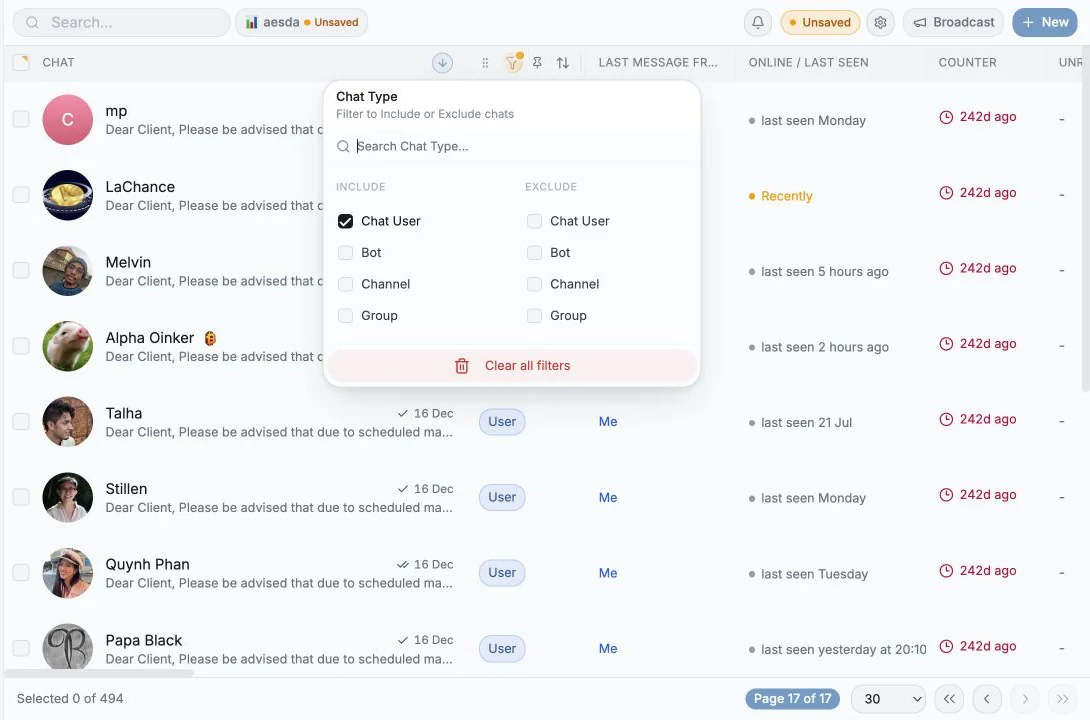
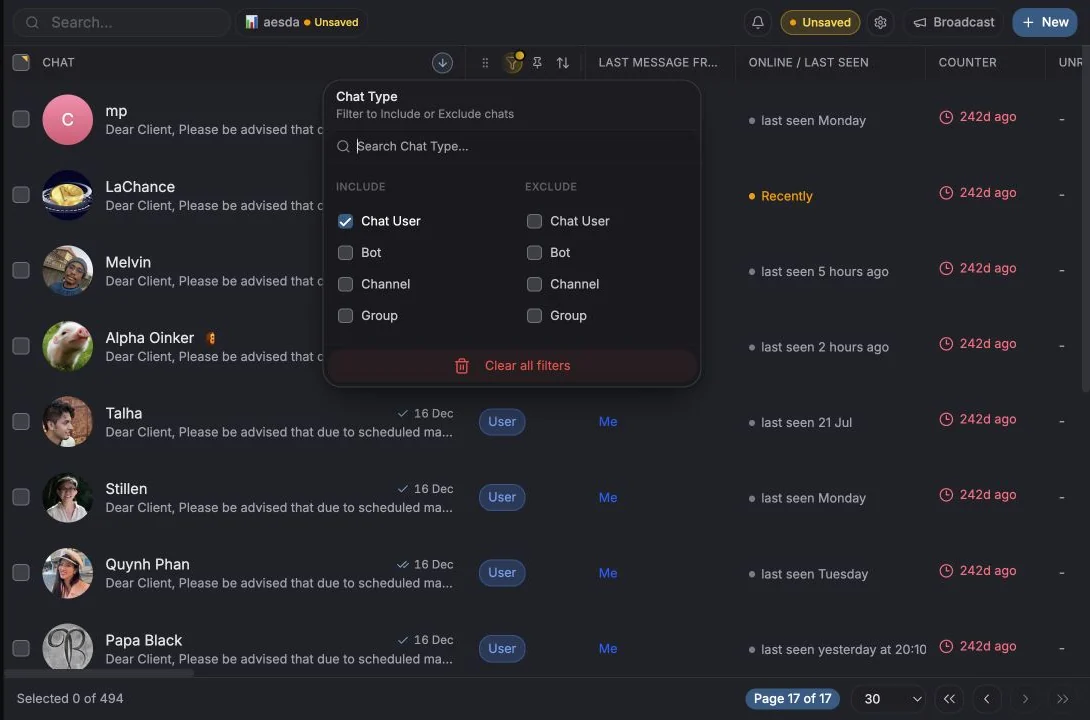
Sort by in the toolbar. Built-in options: Chat Name, Last Message, Unread Count, Chat Type, Members Count, Phone Number, plus any custom column. Click a column header to sort by it directly, and Clear sorting or Reset to default to undo.
Table vs Board
Section titled “Table vs Board”Switch layouts from the toolbar. The board (Kanban) groups rows into lanes by a single-select column, see Board view & grouping.
Where to go next
Section titled “Where to go next”Cookie preferences
We respect your right to privacy. Choose which cookies to allow, your choice applies across our site. Cookie Policy
Required for the site to work, including remembering your privacy choices. Always on.
Help us understand site use and attribute sign-ups to referral partners. Optional.