Analyze message, account, and seat performance
The two headline analytics views. Messages is about traffic; Performance is about people.
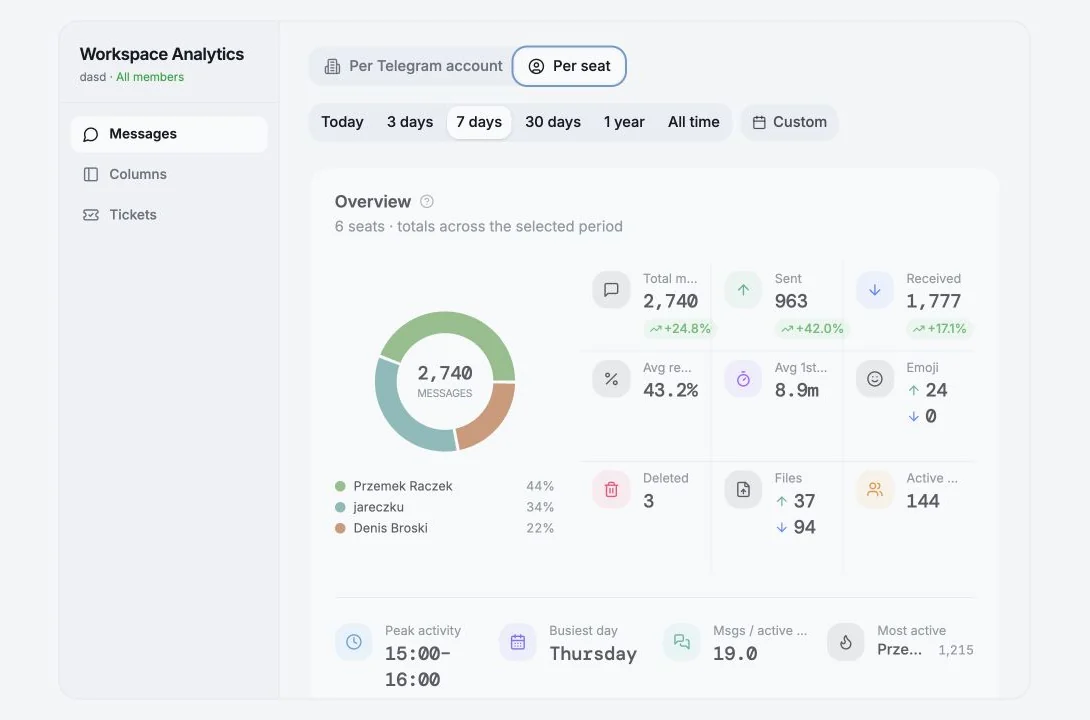
Headline stats
Section titled “Headline stats”| Stat | Definition |
|---|---|
| Total Messages | All incoming and outgoing messages in the selected period |
| Incoming Messages | Messages received from contacts |
| Outgoing Messages | Messages sent from your accounts |
| Response Rate | Share of conversations that received a reply, across n conversations |
| Active Chats | Unique chats with at least one message in the period |
| Text Messages | Including n media messages |
Each carries a delta against the previous period.
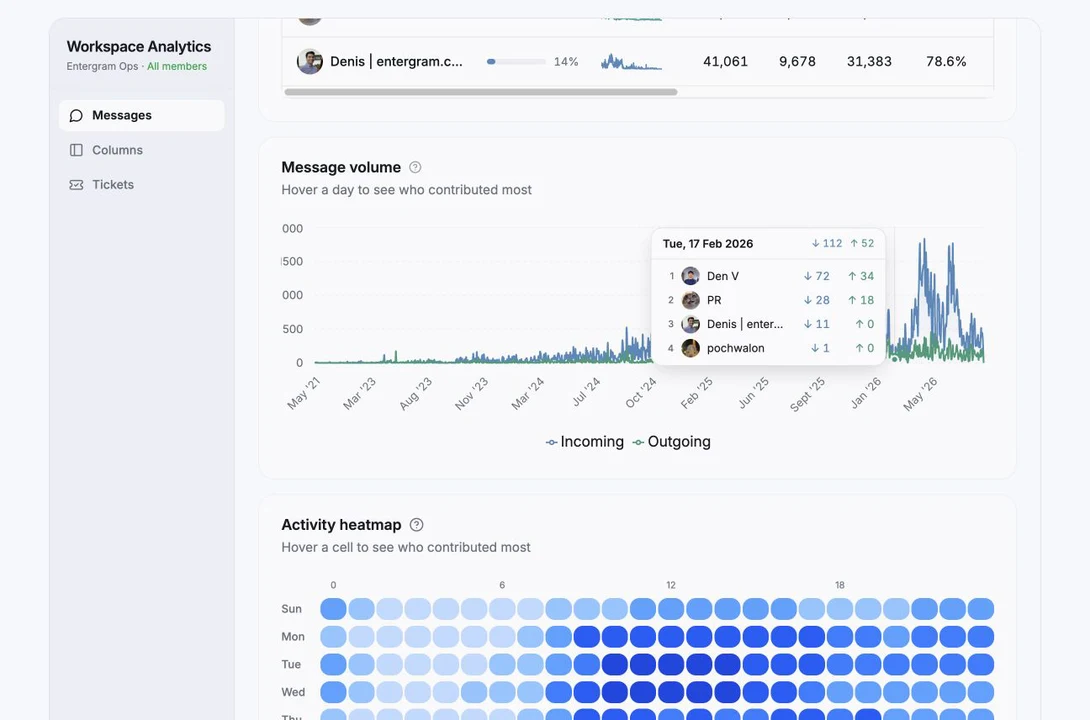
Message Volume
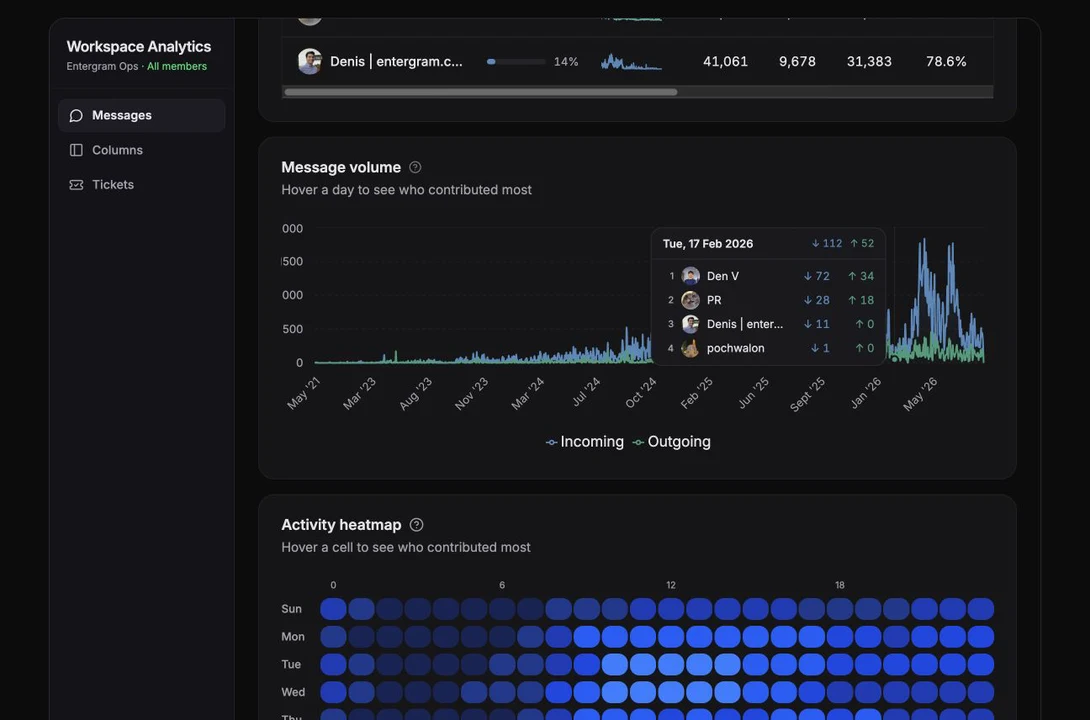
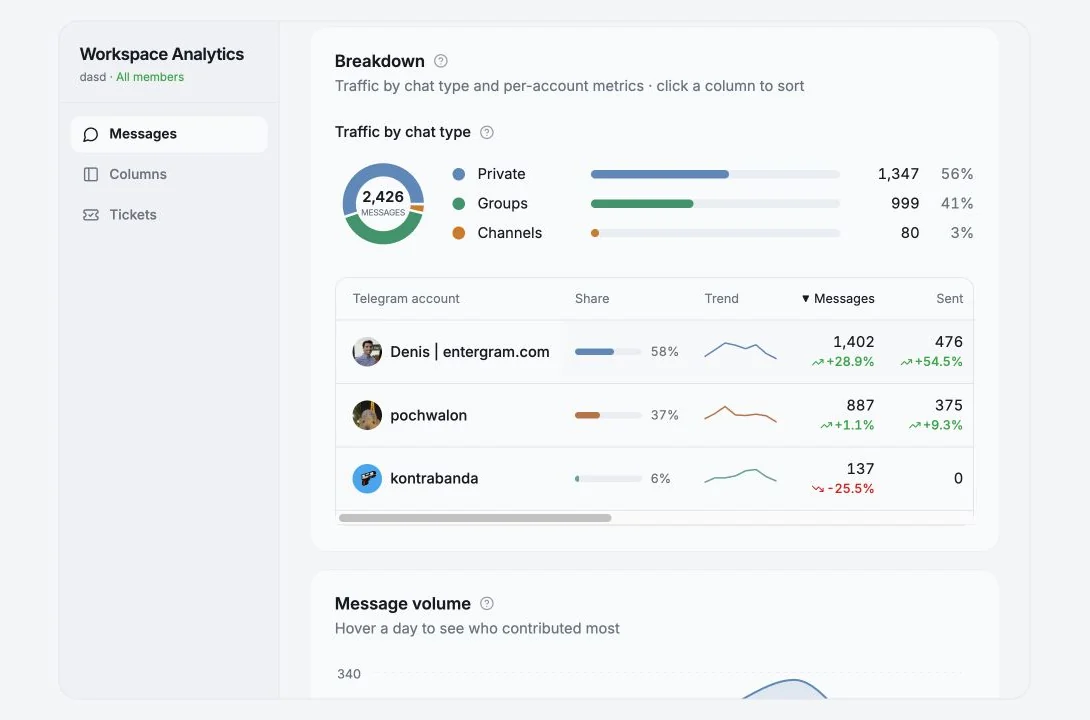
Section titled “Message Volume”Incoming and outgoing messages over time, a daily trend with Incoming and Outgoing series. Hover a day to see who contributed most.
Activity Heatmap
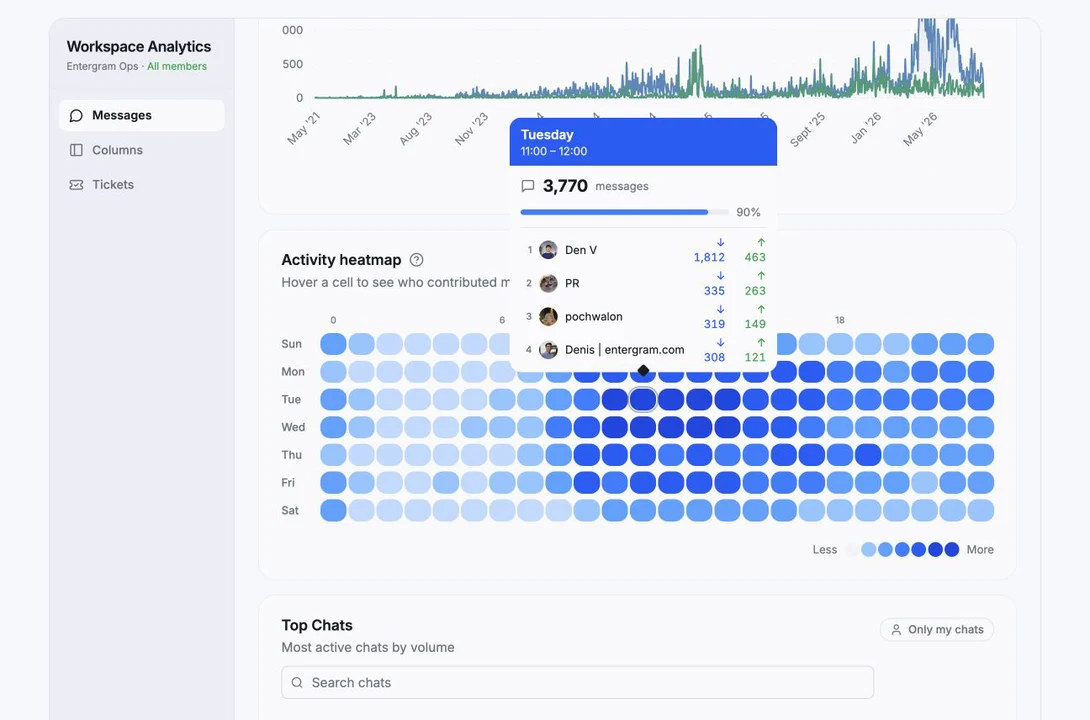
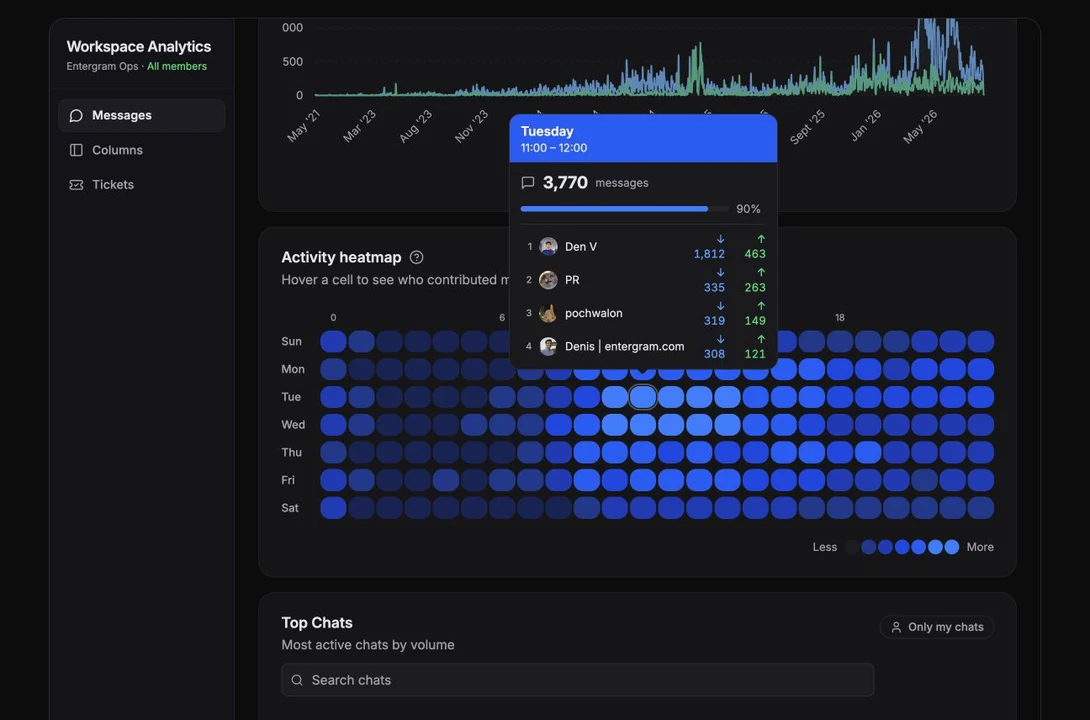
Section titled “Activity Heatmap”Message patterns by day and hour. Darker cells mean more activity. Filter by direction: All, Incoming, Outgoing. Click a cell for the period details.
Use it to find your audience’s real working hours before scheduling outreach.
Message Breakdown
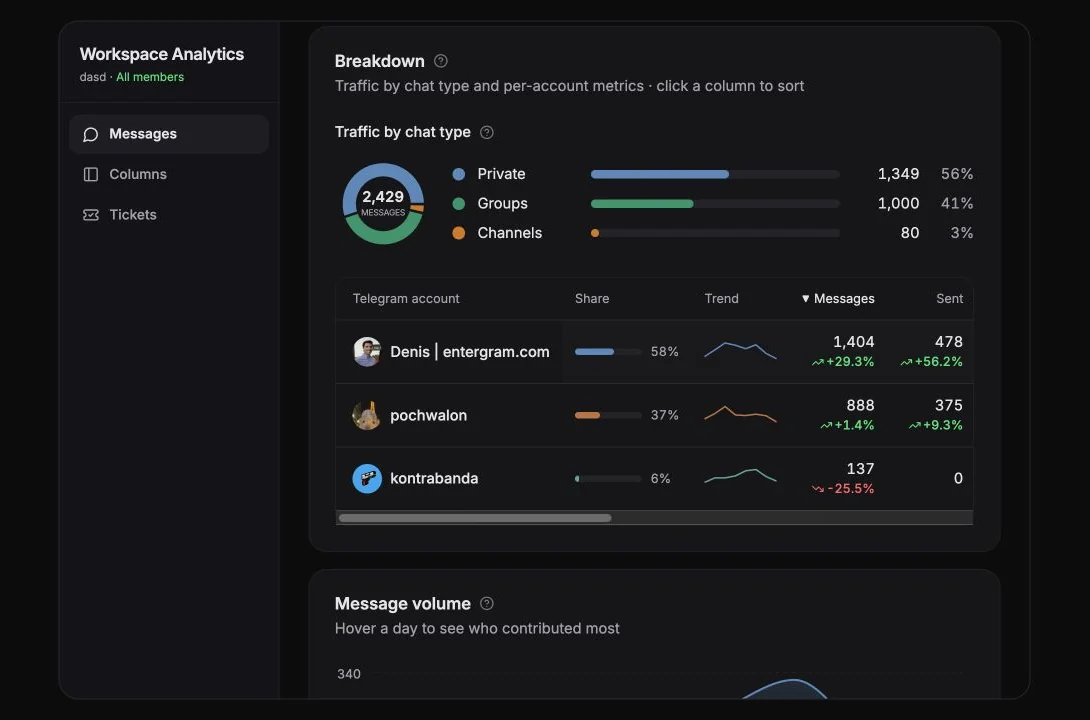
Section titled “Message Breakdown”Received vs sent by chat type - Private, Groups, Channels, plus Unclassified. The table gives per-row metrics you can sort by clicking a column:
Messages · Sent · Received · Resp. rate · Avg 1st reply · Emoji ↑ · Emoji ↓ · Deleted · Text · Files ↑ · Files ↓ · Active chats · Share · Trend.
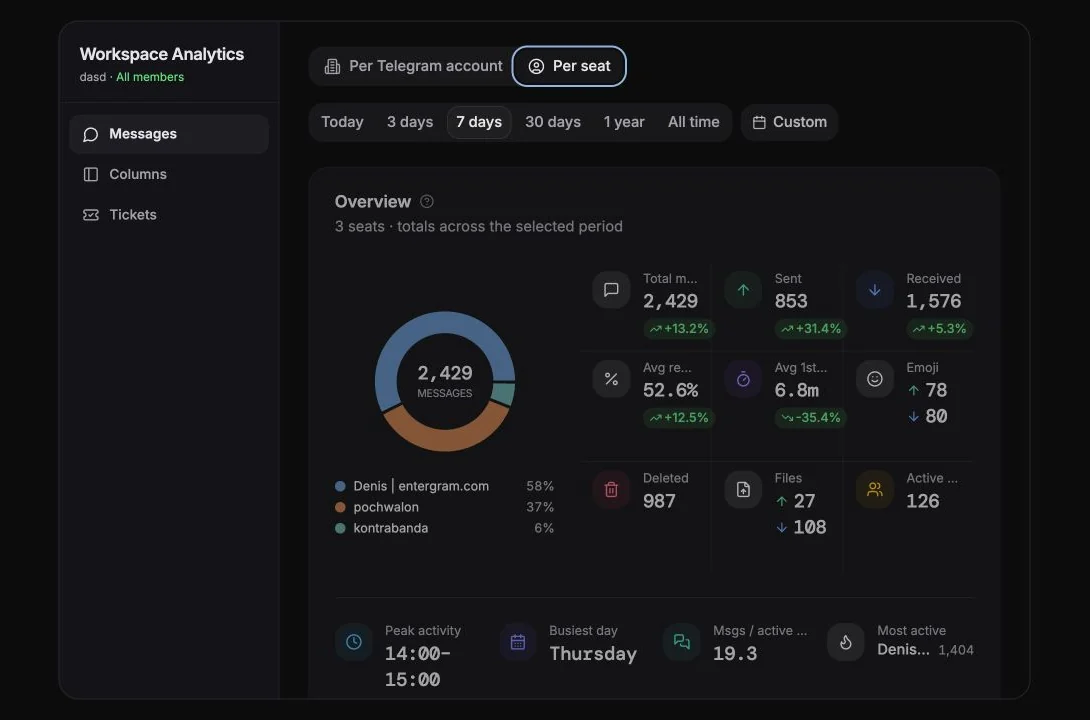
The breakdown can be pivoted by Telegram account or by Agent / Seat.
Derived stats
Section titled “Derived stats”| Stat | Meaning |
|---|---|
| Peak activity | The hour of the week with the most message activity |
| Busiest day | The weekday with the highest total activity |
| Msgs / active chat | Higher means deeper conversations |
| Most active | Who sent and received the most |
| Fastest reply | Lowest average time to first reply |
| Best coverage | Replied to the largest share of conversations |
| Most new chats (7d) | Who started the most new chats, always a fixed 7-day window |
Top Chats
Section titled “Top Chats”Most active chats by volume, searchable, with Only my chats and Show all ({n}). Click a chat for its own analytics dialog.
Chats owned by another seat show as Private · {owner} - you see they exist, not what’s in them.
Media & Content
Section titled “Media & Content”File transfers and content type distribution - files sent and received, reactions (including Top Reactions), deleted counts, and Top Content Types.
Response Performance
Section titled “Response Performance”Response rate, average response time, median, and how many conversations were responded to vs not. The exact definitions matter, see Response metrics explained.
Account Activity
Section titled “Account Activity”Sync status, time range, First activity, Last activity and Account age per connected account.
Per-chat analytics
Section titled “Per-chat analytics”Open any chat’s analytics for a focused view: total / received / sent, response statistics, Activity by Day and Activity by Hour (filterable to All / Incoming / Outgoing), a Content Breakdown, and Deleted Messages (total, sent, received, last 24h, by day, by hour).
The performance boards
Section titled “The performance boards”Performance ranks workspace members on four dimensions:
| Board | Ranks by |
|---|---|
| Messages | Total sent + received in the range; the badge shows current unread chats tied to that member |
| Response | Response rate first, average response time as tie-breaker |
| Engagement Ratio | (comments + files) ÷ all tracked activity events for that member |
| Custom Fields | Custom-field updates made in the range |
These are workspace-scope views. A member only sees them if the owner has left Members can see all analytics on.
Reading these numbers honestly
Section titled “Reading these numbers honestly”- Volume is not productivity. Pair Messages with Response before drawing conclusions.
- Response rate falls when triggers rise, a busy week with the same absolute number of replies will show a worse rate. Check both.
- Deleted counts are informational, not accusatory: people fix typos.
- Compare like-for-like periods; the delta indicator already does this for you.
Cookie preferences
We respect your right to privacy. Choose which cookies to allow, your choice applies across our site. Cookie Policy
Required for the site to work, including remembering your privacy choices. Always on.
Help us understand site use and attribute sign-ups to referral partners. Optional.