Seats, members & roles
A seat is one teammate. Give everyone a seat, then connect Telegram in whichever way suits your team.
Do not confuse a seat with a Telegram account connection:
| Seat | Telegram account connection | |
|---|---|---|
| What it represents | One Entergram workspace member | One Telegram login/session connected to Entergram |
| What it controls | Role, plan, permissions and Telegram capacity | Which Telegram inboxes, chats and messages that member can work with |
| Where you manage it | Seats & Members | Accounts |
| MCP meaning | The seat table is not an MCP account picker | A personal MCP connector can use the connected accounts shown in that member’s Accounts section, subject to its granted scopes and exclusions |
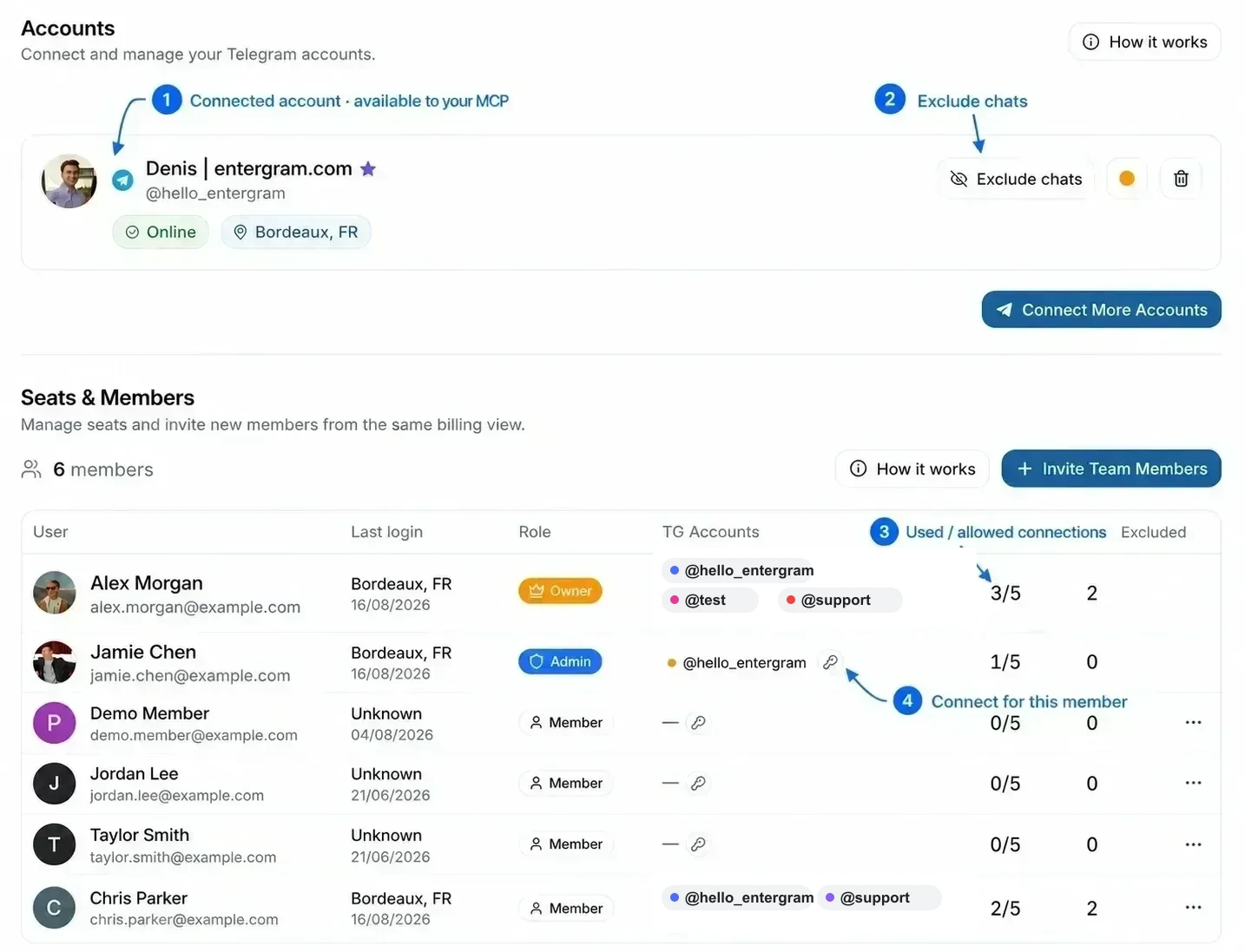
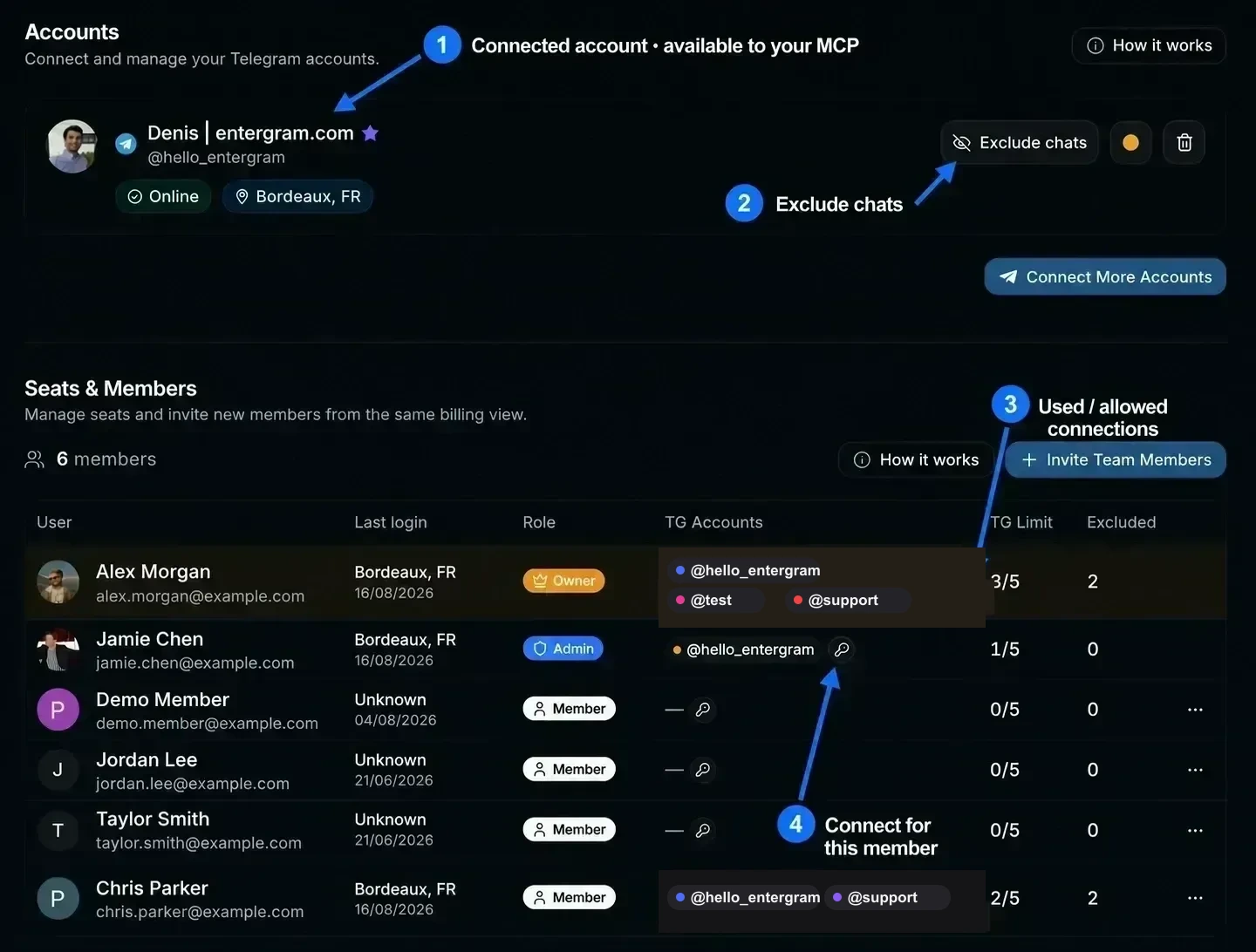
What a seat includes
Section titled “What a seat includes”- 5 Telegram connections per seat, each on its own proxy.
- Need more? Add Extra TG account add-ons, either per seat or in bulk.
- Seat plans come in Basic and Pro tiers. Pro seats include analytics for that member.
The workspace owner is always seat 1 and is included in the personal plan, owner access does not consume a purchased seat.
Two ways to work
Section titled “Two ways to work”| Model | Best for | How |
|---|---|---|
| Everyone their own account | Sales and outreach | Each teammate connects their own Telegram and works their own inbox |
| One account, shared | Support | Everyone connects the same Telegram and answers from one shared inbox |
You can mix both in a single workspace, per person.
To share an account, connect the same Telegram login in two different seats. Telegram allows the same account to have more than one active session, so both seats can work from that account. Nothing is copied or forwarded, and each connection uses one slot from the seat where it appears.
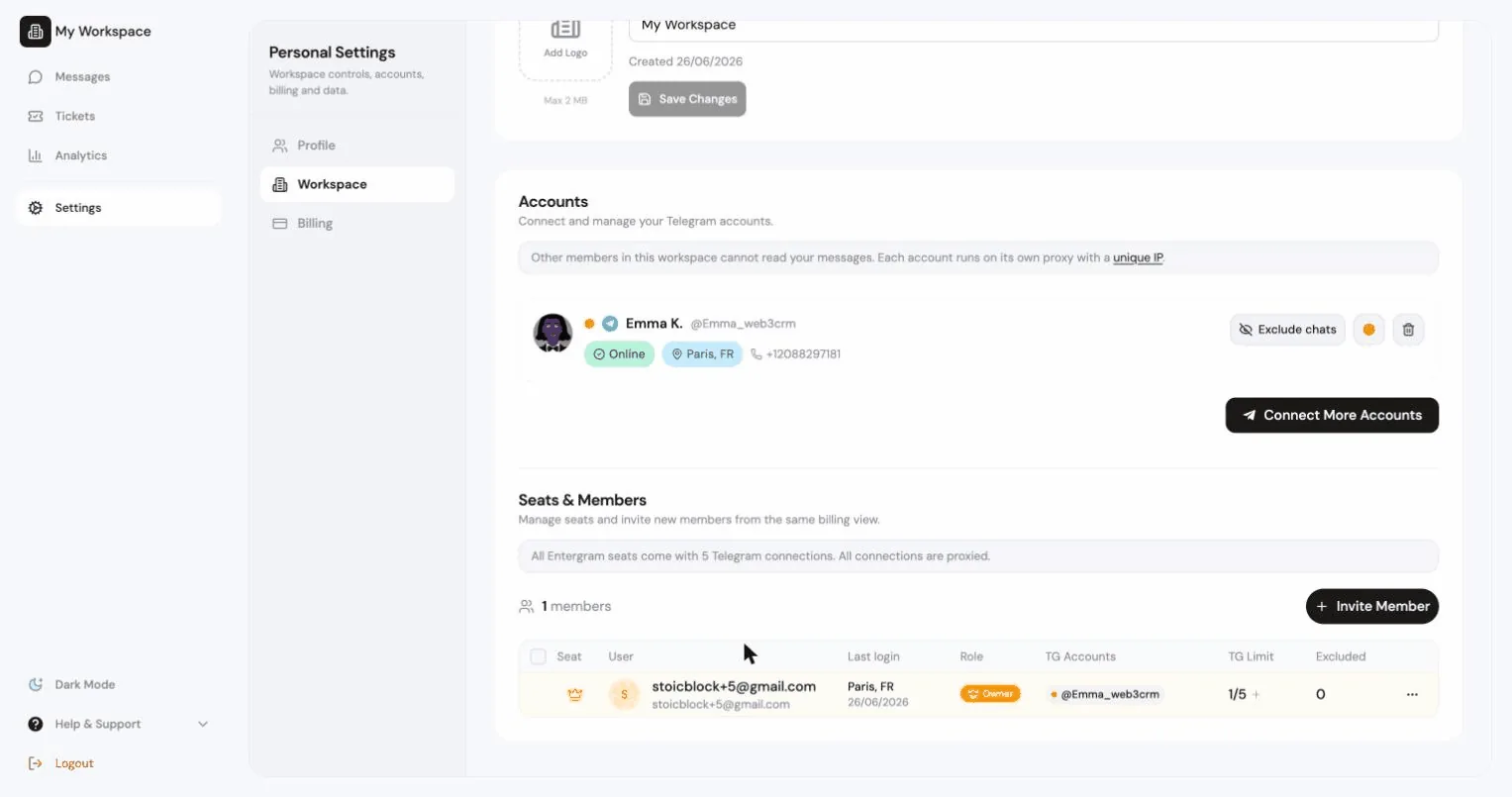
Inviting a teammate
Section titled “Inviting a teammate”Settings → Accounts → Seats & Team Members → Invite.
- Make sure a seat is free. Without one you’ll see “No paid seats available. Purchase more seats to invite members.”
- Optionally Assign to Seat, pick which paid seat this link consumes. Leave it empty to use a trial invite slot where available.
- Generate Invite Link and share it.
Anyone with this link can join your workspace. Links expire in 24 hours.
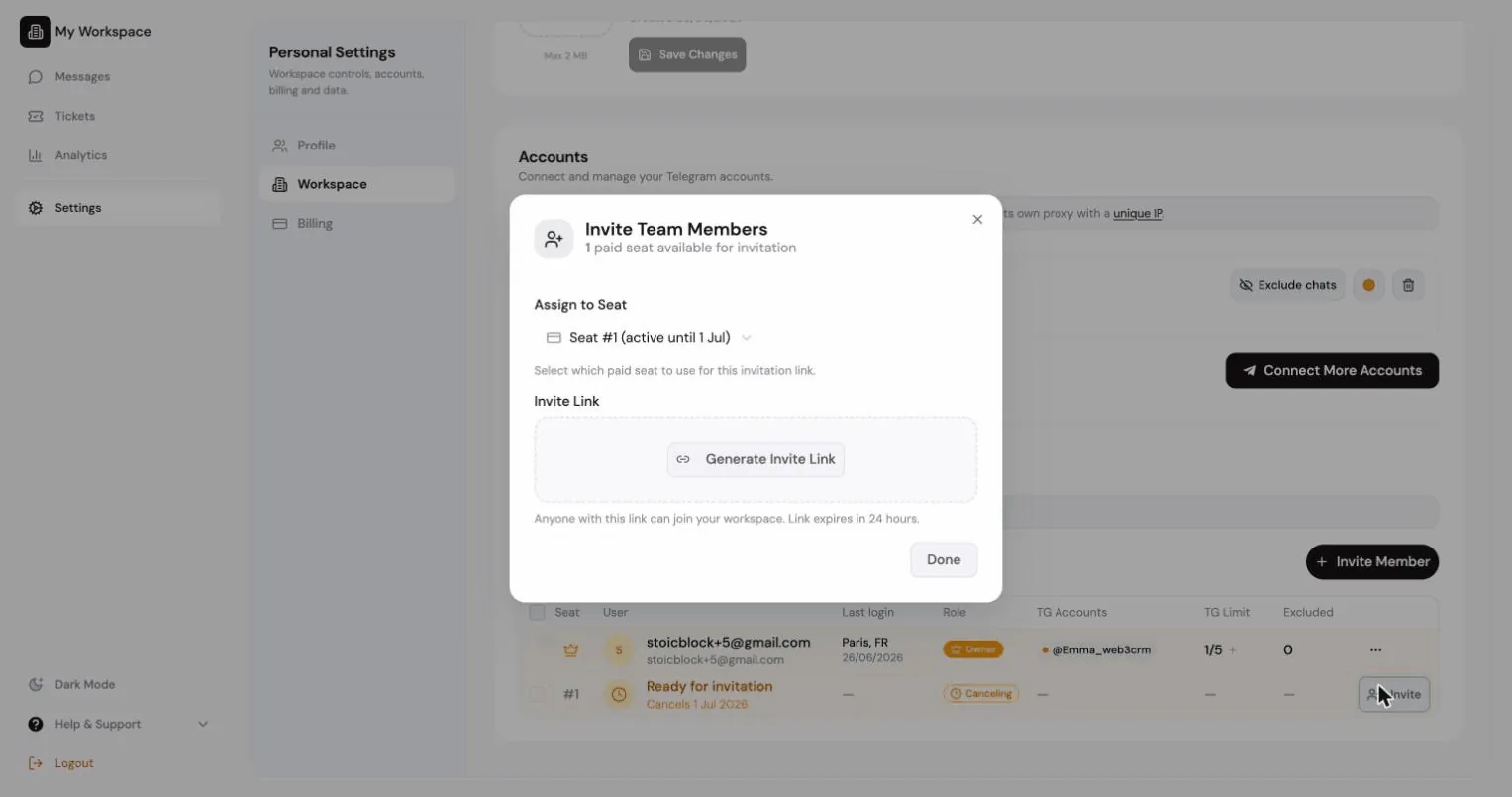
The owner and admins can both invite. Every free seat shows in the seat table as a Ready for invitation row; click it to open the invite dialog with that seat already selected. Admins see free seats and pending invitations, while billing rows (renewals, past due and buying seats) stay with the owner.
Pending invitations are listed with time remaining, Copy invite link and Revoke invitation. Revoking kills the link immediately.
| Role | Can |
|---|---|
| Owner | Everything, including billing, workspace deletion and ownership transfer |
| Admin | Manage members, workspace settings, exports and shared connectors |
| Member | Work in the CRM, subject to the workspace privacy toggles |
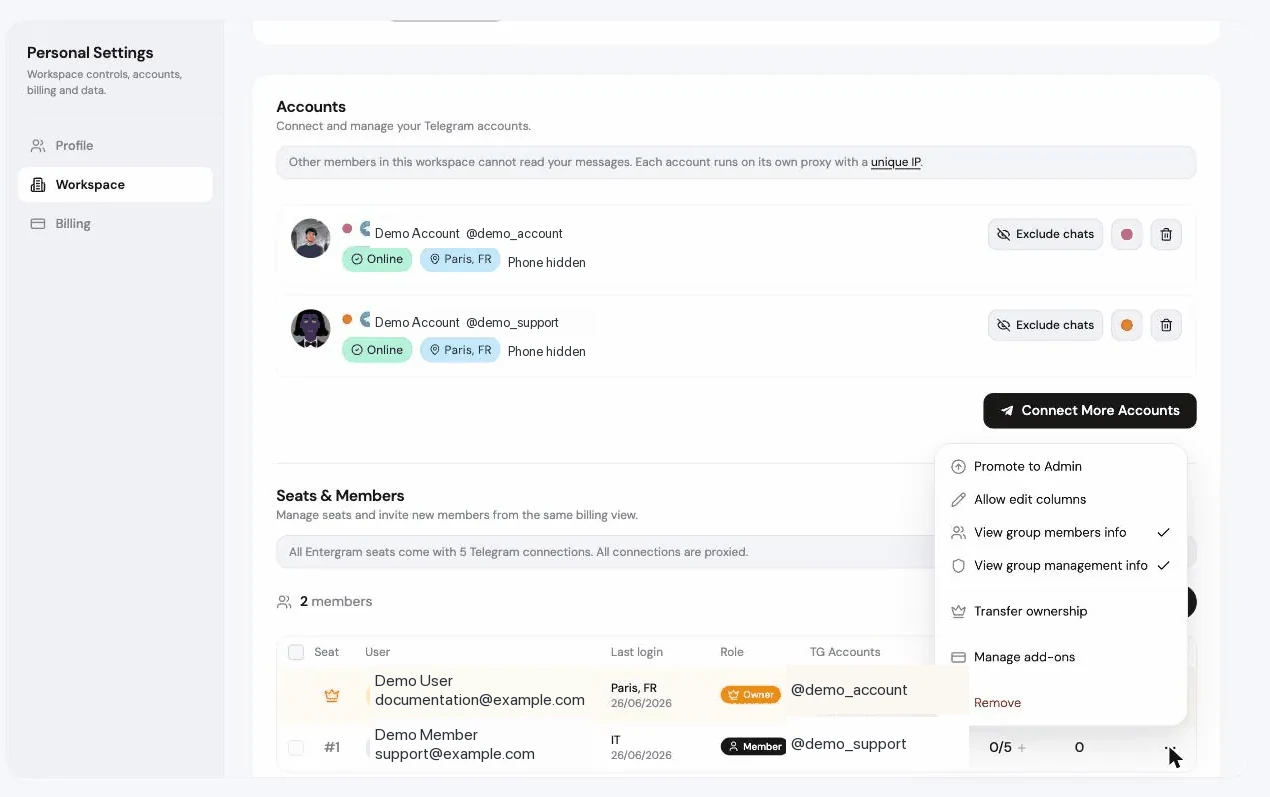
Role actions from a member’s menu: Promote to Admin, Demote to Member, Transfer ownership (you become an Admin), Remove (their account is frozen), and Revoke for a pending invitation. Each asks for confirmation.
Per-member permissions
Section titled “Per-member permissions”Beyond roles, the owner can grant individual members:
| Permission | Effect |
|---|---|
| Allow edit columns | Lets this member edit and delete custom columns |
| View group members info | Lets them see group member lists |
| View group management info | Lets them see the group management panel |
Members without these see explanatory messages rather than empty screens, e.g. “Group members info is hidden for this seat.”
The seat table
Section titled “The seat table”Settings → Accounts → Seats & Team Members shows every seat:
| Column | |
|---|---|
| Seat | Seat number |
| User | Member, pending invite link, or Ready for invitation |
| Role | Owner / Admin / Member |
| TG Accounts | Connected Telegram accounts, with Connected / No session |
| Additional TG / TG Limit | Connection capacity for that seat, displayed as used / allowed. For example, 3/5 means three Telegram accounts are connected out of five available slots |
| Analytics | Whether analytics is connected |
| Excluded | Count of excluded chats |
| Status | Active, Canceling, Past due, Expired, Pending |
| Add-ons | Manage add-ons |
| Last login |
You can give a member a custom display name with the edit-name control, useful when several people share one Telegram account. The custom name is the member’s name across the workspace: teammates see it, and the member sees it on their own account row in the sidebar. Saved name changes appear in open workspace tabs without a page reload. Clearing the custom name restores the member’s personal name. This does not change their personal profile or Telegram name.
TG Limit is not a message limit, member limit or MCP rate limit. It only counts Telegram account connections assigned to that seat. The same shared Telegram login connected in two seats consumes one slot in each seat. Extra TG add-ons raise the number after the slash.
Connecting Telegram for a member
Section titled “Connecting Telegram for a member”Click the key in a member’s TG Accounts cell to “Connect a Telegram account on this member’s behalf”. The key does not create an API key or MCP secret. It temporarily starts the normal Telegram sign-in flow for that member’s seat, so an owner or permitted admin can attach a Telegram login without sharing the member’s Entergram password.
Requirements:
- The workspace setting Hide Telegram login codes from members must be on. Otherwise: “First turn on “Hide Telegram login codes from members” in Workspace settings.”
- The member needs a free account slot.
- Only the owner can do this for an admin.
You can also Remove account from member, “The owner can reconnect it later if needed.”
Seat add-ons
Section titled “Seat add-ons”Manage add-ons on a seat (or Bulk add-ons for several at once):
- Seat plan, switch between Basic and Pro.
- Extra TG accounts, raise the seat’s Telegram limit beyond the base 5.
The dialog shows the exact billing impact: purchased extra TG now vs after the change, the recurring price change, and a note that only the difference will be added to billing - existing Extra TG will not be charged again. Charges apply immediately, prorated by Stripe.
Cancelling a seat
Section titled “Cancelling a seat”Cancel seat from the seat’s menu, or Cancel seats in bulk.
- Default: “This seat will stay active until the end of the billing period.”
- Immediate cancellation reduces the paid quantity right away and the seat loses access now. Stripe does not issue an automatic refund.
Cancelled seats show Canceling with an end date, and can be Reactivated before the period closes.
Can everyone use their own account, or do we share one? Both work, and you can mix per person.
Who can connect a Telegram account for someone else? The owner, and admins for regular members, using the key next to a member’s name. It requires the hide Telegram service chat setting to be on.
How many Telegram accounts does a seat include? Five, each on its own proxy. Add more from the TG Limit column.
Does every account listed in Seats & Members become available to my personal MCP connector? No. Seats & Members is an administrative overview. Your personal MCP connector uses the Telegram connections shown in your own Accounts section, subject to the connector’s OAuth scopes and any excluded chats. See MCP connectors.
How do two teammates share one Telegram account? Connect the same Telegram login once in each teammate’s seat. It then appears in both seats’ TG Accounts cells and in each teammate’s Accounts section.
Can I keep each member’s messages private? Yes. The owner can hide Telegram member details from the rest of the team, so each person’s messages stay private. See What teammates can see.
Cookie preferences
We respect your right to privacy. Choose which cookies to allow, your choice applies across our site. Cookie Policy
Required for the site to work, including remembering your privacy choices. Always on.
Help us understand site use and attribute sign-ups to referral partners. Optional.