Build and save a focused CRM view
A view is a saved snapshot of the screen: which columns are visible and in what order, what’s filtered, how it’s sorted, which folders and accounts are in scope, and whether you’re in table or board mode.
Filtering
Section titled “Filtering”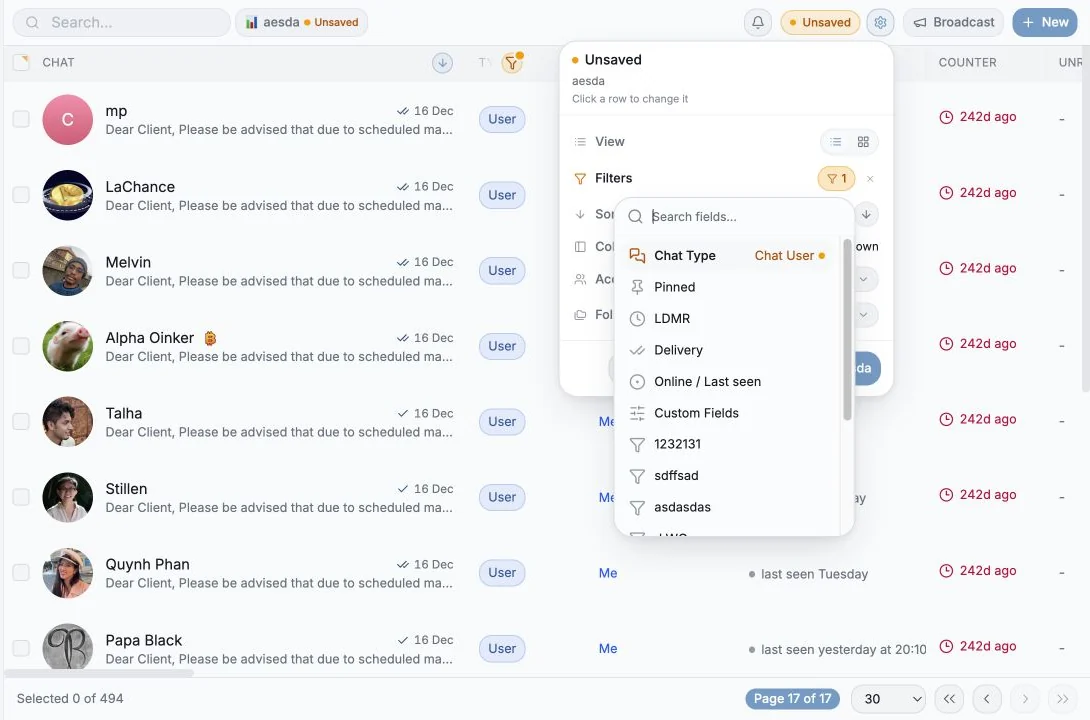
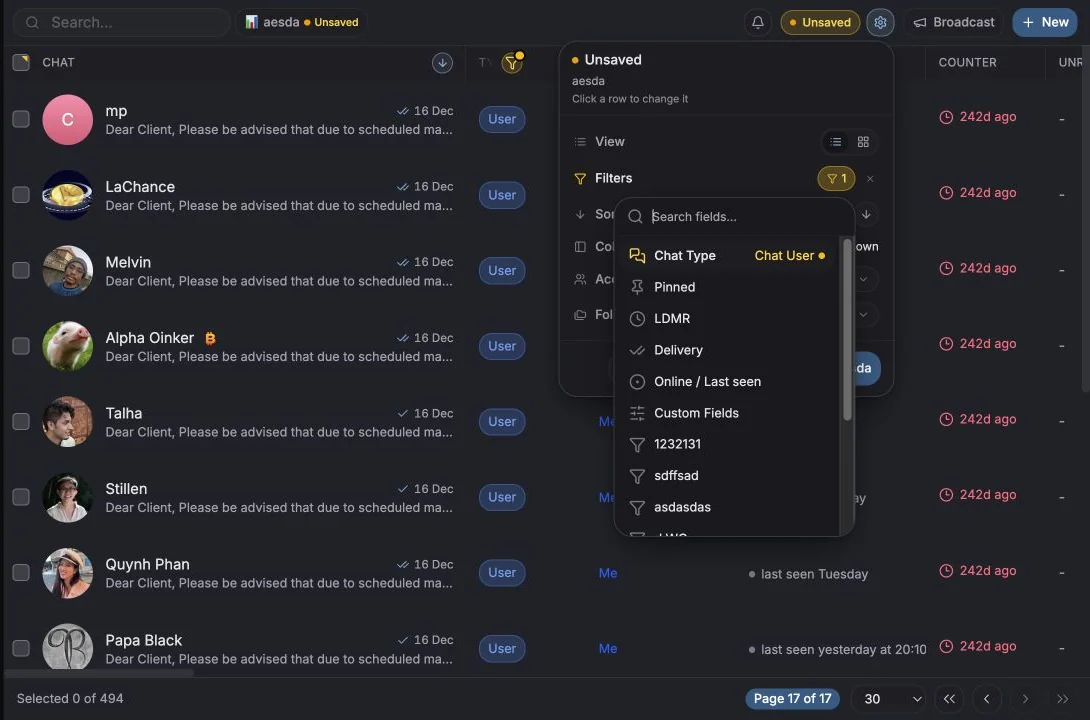
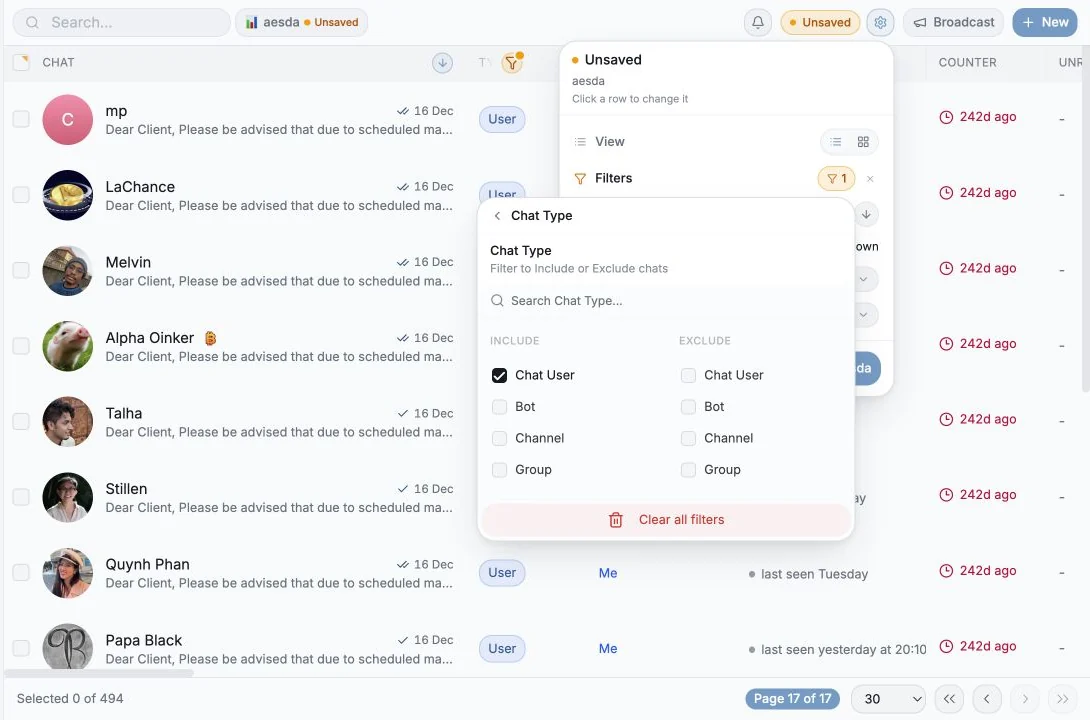
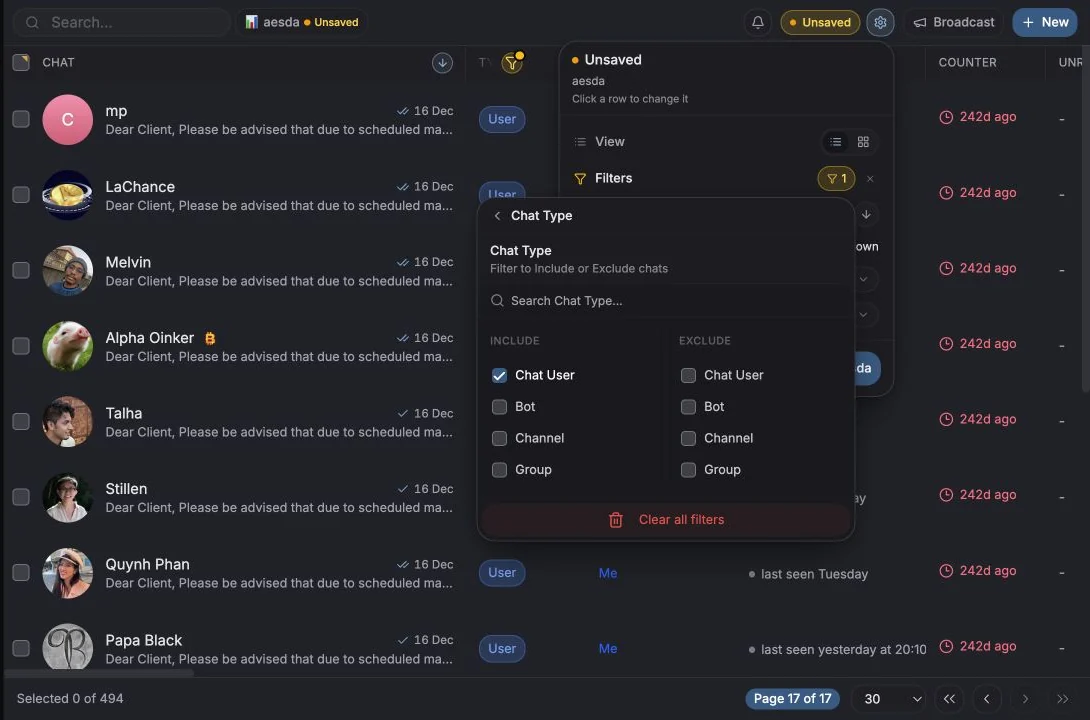
Open Filters in the toolbar (“Refine your results”). Every filter can Include or Exclude, so you can say “only VIP” or “everything except VIP” with the same control.
What you can filter by:
| Group | Options |
|---|---|
| Chat Type | Chat User, Group, Channel, Supergroup, Bot |
| Online / Last seen | Seen in last hour / 24 hours / 7 days / more than 7 days ago |
| Last message age | Last 5 min, 15 min, 30 min, 1 hour, 6 hours, 24 hours, 7 days, 30 days, No messages |
| Pinned | Pinned / Unpinned |
| Custom Fields | Any value of any custom column, plus Has custom fields / No custom fields |
Alongside filters, two scope controls:
- Accounts, which connected accounts this screen covers.
- Folders, filter by your real Telegram folders.
Everything active shows as a chip in the row under the toolbar. Click a chip to clear that one thing, or Clear all.
Sorting
Section titled “Sorting”Sort by in the toolbar, or click a column header. Defaults available: Chat Name, Last Message, Unread Count, Chat Type, Members Count, Phone Number, plus your custom columns. Flip direction from the sort chip; Clear sorting removes it.
Choosing columns
Section titled “Choosing columns”Columns in the toolbar. Columns are grouped as Columns (fixed), Metadata, Special and Custom columns, each with a description. Toggle visibility, drag to reorder, or Add column to create a new one.
The view summary
Section titled “The view summary”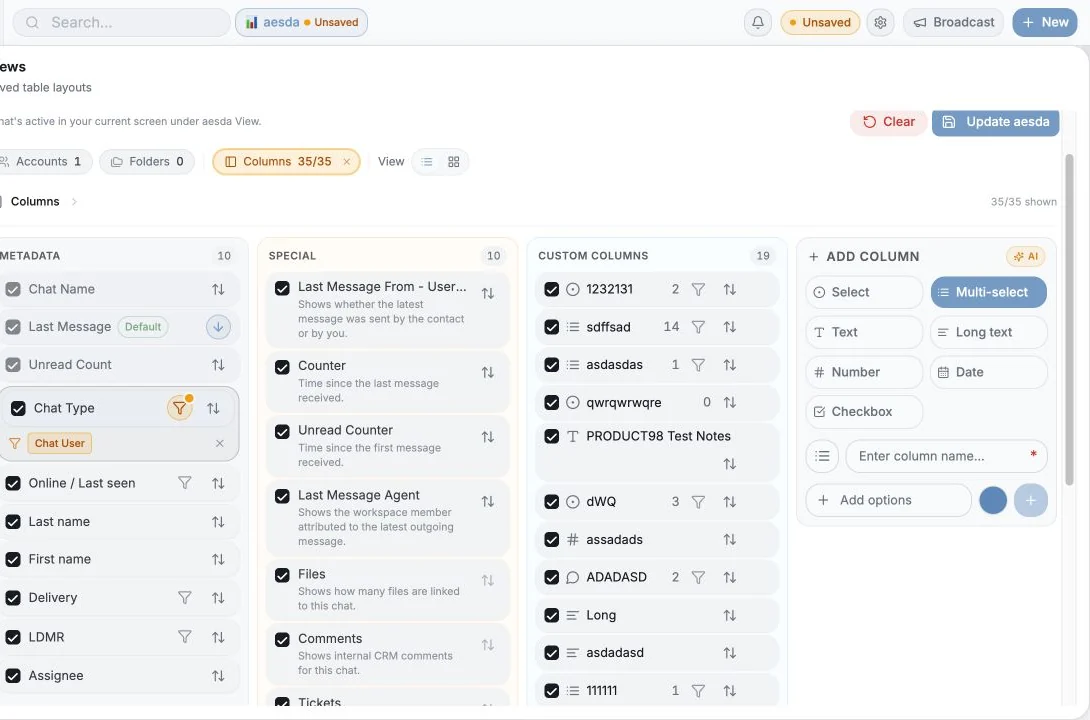
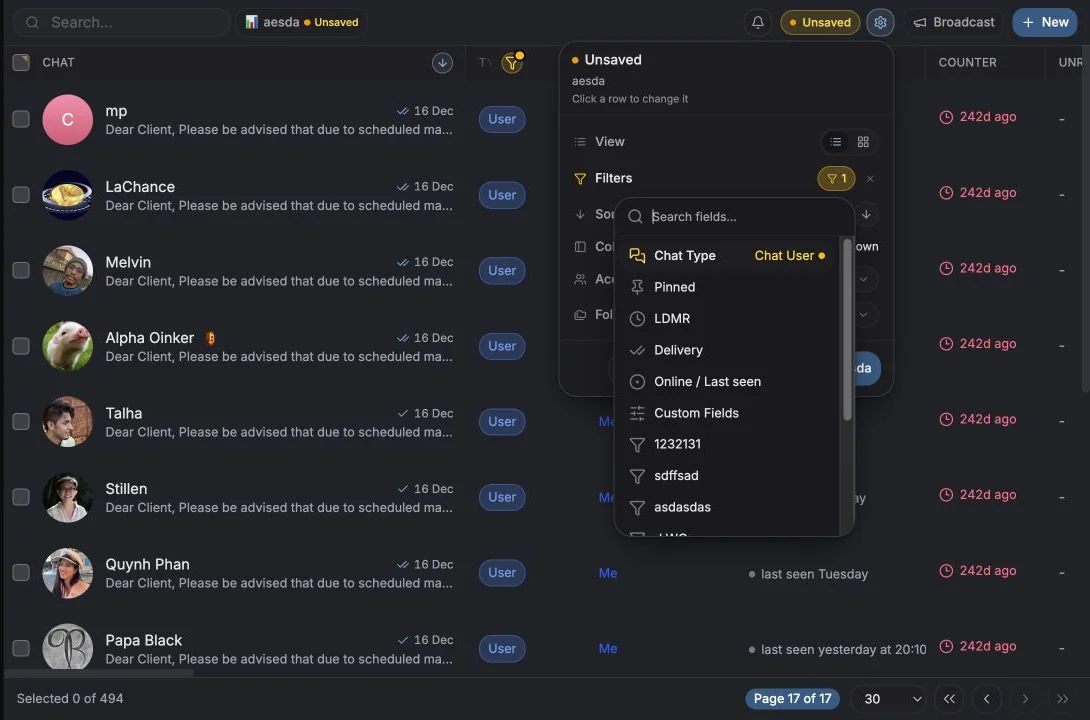
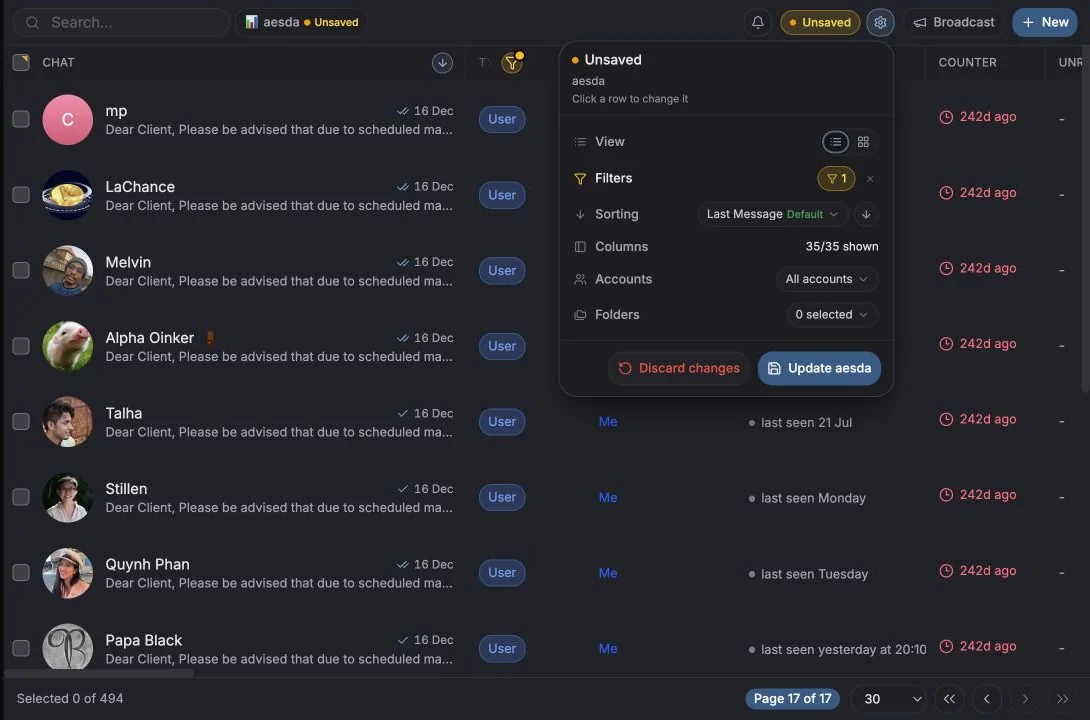
The view summary panel (“What’s active in your current screen”) is the fastest way to see and edit the whole configuration at once:
| Row | Shows | Click to |
|---|---|---|
| Columns | {visible}/{total} shown | Hide a column, add a filter |
| Filters | {n} active | Clear or edit a filter |
| Sorting | Field + Ascending/Descending | Toggle direction, remove sort |
| Folders | {n} selected | Add or remove a folder |
| Accounts | {n}/{total} | Add or remove an account |
| Group | Grouped by … / No grouping | Change the grouping dimension |
| View | Table / Board | Switch layout |
Saving a view
Section titled “Saving a view”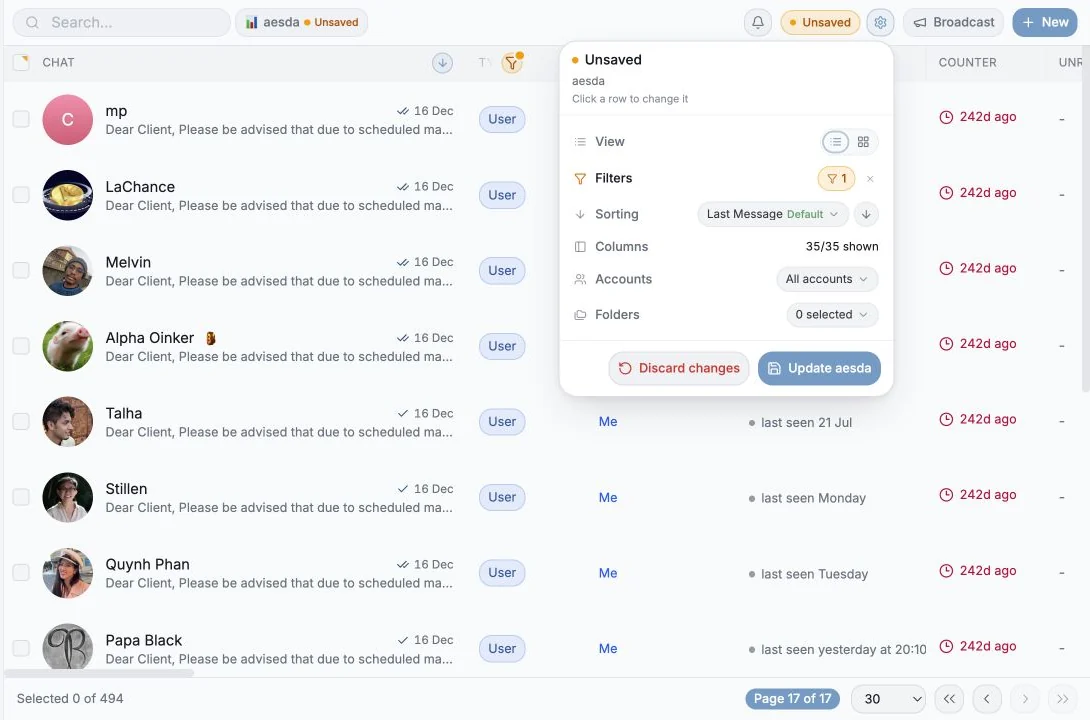
Once the screen looks right:
- Click Save current view (or Save as new view if you’re editing an existing one).
- Give it a View name.
- Optionally tick Share with workspace and/or Set as default.
Saved views appear in the Views menu under Saved Views, and shared ones under
Shared views with a Shared badge and “by {name}”.
Unsaved changes
Section titled “Unsaved changes”When your screen drifts from the saved view you get an Unsaved marker and a
changes pill. Open it to see exactly what changed -
Added, Removed, Moved, Cleared, was {value}, was unsorted, and undo any single change, or Discard changes to snap back. Update {name} saves the drift into the view.
Managing a view
Section titled “Managing a view”From the view’s menu: Rename, Share with workspace / Stop sharing, Set as default / Remove default, and delete. Reset to default returns the screen to Entergram’s out-of-the-box layout.
Views on Tickets
Section titled “Views on Tickets”The Tickets page has the same views, filters, columns and board machinery, filtered on ticket fields instead of chat fields. See Ticket views, board & bulk.
Practical patterns
Section titled “Practical patterns”| View | Setup |
|---|---|
| My morning queue | Filter: unread + last message < 24h; sort by Unread Counter desc |
| Stalled deals | Filter: Stage = Negotiating, Counter > 7 days |
| Untagged | Filter: No custom fields, your tagging backlog |
| Team board | Board mode grouped by Owner, shared with the workspace |
Cookie preferences
We respect your right to privacy. Choose which cookies to allow, your choice applies across our site. Cookie Policy
Required for the site to work, including remembering your privacy choices. Always on.
Help us understand site use and attribute sign-ups to referral partners. Optional.