یک پخش همگانی امن و شخصیسازیشده بفرستید
پخش همگانی (Broadcast) یک پیام را از حسابهای تلگرام خودتان به چتهای زیادی میفرستد و آن را برای هر گیرنده شخصیسازی میکند.
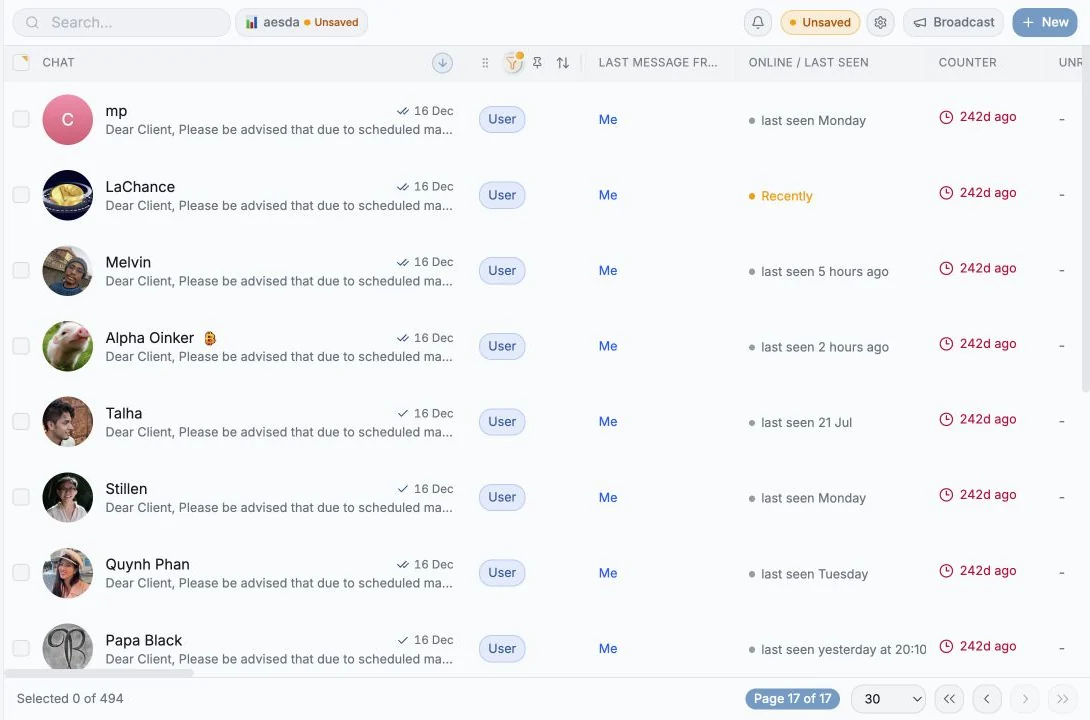
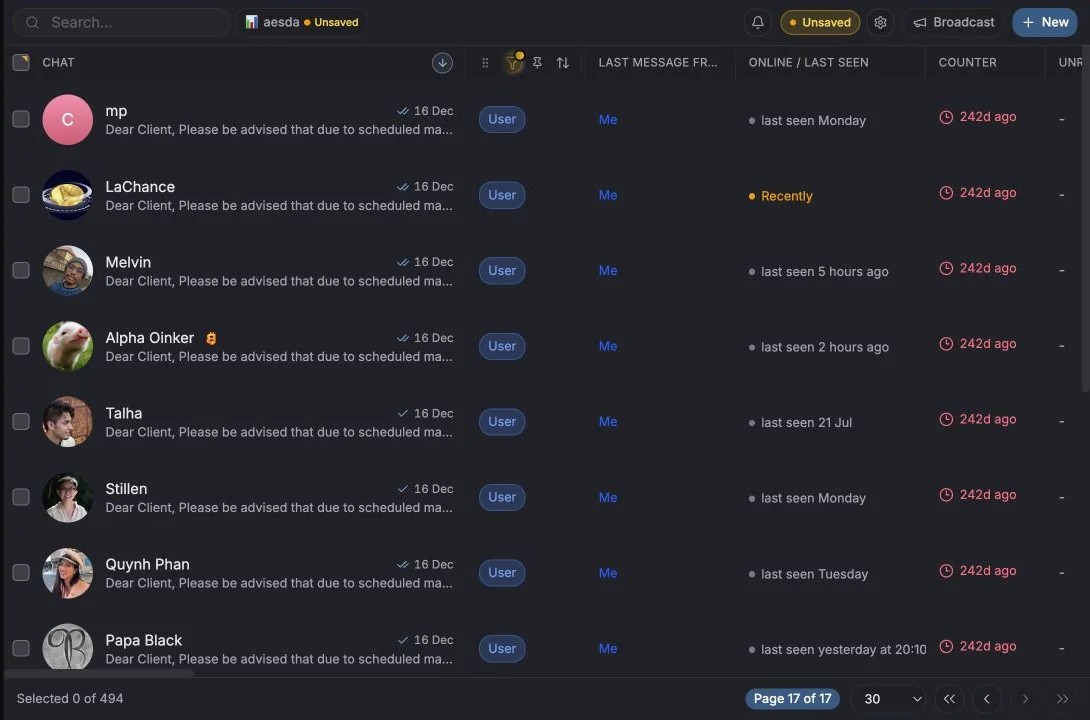
ارسال یک پخش همگانی
بخش با عنوان «ارسال یک پخش همگانی»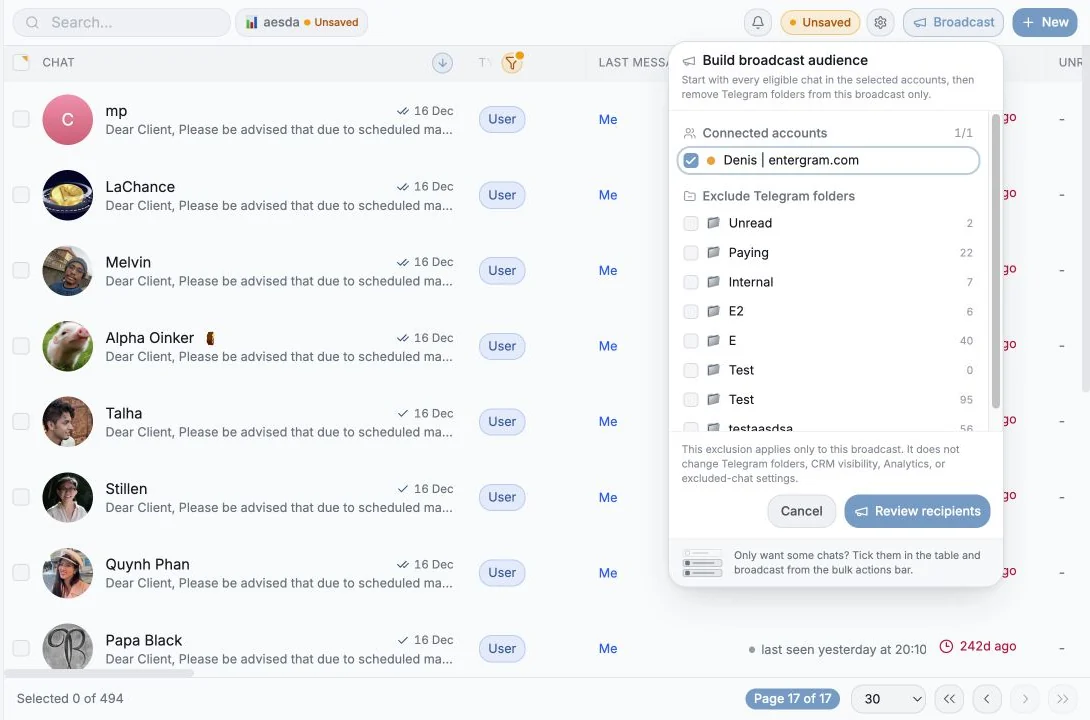
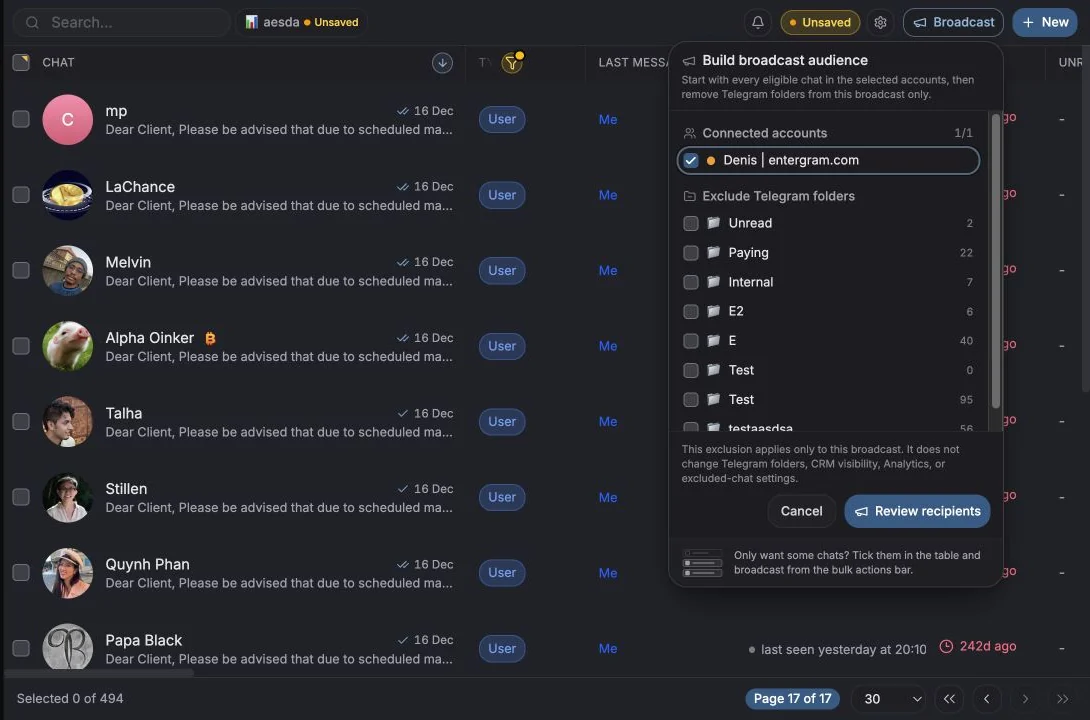
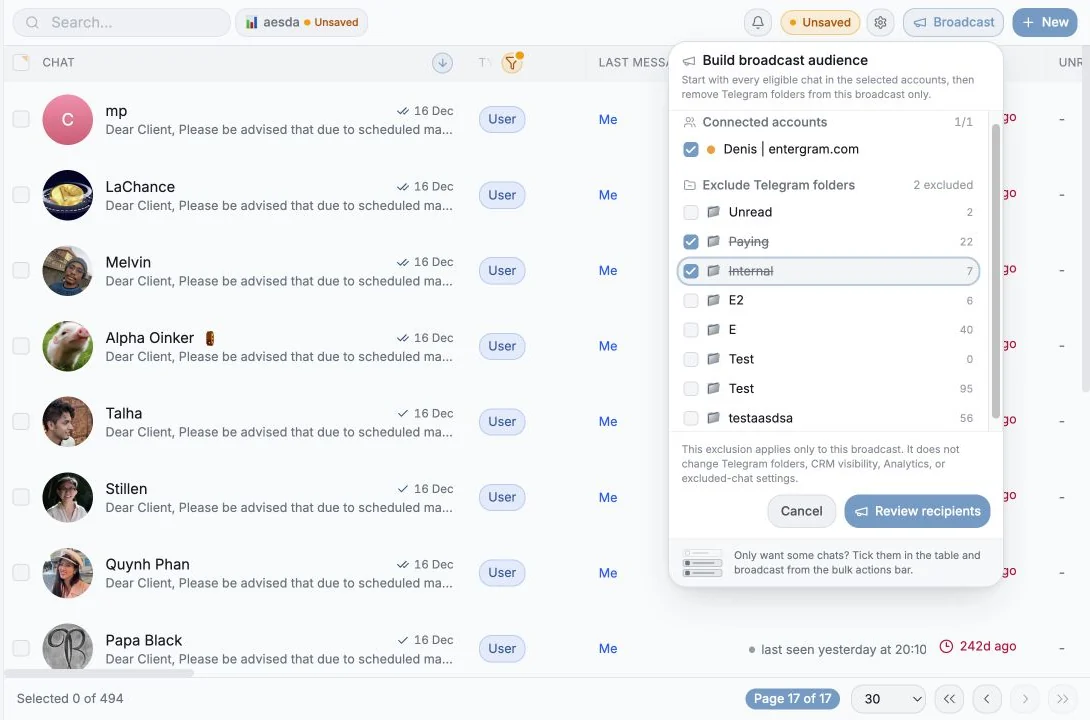
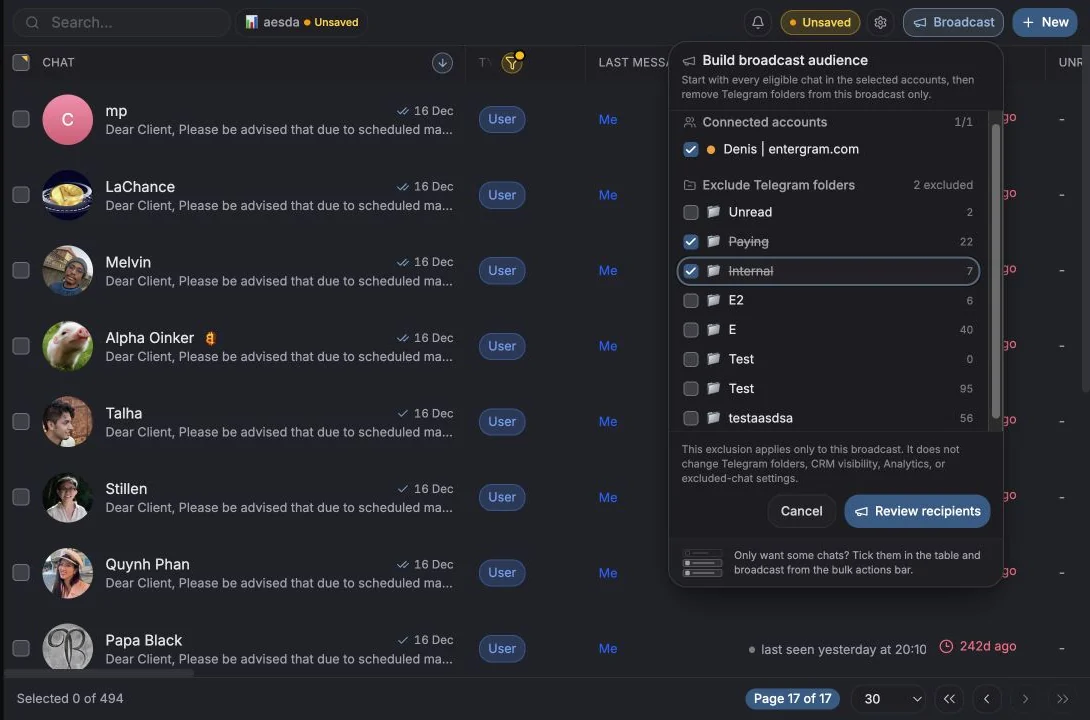
- در Messages، چتهایی را که میخواهید به آنها برسید تیک بزنید.
- در نوار ابزار انتخابی که ظاهر میشود روی Broadcast کلیک کنید.
- پیامتان را بنویسید یا یک قالب انتخاب کنید.
- Preview (پیشنمایش) را بررسی کنید: یک گیرنده انتخاب کنید و پیام نهایی را با متغیرهای جایگزینشده ببینید.
- روی Send Broadcast کلیک کنید.
این پنجره دو زبانه دارد: Compose (نوشتن) و History (تاریخچه).
ارسال چطور انجام میشود
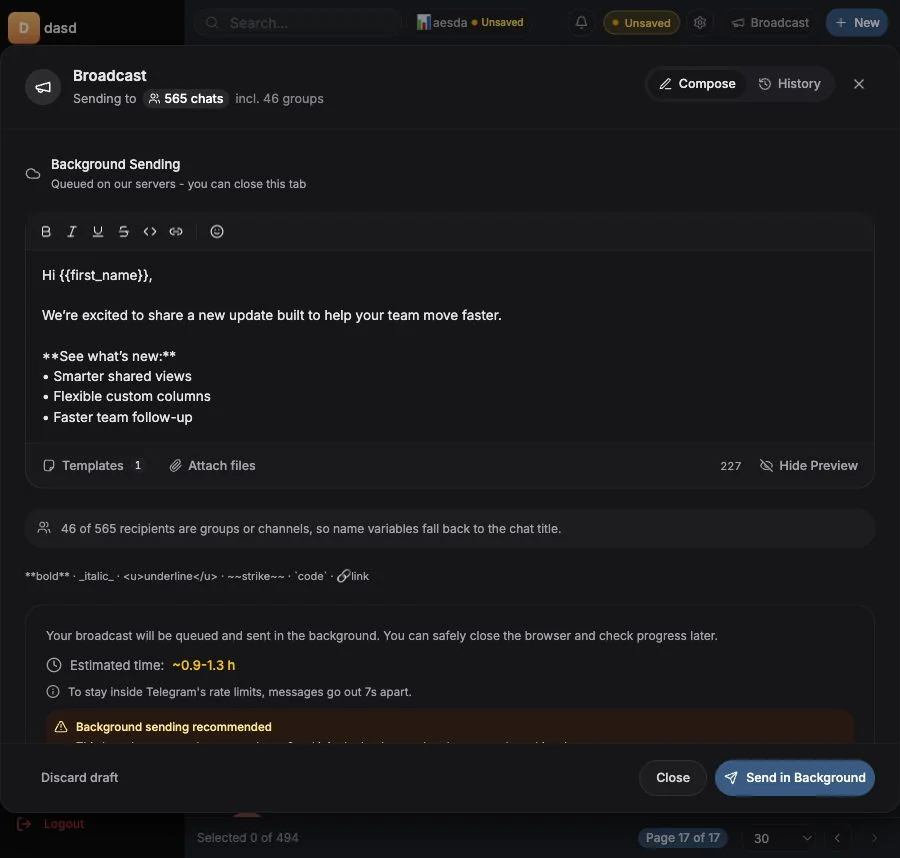
بخش با عنوان «ارسال چطور انجام میشود»پخشهای همگانی روی سرورهای Entergram در صف قرار میگیرند و در پسزمینه ارسال میشوند. پیام برنامه این است: «Your broadcast will be queued and sent in the background. You can safely close the browser and check progress later.» (پخش همگانی شما در صف قرار میگیرد و در پسزمینه ارسال میشود. میتوانید با خیال راحت مرورگر را ببندید و بعداً پیشرفت را بررسی کنید.) لازم نیست زبانه را باز نگه دارید و حتی اگر از حساب خارج شوید، تحویل ادامه پیدا میکند.
اگر پیام «{n} of {total} selected accounts need Analytics connected» ({n} از {total} حساب انتخابشده باید Analytics را متصل کنند) را دیدید، یعنی آن حساب پیش از روند فعلی بکاند متصل شده است. آن را از Settings → Accounts دوباره متصل کنید تا پخش همگانی ارسال شود.
محدودیتهای نرخ و زمانبندی
بخش با عنوان «محدودیتهای نرخ و زمانبندی»برای ماندن در محدوده مجاز تلگرام، پیامها با فاصلهای ثابت به ثانیه از هم ارسال میشوند. پنجره یک Estimated time (زمان تخمینی، مثلاً ~12-15 min) نشان میدهد که با تعداد گیرندگان شما بهروز میشود، به همراه این توصیه که برای بهترین تحویل، در دستههای ۲۰تایی بفرستید.
سعی نکنید این تأخیر را دور بزنید. همین تأخیر است که حساب شما را سالم نگه میدارد.
شخصیسازی با متغیرها
بخش با عنوان «شخصیسازی با متغیرها»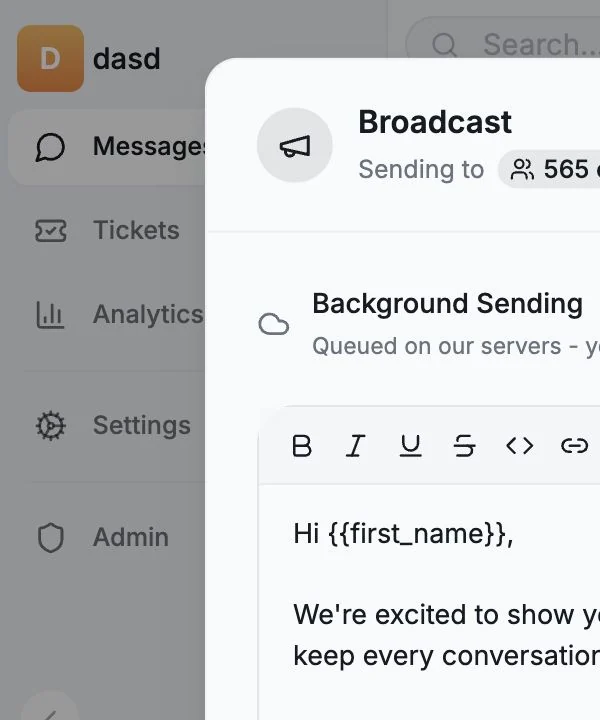
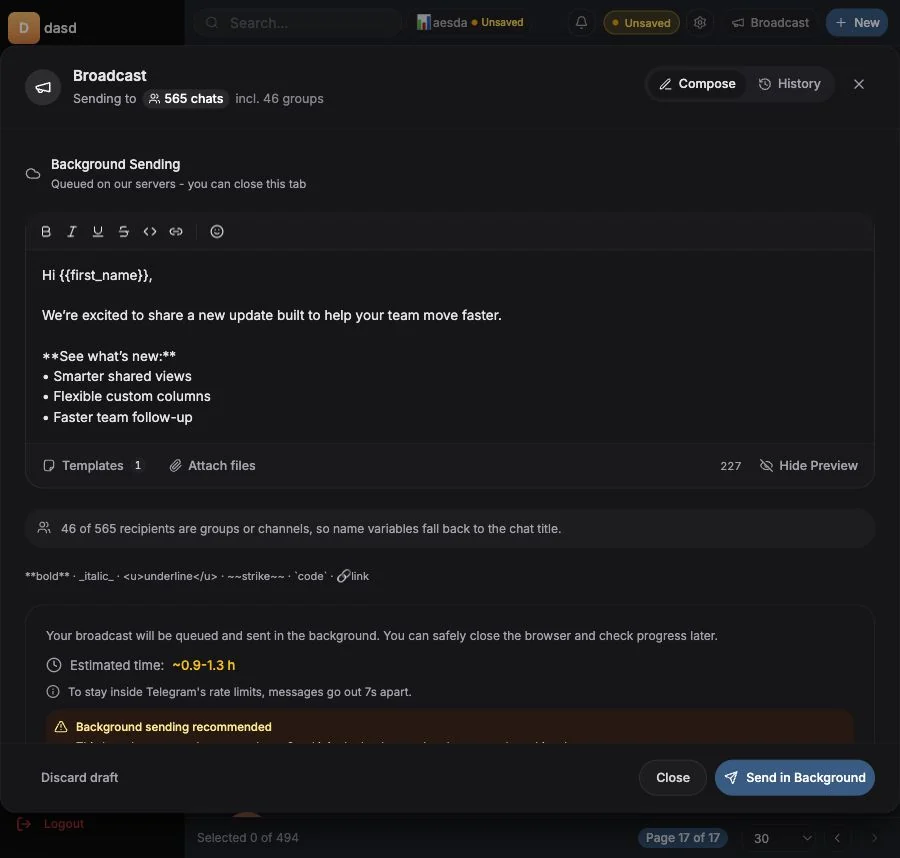
روی یک متغیر کلیک کنید تا در پیام قرار بگیرد. هر متغیر کمی پیش از ارسال پیام با اطلاعات همان گیرنده جایگزین میشود.
| متغیر | جایگزین میشود با | حالت جایگزین |
|---|---|---|
{{chat_name}} | نام و نام خانوادگی مخاطب | در گروهها و کانالها، عنوان چت |
{{first_name}} | فقط نام کوچک | در گروهها، نخستین کلمه عنوان |
{{username}} | @handle مخاطب، همراه با @ | خالی برای گروهها، کانالها و هر کسی که نام کاربری ندارد |
قواعد مهم:
- همیشه با حروف کوچک و همیشه با دو آکولاد.
{{Name}}یا{name}به همان شکل متنی ارسال میشوند. - مقدار ناموجود یک جای خالی باقی میگذارد. هرگز جملهای ننویسید که بدون آن مقدار خراب شود.
- پیشنمایش پیام نهایی را برای یک گیرنده واقعی نشان میدهد. برای بررسی نمونهای، گیرنده را عوض کنید.
Entergram پیشاپیش به شما هشدار میدهد، مثلاً: «{{username}} resolves to nothing for 12 of your 40 recipients. Use {{first_name}} instead, or drop it from the sentence.» ({{username}} برای ۱۲ نفر از ۴۰ گیرنده شما خالی است. بهجای آن از {{first_name}} استفاده کنید یا آن را از جمله حذف کنید.) و
«{n} of {total} recipients are groups or channels, so name variables fall back to the chat title.» ({n} از {total} گیرنده گروه یا کانال هستند، پس متغیرهای نام به عنوان چت برمیگردند.)
پیوستها و ترجمه
بخش با عنوان «پیوستها و ترجمه»- عکس، ویدیو، صدا، سند یا پیام صوتی پیوست کنید. محدودیتها در همانجا نمایش داده میشوند (عکس تا X؛ ویدیو، صدا و سند تا Y؛ پیام صوتی تا Z).
- Translate outgoing message متن پیام را پیش از ارسال به زبان مقصد ترجمه میکند.
دنبال کردن اجرای پخش همگانی
بخش با عنوان «دنبال کردن اجرای پخش همگانی»در حین ارسال، پیشرفت زنده را میبینید: Sending {current}/{total}، تعداد باقیمانده و یک ETA. دکمههای Pause (توقف موقت)، Resume (ادامه) و Cancel (لغو) هم در دسترس هستند.
با لغو کردن، این پرسش نمایش داده میشود: «Cancel broadcast? Recipients already processed keep their result. Remaining recipients will not be sent.» (پخش همگانی لغو شود؟ گیرندگانی که پردازش شدهاند نتیجهشان حفظ میشود. برای گیرندگان باقیمانده ارسال نخواهد شد.)
تاریخچه و تعامل
بخش با عنوان «تاریخچه و تعامل»زبانه History همه کارها را با این اطلاعات فهرست میکند:
- وضعیت: Queued، Sending، Paused، Completed، Failed، Cancelled،
- پیشرفت:
{processed}/{total}processed، تحویلشده، ناموفق، باقیمانده، ردشده، - یک ETA در حین اجرا،
- Clear completed برای مرتب کردن فهرست.
یک کار را باز کنید تا Engagement pipeline (قیف تعامل) را ببینید، از گیرندگان هدف تا پاسخها:
| معیار | معنا |
|---|---|
| Targeted | گیرندگانی که کار برای آنها ساخته شده است |
| Reach | درصد تحویلشده |
| Opened | درصد دیدهشده (در جاهایی که تلگرام وضعیت خواندهشدن قابل اعتماد ارائه میدهد) |
| Replied | درصدی که پاسخ دادهاند |
ردیف هر گیرنده یکی از وضعیتهای Delivered، Seen، Replied، Pending، Skipped یا Failed را نشان میدهد و میتوانید روی No reply فیلتر کنید تا فهرست پیگیری بسازید. Open شما را مستقیماً به همان چت میبرد.
وضعیت Seen در جاهایی در دسترس است که تلگرام وضعیت خواندهشدن قابل اعتماد ارائه میدهد. برخی انواع چت هرگز آن را گزارش نمیکنند، پس خالی بودن آن به معنای شکست نیست.
پخش همگانی از طریق یک عامل AI
بخش با عنوان «پخش همگانی از طریق یک عامل AI»اگر یک کلاینت MCP متصل کردهاید، کافی است درخواست کنید:
«پیام تبلیغاتی ما را برای همه چتهایی بفرست که فیلد Customer tier آنها VIP است.»
عامل فیلتر را اعمال میکند و پخش همگانی را برایتان اجرا میکند. ببینید اتصالدهندههای MCP.
چکلیست ایمنی پیش از یک ارسال بزرگ
بخش با عنوان «چکلیست ایمنی پیش از یک ارسال بزرگ»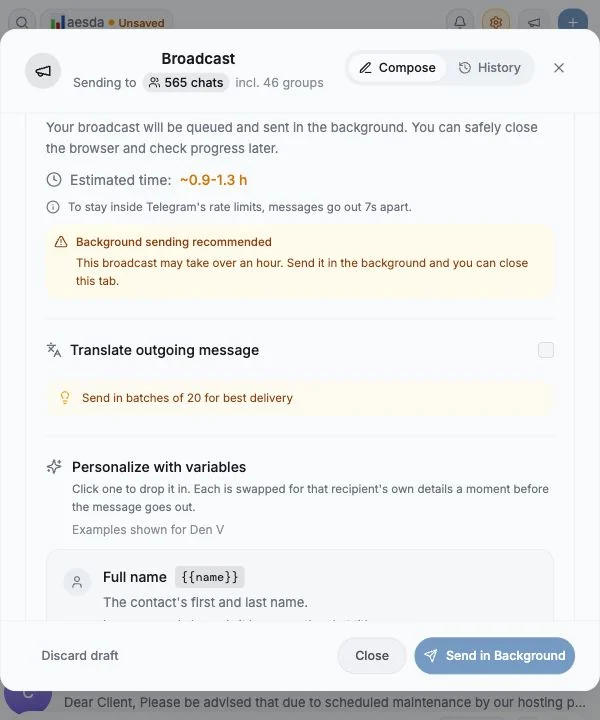
- پیشنمایش برای دستکم دو گیرنده واقعی بررسی شده است
- هیچ جملهای به
{{username}}وابسته نیست - فهرست گیرندگان زیر Recipients (
{n}) بازبینی شده است - پیش از کل فهرست، با یک دسته کوچک شروع کردهاید
تنظیمات کوکی
ما به حریم خصوصی شما احترام میگذاریم. انتخاب کنید کدام کوکیها مجاز باشند, انتخاب شما در کل سایت اعمال میشود. سیاست کوکی
برای کارکرد سایت لازم است، از جمله بهخاطر سپردن تنظیمات حریم خصوصی شما. همیشه فعال.
به ما کمک میکند استفاده از سایت را درک کنیم و ثبتنامها را به شرکای ارجاع نسبت دهیم. اختیاری.