ساخت و ذخیره یک نمای متمرکز CRM
یک نما تصویری ذخیرهشده از صفحه است: اینکه کدام ستونها و با چه ترتیبی دیده میشوند، چه چیزی فیلتر شده، چگونه مرتب شده، کدام پوشهها و حسابها در دامنه هستند و اینکه در حالت جدول هستید یا تابلو.
فیلتر کردن
Section titled “فیلتر کردن”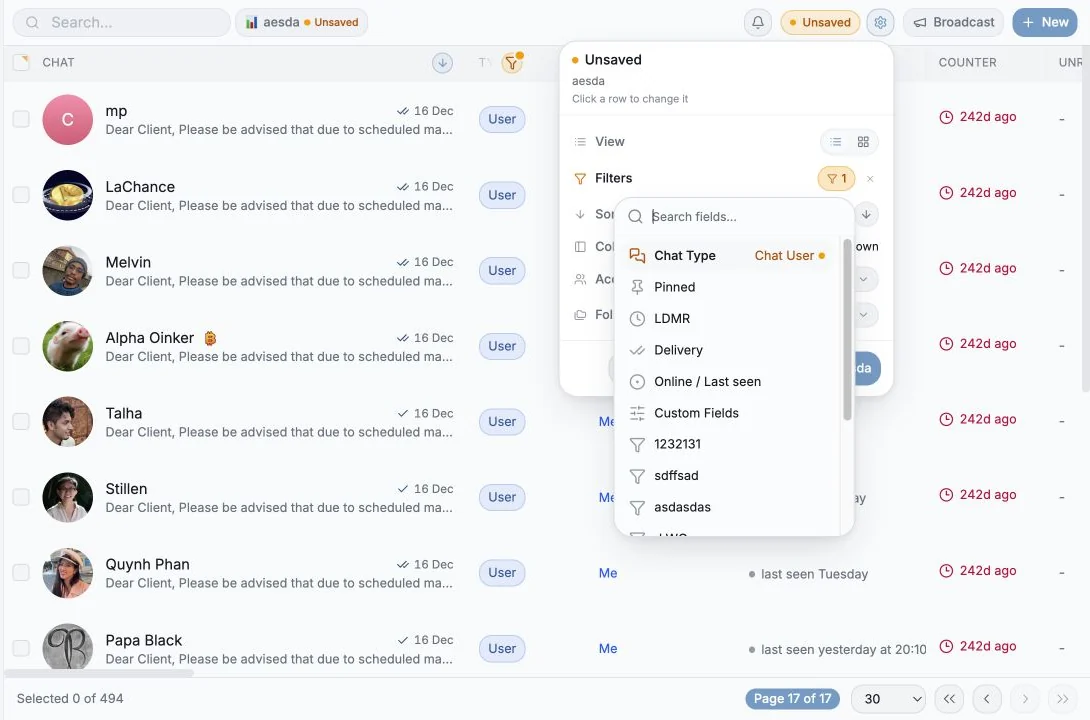
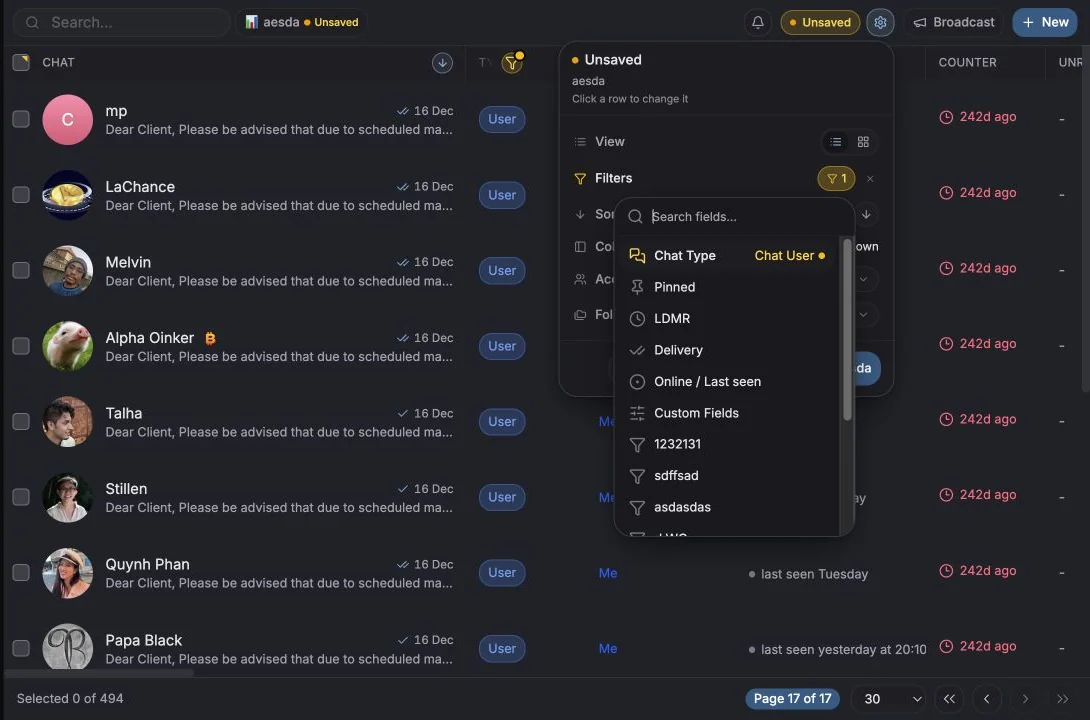
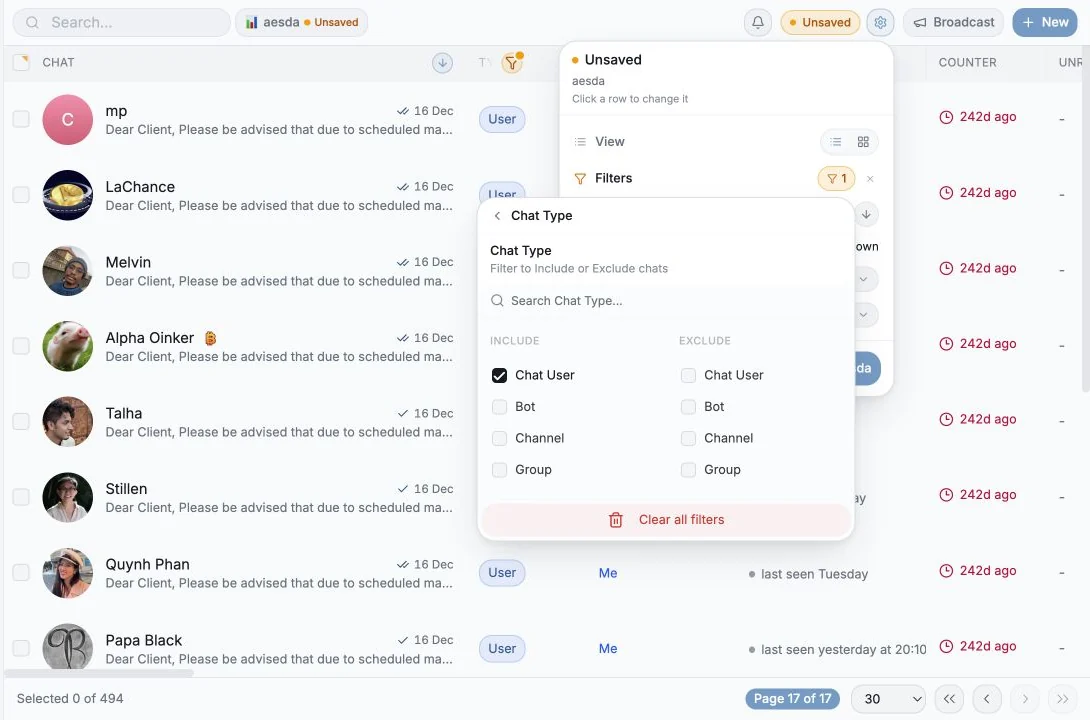
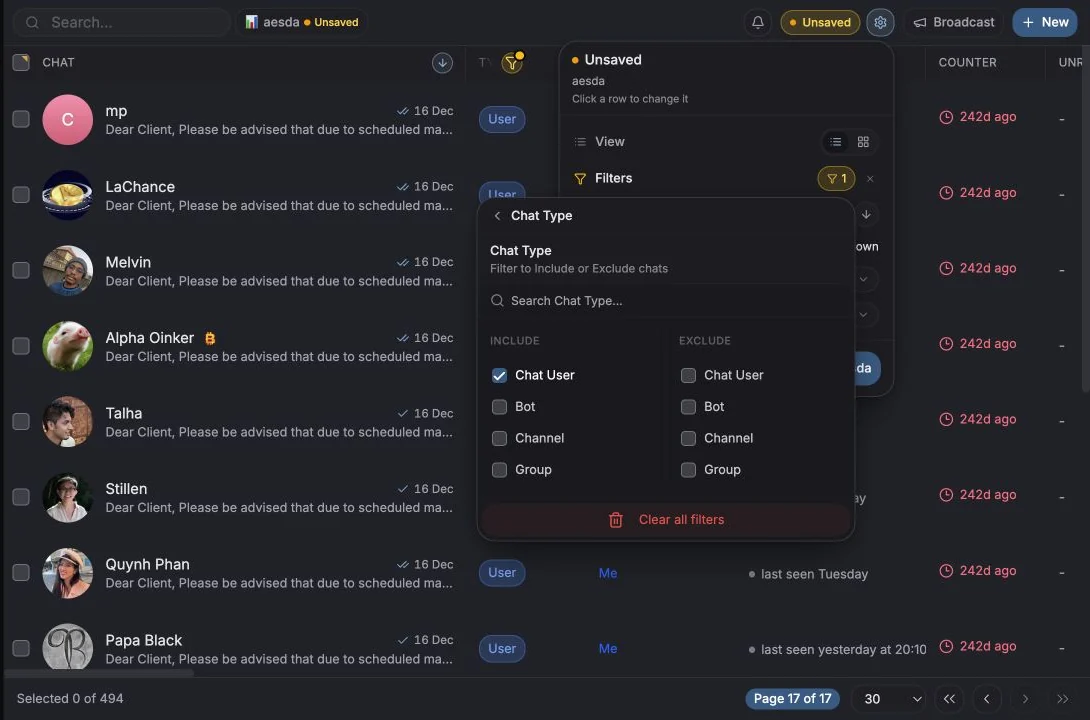
Filters را در نوار ابزار باز کنید («Refine your results»). هر فیلتر میتواند Include یا Exclude باشد، پس با همان یک کنترل میتوانید بگویید «فقط VIP» یا «همهچیز جز VIP».
چیزهایی که میتوانید با آنها فیلتر کنید:
| گروه | گزینهها |
|---|---|
| Chat Type | Chat User، Group، Channel، Supergroup، Bot |
| Online / Last seen | دیدهشده در ساعت گذشته / ۲۴ ساعت / ۷ روز / بیش از ۷ روز پیش |
| Last message age | ۵ دقیقه، ۱۵ دقیقه، ۳۰ دقیقه، ۱ ساعت، ۶ ساعت، ۲۴ ساعت، ۷ روز، ۳۰ روز گذشته، بدون پیام |
| Pinned | سنجاقشده / سنجاقنشده |
| Custom Fields | هر مقدار از هر ستون سفارشی، بهعلاوه Has custom fields / No custom fields |
در کنار فیلترها، دو کنترل دامنه وجود دارد:
- Accounts، اینکه این صفحه کدام حسابهای متصل را پوشش میدهد.
- Folders، فیلتر بر اساس پوشههای تلگرام واقعی شما.
هر چیزی که فعال باشد بهصورت یک تراشه در ردیف زیر نوار ابزار نشان داده میشود. روی یک تراشه کلیک کنید تا همان یک مورد پاک شود، یا Clear all را بزنید.
مرتبسازی
Section titled “مرتبسازی”Sort by در نوار ابزار، یا کلیک روی سربرگ یک ستون. گزینههای پیشفرض: Chat Name، Last Message، Unread Count، Chat Type، Members Count، Phone Number، بهعلاوه ستونهای سفارشی شما. جهت را از تراشه مرتبسازی برگردانید؛ Clear sorting آن را برمیدارد.
انتخاب ستونها
Section titled “انتخاب ستونها”Columns در نوار ابزار. ستونها در دستههای Columns (ثابت)، Metadata، Special و Custom columns گروهبندی شدهاند و هر کدام توضیحی دارند. نمایش را روشن و خاموش کنید، برای تغییر ترتیب بکشید، یا با Add column یکی بسازید.
خلاصه نما
Section titled “خلاصه نما”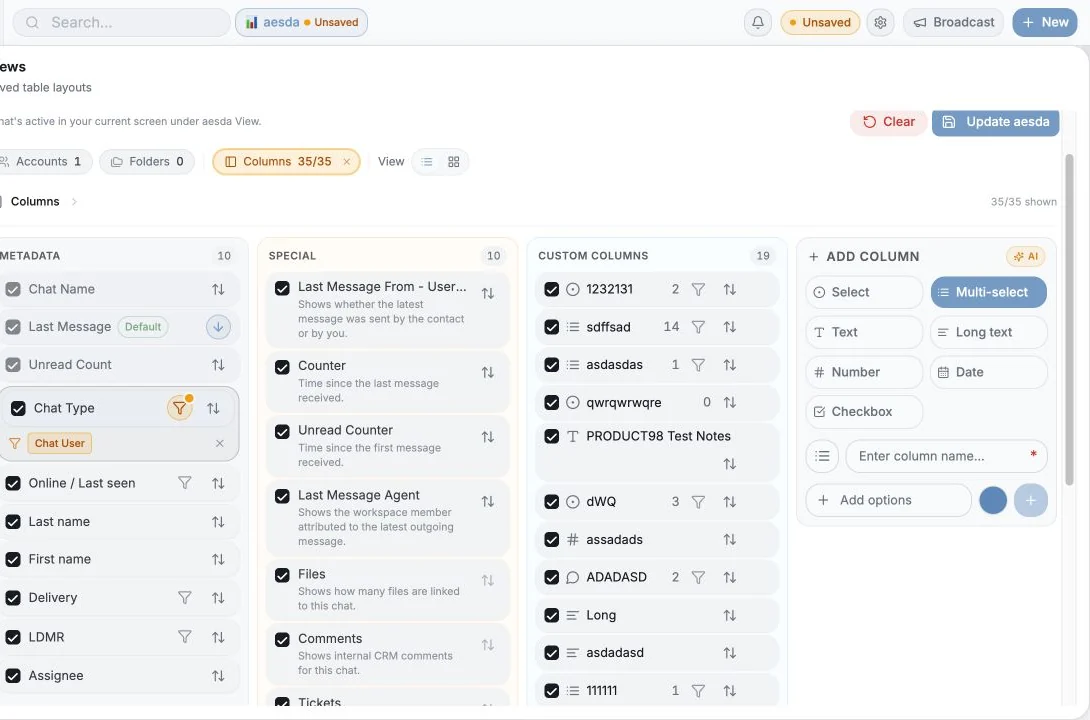
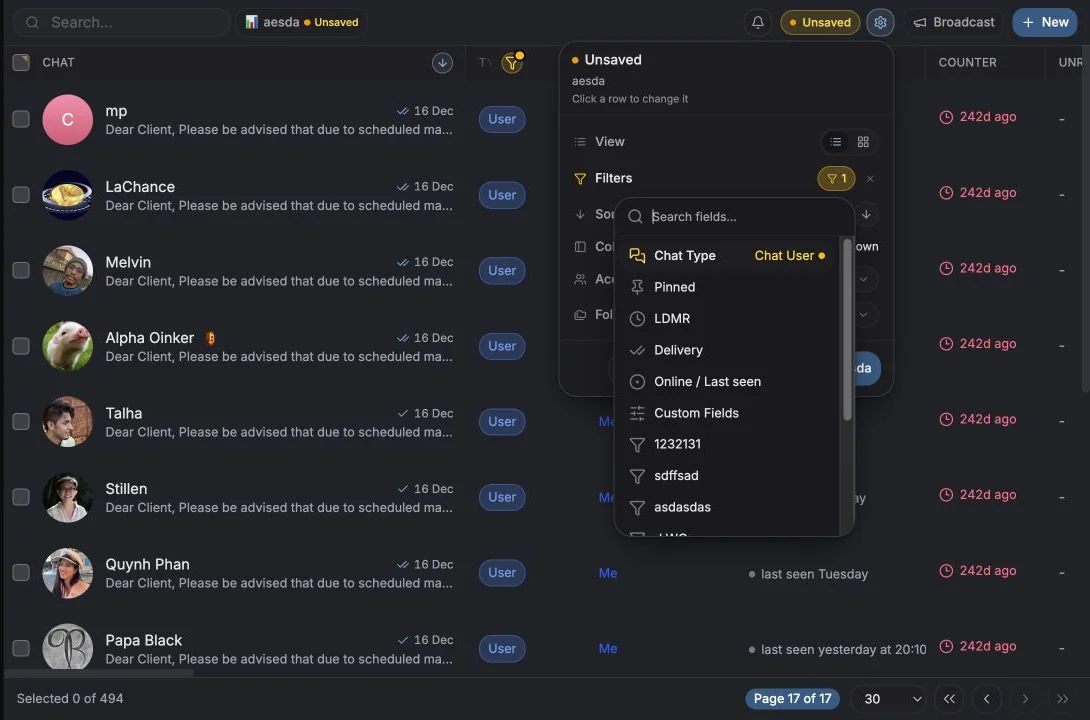
پنل خلاصه نما («What’s active in your current screen») سریعترین راه برای دیدن و ویرایش کل پیکربندی بهصورت یکجاست:
| ردیف | نشان میدهد | با کلیک |
|---|---|---|
| Columns | {visible}/{total} shown | یک ستون را پنهان کنید، یک فیلتر اضافه کنید |
| Filters | {n} active | یک فیلتر را پاک یا ویرایش کنید |
| Sorting | فیلد بههمراه صعودی/نزولی | جهت را برگردانید، مرتبسازی را بردارید |
| Folders | {n} selected | یک پوشه اضافه یا حذف کنید |
| Accounts | {n}/{total} | یک حساب اضافه یا حذف کنید |
| Group | گروهبندیشده بر اساس … / بدون گروهبندی | بُعد گروهبندی را عوض کنید |
| View | جدول / تابلو | چیدمان را عوض کنید |
ذخیره یک نما
Section titled “ذخیره یک نما”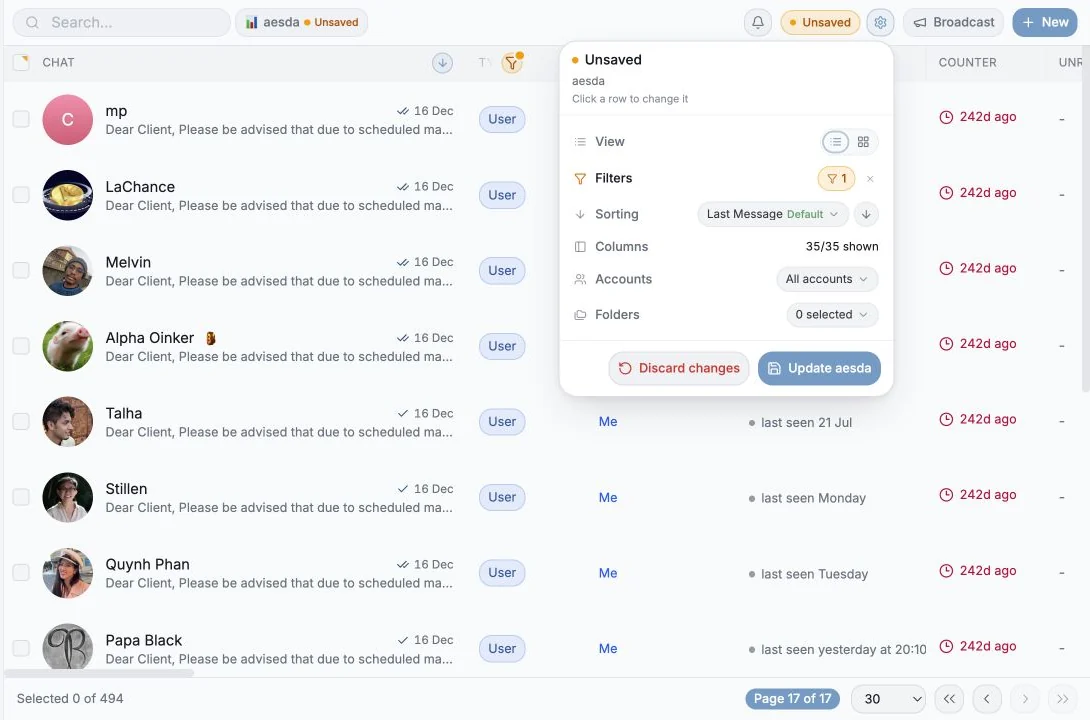
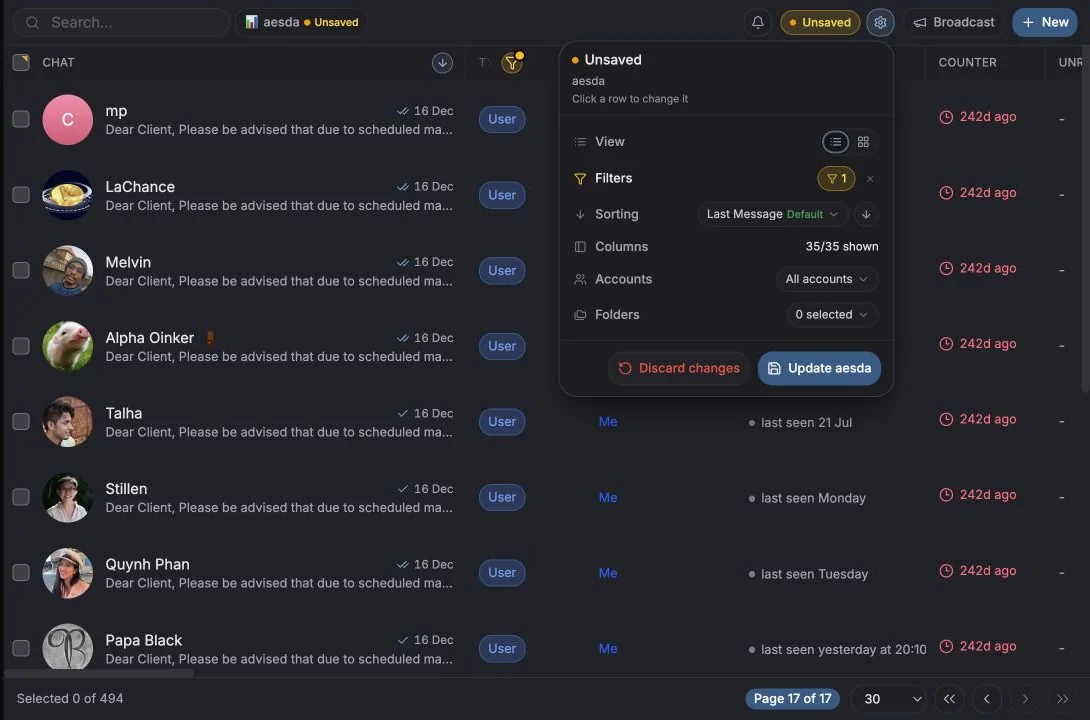
وقتی صفحه همانطور شد که میخواستید:
- روی Save current view کلیک کنید (یا Save as new view اگر در حال ویرایش نمایی موجود هستید).
- یک View name بدهید.
- در صورت تمایل Share with workspace و/یا Set as default را علامت بزنید.
نماهای ذخیرهشده در منوی Views زیر Saved Views ظاهر میشوند و نماهای مشترک زیر
Shared views با نشان Shared و «by {name}».
تغییرهای ذخیرهنشده
Section titled “تغییرهای ذخیرهنشده”وقتی صفحه شما از نمای ذخیرهشده فاصله بگیرد، نشانگر Unsaved و یک تراشه تغییرها
میبینید. آن را باز کنید تا دقیقاً ببینید چه چیزی عوض شده است؛
Added، Removed، Moved، Cleared، was {value}، was unsorted، و میتوانید هر تغییر را تکی بازگردانید یا با Discard changes به حالت قبل برگردید. Update {name} این فاصله را در خود نما ذخیره میکند.
مدیریت یک نما
Section titled “مدیریت یک نما”از منوی نما: Rename، Share with workspace / Stop sharing، Set as default / Remove default و حذف. Reset to default صفحه را به چیدمان پیشفرض Entergram برمیگرداند.
نماها در تیکتها
Section titled “نماها در تیکتها”صفحه Tickets همان ساز و کار نماها، فیلترها، ستونها و تابلو را دارد، اما روی فیلدهای تیکت فیلتر میشود نه فیلدهای چت. به نماها، تابلو و اقدامات گروهی تیکت نگاه کنید.
الگوهای عملی
Section titled “الگوهای عملی”| نما | تنظیم |
|---|---|
| صف صبحگاهی من | فیلتر: خواندهنشده بههمراه آخرین پیام کمتر از ۲۴ ساعت؛ مرتبسازی نزولی بر اساس Unread Counter |
| معاملههای راکد | فیلتر: Stage = Negotiating، شمارنده بیش از ۷ روز |
| بدون برچسب | فیلتر: No custom fields، یعنی انباشت برچسبگذاری شما |
| تابلوی تیم | حالت تابلو با گروهبندی بر اساس مالک، به اشتراک گذاشتهشده با فضای کاری |
Cookie preferences
We respect your right to privacy. Choose which cookies to allow, your choice applies across our site. Cookie Policy
Required for the site to work, including remembering your privacy choices. Always on.
Help us understand site use and attribute sign-ups to referral partners. Optional.