Crear un workspace o unirse a uno
Un workspace es donde vive su CRM. Los campos personalizados, los tickets, los comentarios, los archivos, las vistas guardadas, las plantillas y la analítica le pertenecen todos. Sin un workspace la aplicación no tiene navegación y verá “Se necesita un workspace. Cree el suyo o únase a uno existente con una invitación.”
Crear uno
Sección titulada «Crear uno»Crear espacio desde la barra lateral, los ajustes o el onboarding.
- Nombre del espacio, por ejemplo Acme Corp. Puede tener varios workspaces con el mismo nombre.
- Invita a tu equipo (opcional), Generar enlace de invitación. Los enlaces expiran en 24 horas.
- Listo, “Su workspace está preparado.”
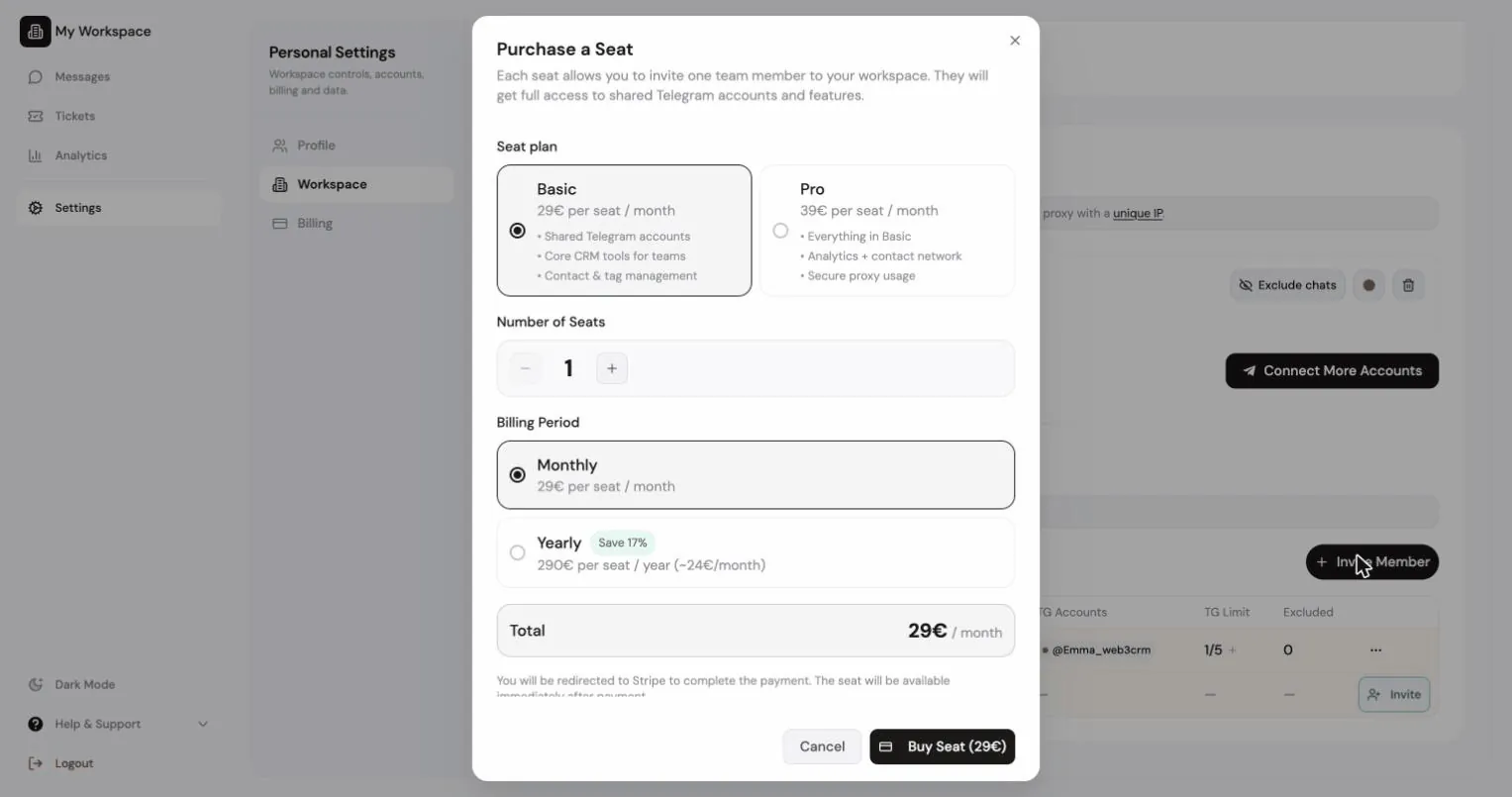
Si aún no tiene asientos: “Workspace creado. Compre asientos para invitar a compañeros.”
Unirse a uno
Sección titulada «Unirse a uno»Tres vías:
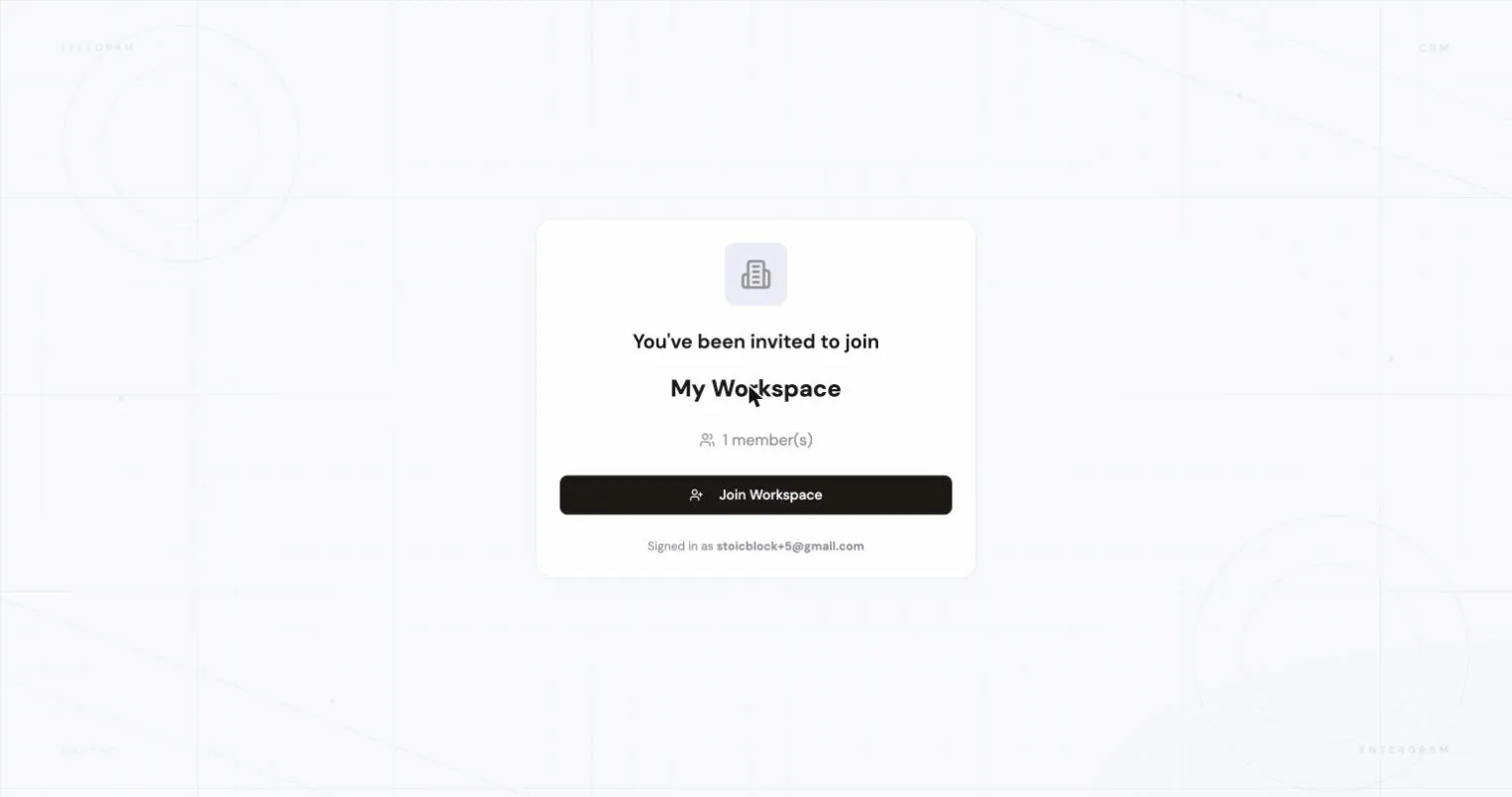
- Haga clic en un enlace de invitación, que abre la página de unión directamente.
- Pegue el enlace o el token en Configuración → ¿Tienes un enlace de invitación? → Unirse al espacio.
- Péguelo durante el onboarding en Unirse a uno.
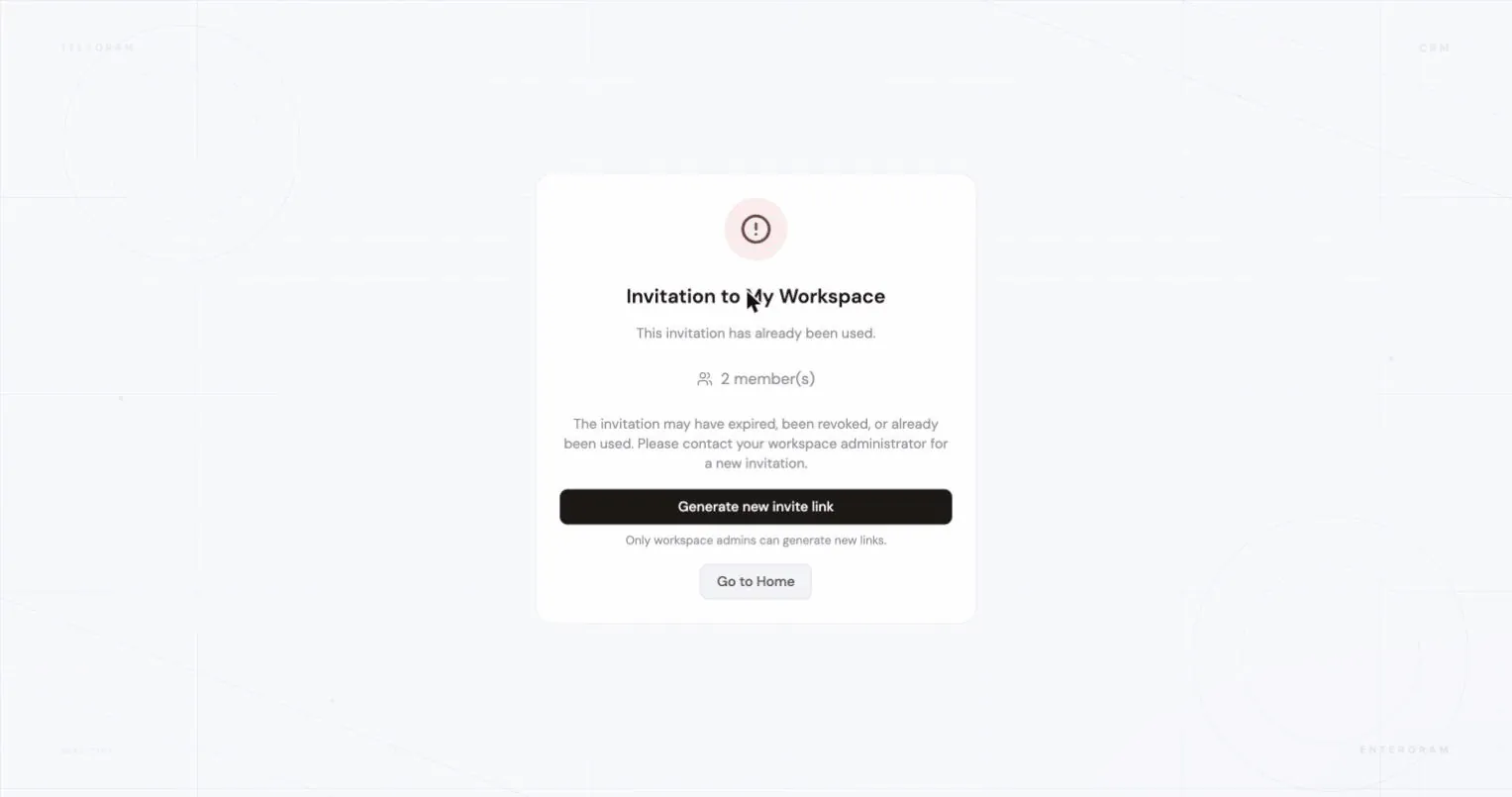
Los enlaces inválidos o expirados se rechazan antes de que ocurra nada.
Ajustes del workspace
Sección titulada «Ajustes del workspace»Configuración → Cuentas (propietarios y administradores):
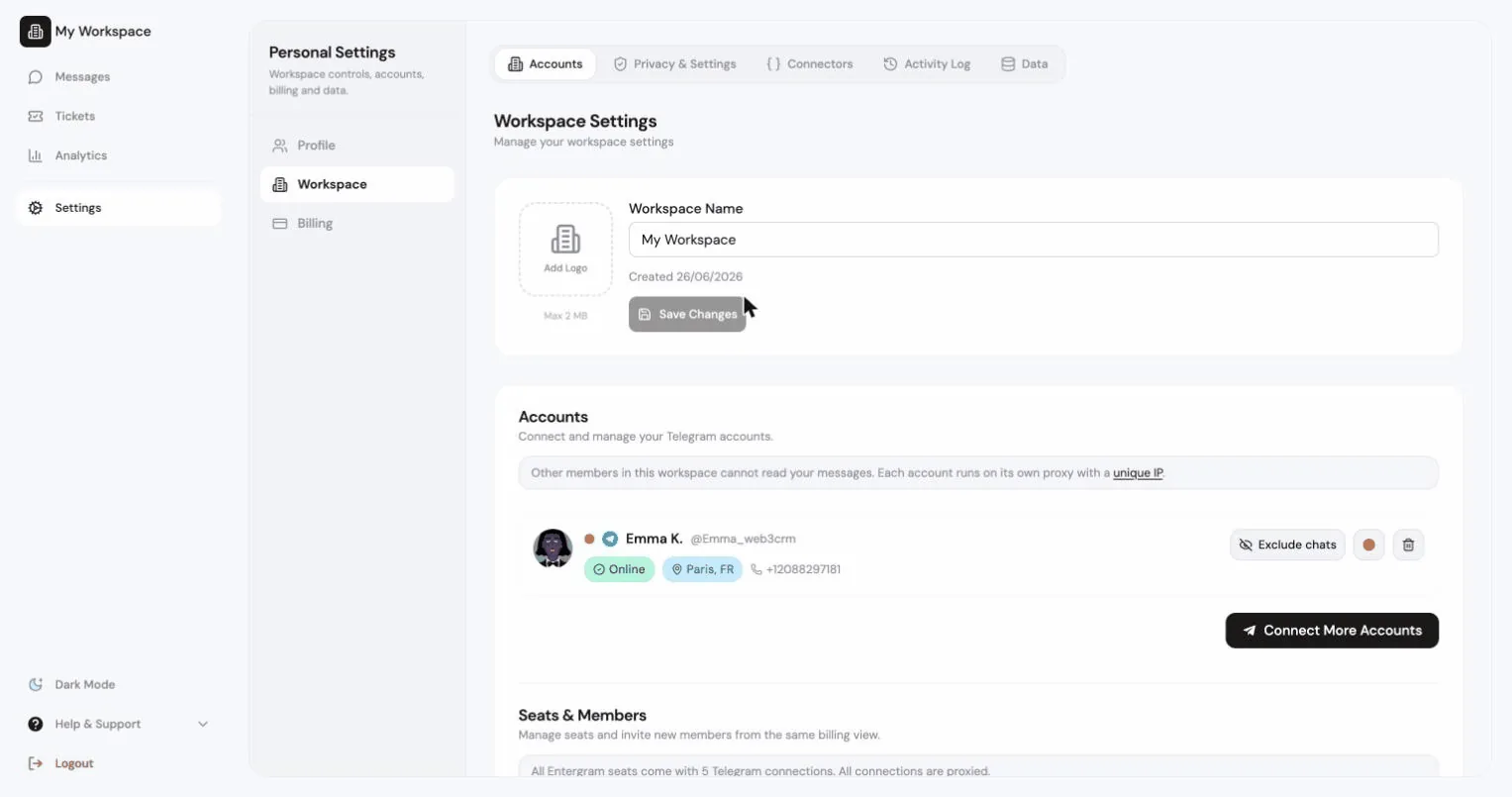
- Nombre del espacio, edítelo y use Guardar cambios.
- Logotipo, con Añadir logotipo para subir el suyo (hay un tamaño máximo) o Quitar.
- Metadatos: Plan, Asientos de pago, Creado el
{date}.
Dónde están los ajustes del workspace
Sección titulada «Dónde están los ajustes del workspace»| Pestaña de ajustes | Qué contiene |
|---|---|
| Cuentas | Nombre y logo, cuentas de Telegram, asientos, miembros, roles e invitaciones |
| Ajustes de privacidad | Todos los permisos de miembro y los valores por defecto operativos |
| Facturación | Planes, asientos, portal de Stripe |
| Datos | Exportaciones |
| MCP y API | MCP y API |
| Registro de actividad | Historial del registro |
Fuente de datos: Base de datos frente a En vivo
Sección titulada «Fuente de datos: Base de datos frente a En vivo»La cabecera del workspace puede alternar entre dos fuentes de datos:
- Database, “Base de datos con todos los contactos de las cuentas de Telegram conectadas a su workspace”, es decir, la vista almacenada del CRM.
- En vivo, la vista actual de Telegram delimitada por la cuenta. Se desactiva cuando no hay cuentas conectadas: “No hay cuentas conectadas disponibles para la vista en vivo.”
Salir de un workspace
Sección titulada «Salir de un workspace»Los miembros solicitan salir; no pueden marcharse por su cuenta.
- Configuración → Cuentas → Salir del espacio de trabajo.
- Añada un motivo opcional.
- Un admin o el propietario lo revisa.
Mientras está pendiente verá “Solicitud de salida pendiente, esperando la aprobación de un admin” y podrá Cancelar solicitud.
Si se aprueba, perderá el acceso a todos los datos del workspace y necesitará su propio plan para seguir usando la aplicación.
Los propietarios y administradores revisan las solicitudes en Solicitudes de salida con Aprobar y Rechazar.
Eliminar un workspace
Sección titulada «Eliminar un workspace»Configuración → Perfil → Zona de peligro → Eliminar este espacio de trabajo (solo el propietario). Debe escribir el nombre del workspace para confirmar.
Qué se elimina de forma permanente: tickets, registro de actividad, valores de campos personalizados del workspace, comentarios, archivos, conectores, claves de API, vistas compartidas y plantillas del workspace.
Qué no: sus cuentas conectadas. Se quedan en su perfil y simplemente se desvinculan del workspace. Puede crear un workspace nuevo más adelante y reutilizar sus asientos.
La facturación es aparte. Eliminar un workspace no cancela las suscripciones; gestiónelas en la pestaña Facturación a través del portal de Stripe.
Mientras se ejecuta la eliminación
Sección titulada «Mientras se ejecuta la eliminación»La limpieza ocurre en segundo plano:
{name}se está eliminando en segundo plano. El acceso a este workspace está en pausa hasta que termine la limpieza.
Si falla verá “La eliminación del workspace necesita atención”; elimínelo de nuevo para volver a encolar la limpieza.
Relacionado
Sección titulada «Relacionado»Preferencias de cookies
Respetamos tu privacidad. Elige qué cookies permitir; tu elección se aplica en todo el sitio. Política de cookies
Imprescindibles para que el sitio funcione, incluido recordar tus preferencias de privacidad. Siempre activas.
Nos ayudan a entender el uso del sitio y atribuir registros a socios de referidos. Opcional.